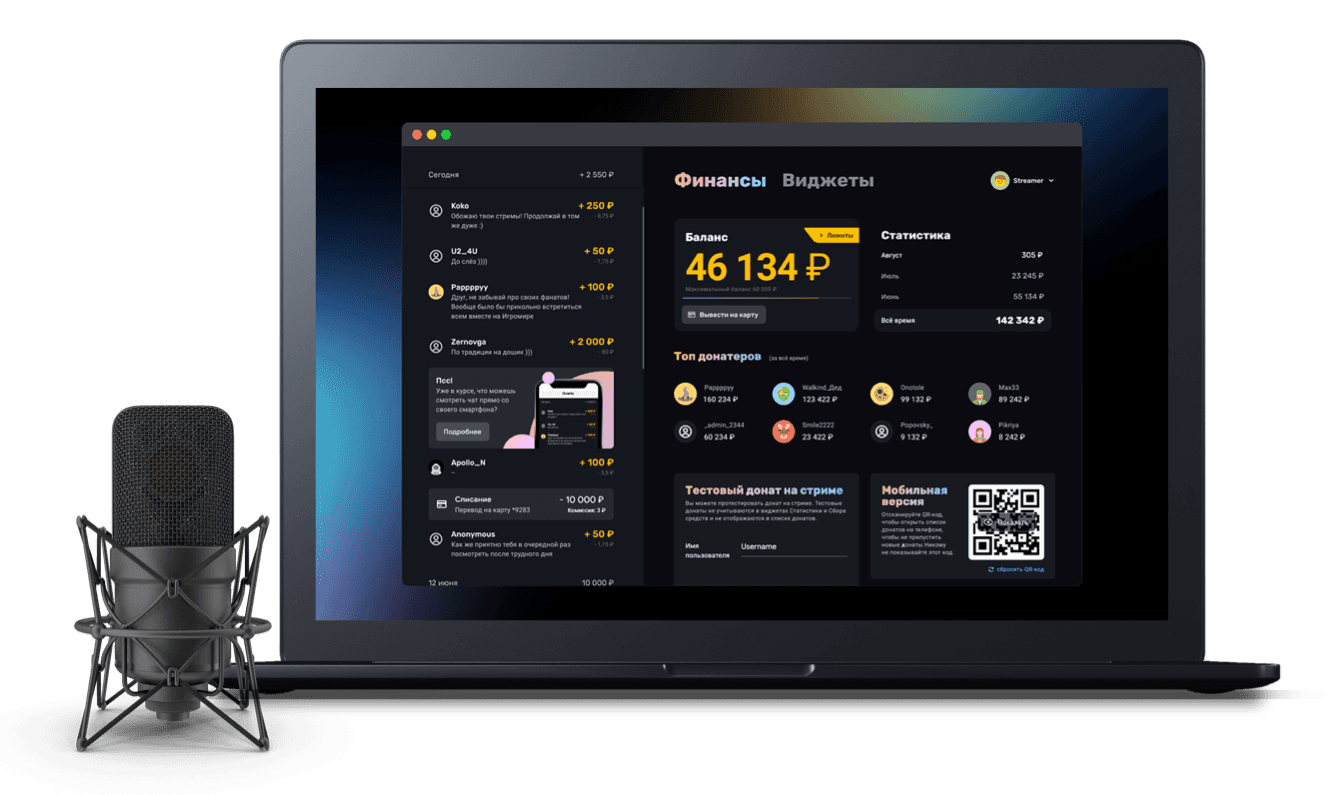
How to dress up your stream with frames
Adding a goal widget and a webcam window to your stream and framing them with Donatty frames
Every streamer wants their broadcasts to look great. Intros, frames and panels dress up a stream and make it memorable. They are more than decoration, too — they are part of how the interface is organised. We have made several sets of ready-to-use stream frames: a frame for the fundraising widget and a frame for your webcam, so you do not have to spend time designing your own.
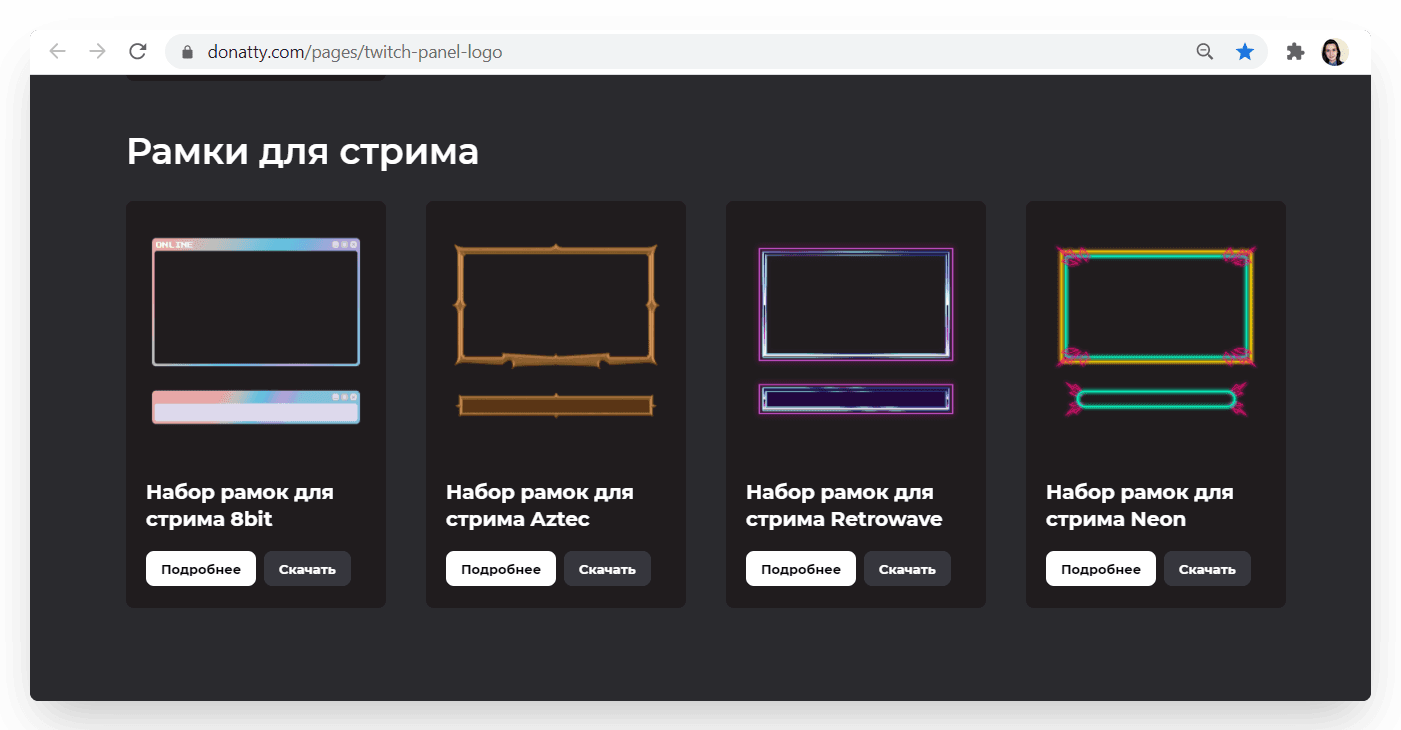
Choosing a set of stream frames
On the Twitch panels and stream frames page, download the archive with the set that suits your channel's theme. In the archive you will find two *.png files: a frame for the fundraising widget and a frame for your webcam. We will use these files to dress up the stream.
Framing the fundraising widget
Once we have settled on a design, let's add the goal bar to the stream. In OBS, click Add in the Sources panel, choose Browser and enter a name for the source, for example “Goal bar”. In the dialog that appears, paste the link you copied earlier into the URL field and click OK.
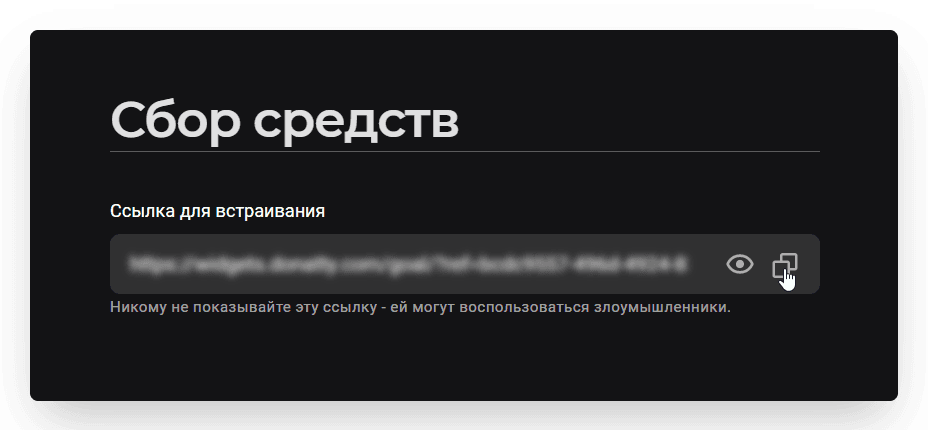
In the streamer dashboard, copy the link to the widget you have already configured and add it as a source in OBS. If you have not configured the widget yet, read our guide How to show a goal bar on stream.
In the Sources panel, click Add, choose Browser and enter a name for the source, for example “Goal bar”. In the dialog that appears, paste the link you copied earlier into the URL field and click OK. Position the widget inside the frame like this:
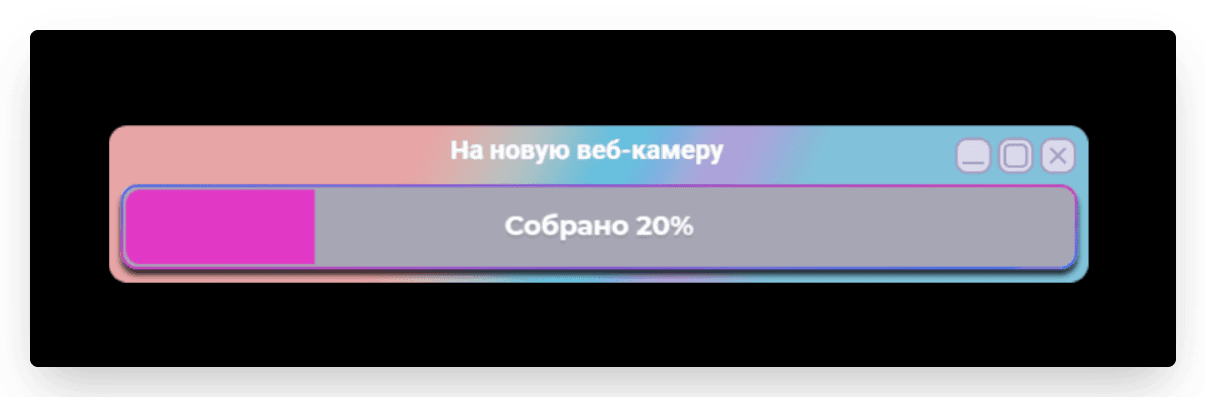
For convenience, you can group these two sources. Select them in the Sources panel, then right-click and choose Group selected items. Now you can move them together within the broadcast window — to the top or bottom, for example.
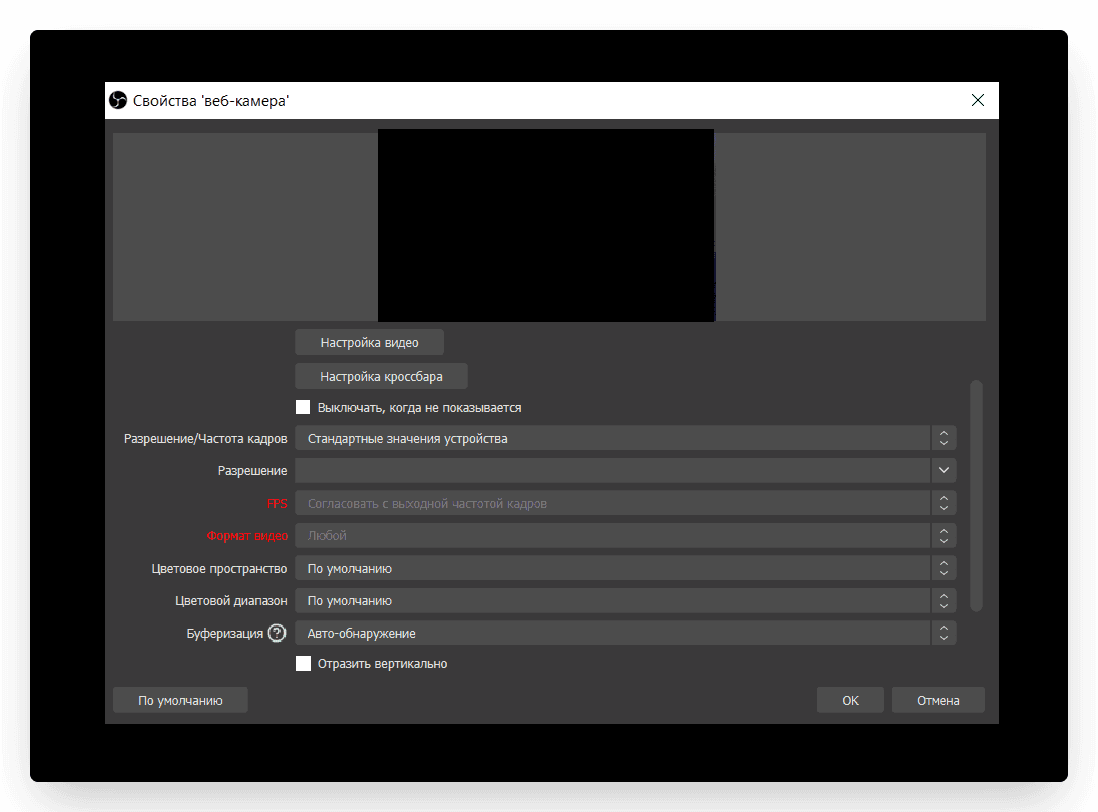
Now let's add a frame around your webcam image. A webcam frame is useful if you stream games — it helps the streamer's image stand out against the gameplay. First, add a video capture window to the stream. In the Sources panel, click Add, choose Video Capture Device and enter a name for the source. Pick your device, adjust the video and audio settings if needed and click OK.
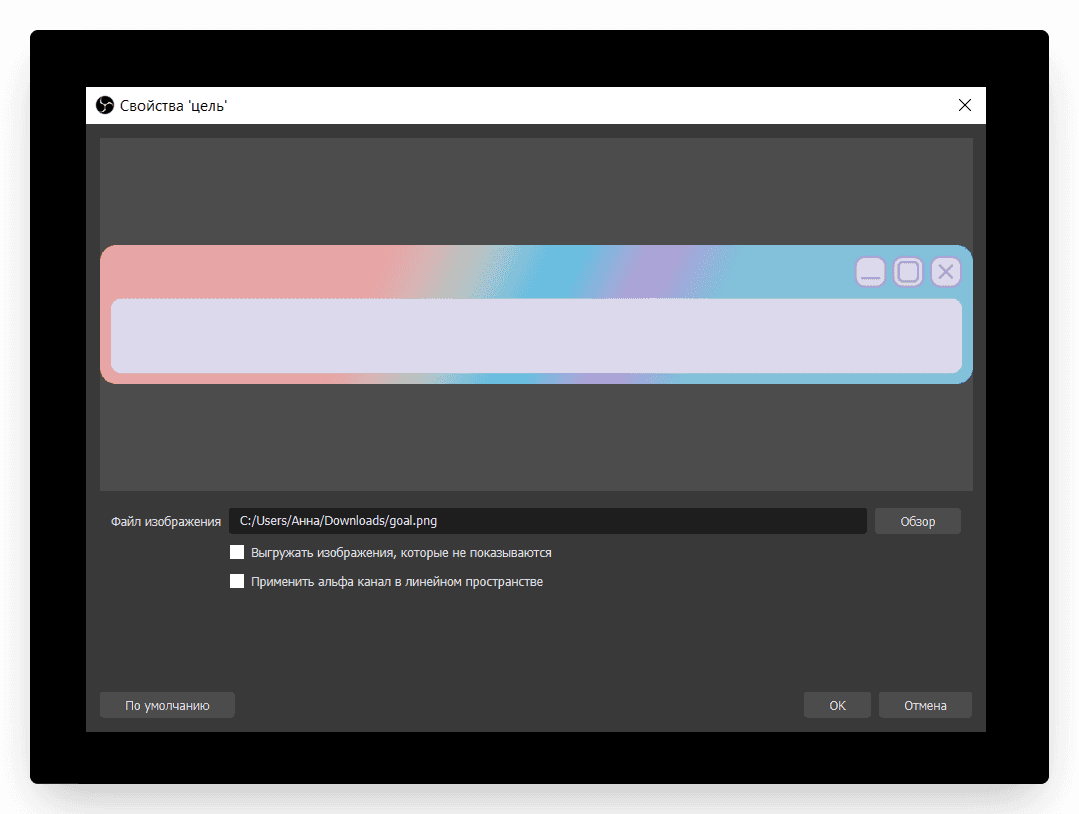
Now add the frame image, just as we did earlier with the fundraising widget: in the Sources panel, click Add, choose Image and enter a name for the source. Then click Browse, open the downloaded webcam frame image and click OK.
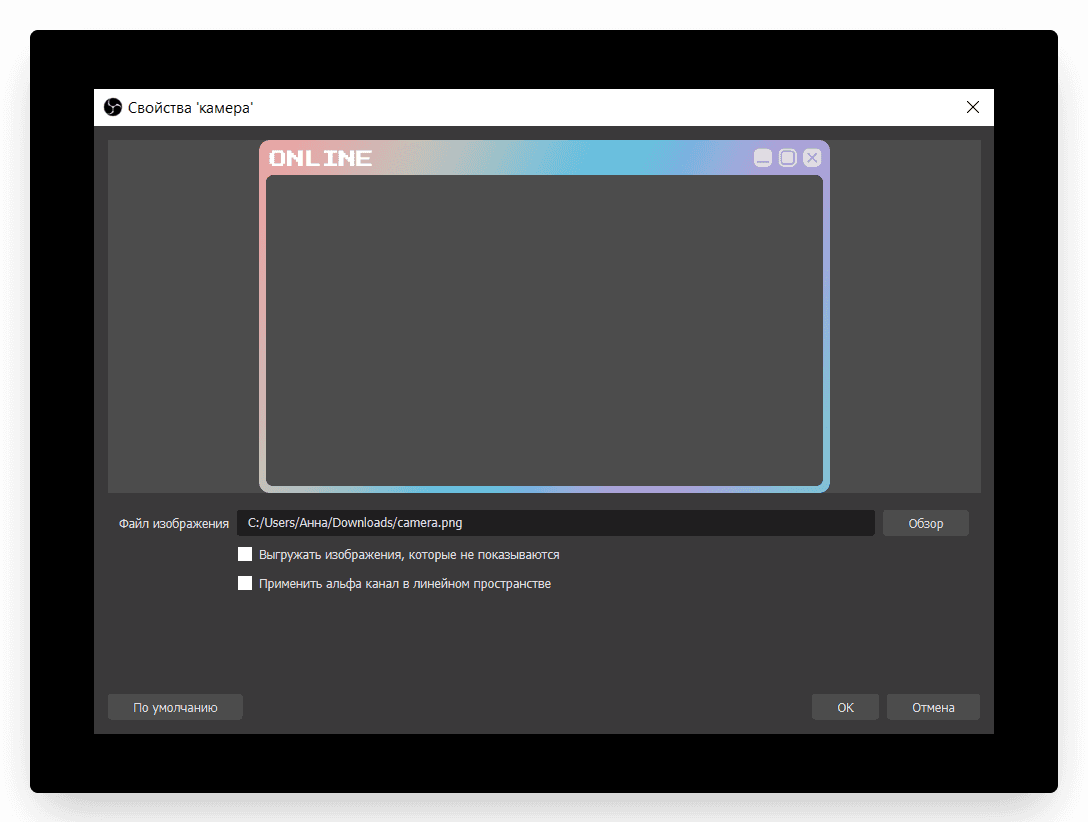
Position the webcam window inside the frame. These sources can be grouped too, so you can move them together and keep them from covering the main broadcast.
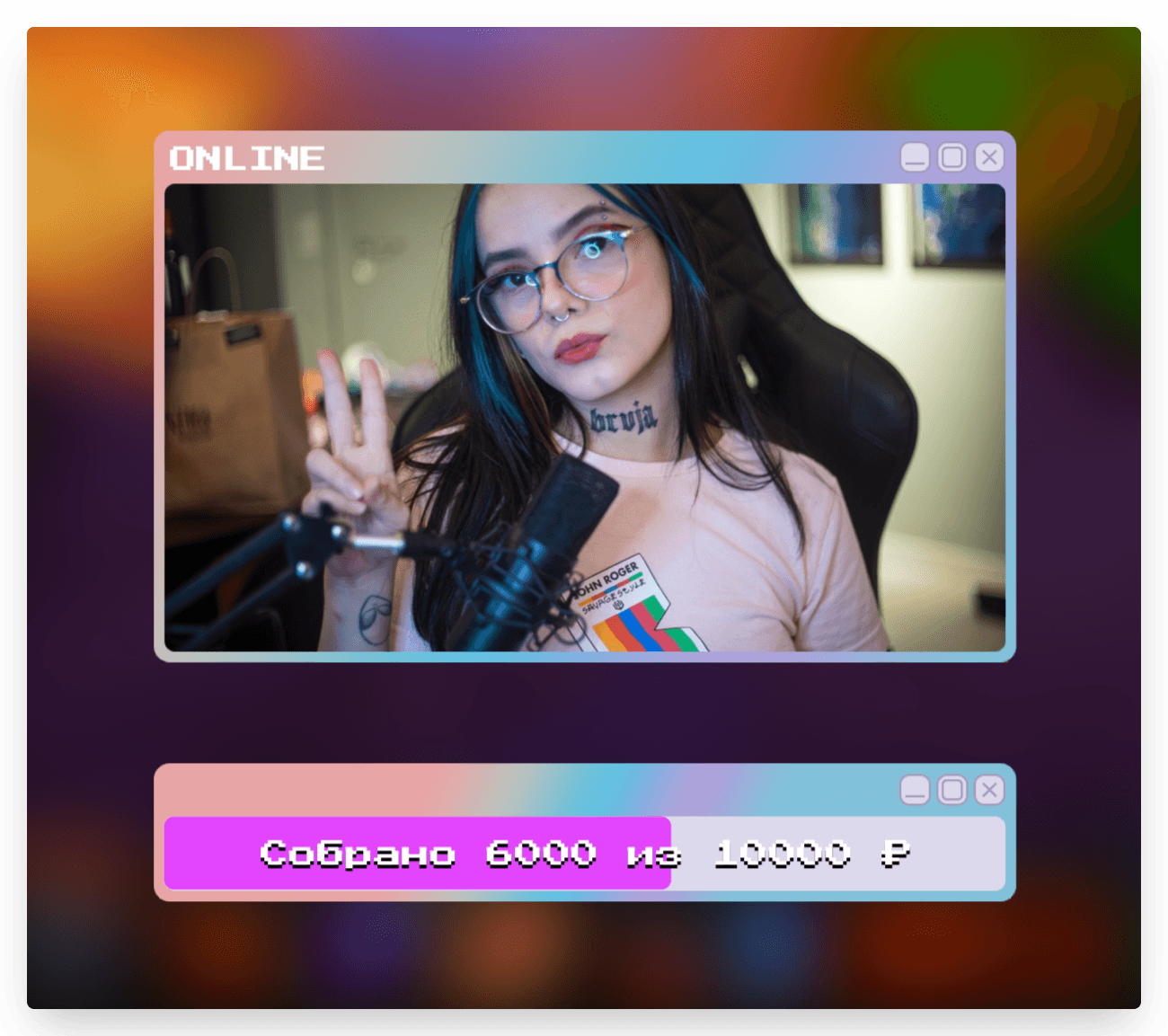
Dress up your streams with Donatty frames, make them more appealing to viewers, and earn more with Donatty!
Inspiring viewers to give and creating friendly competition with the top donors widget on stream
Adding the Goal widget to your stream: creating the widget, styling the bar, adding it to OBS