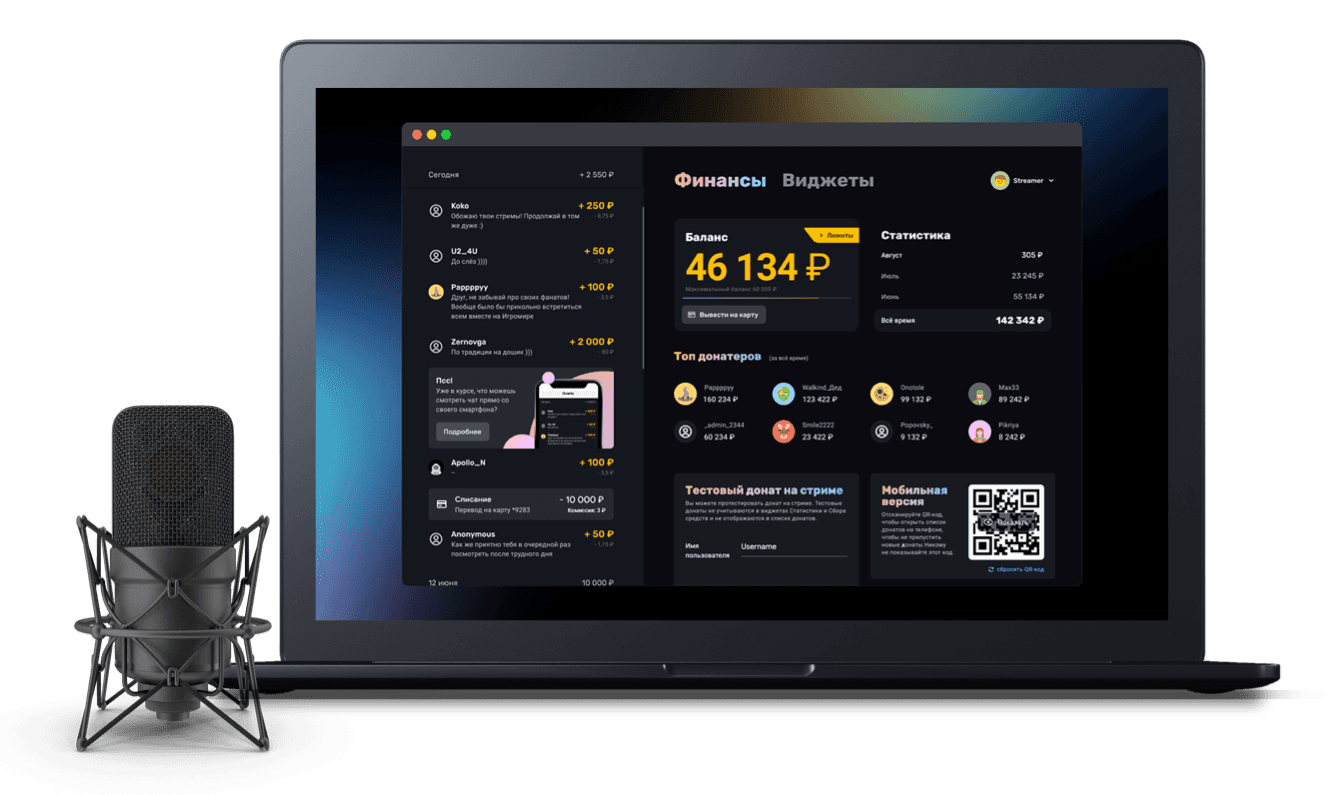
How to show a top donors list on stream
Inspiring viewers to give and creating friendly competition with the top donors widget on stream
When a streamer wants to thank their most loyal donors, or even create a sense of friendly competition, they add a top donors widget to their stream. It is a list of donors with the amounts they have donated over a given period. Let's look at how to get one on your own stream.
Finding the Top widget (or creating a new one)
You can create a new widget or use the default Top widget that was there from the start. Find it in the Widgets section under Statistics.
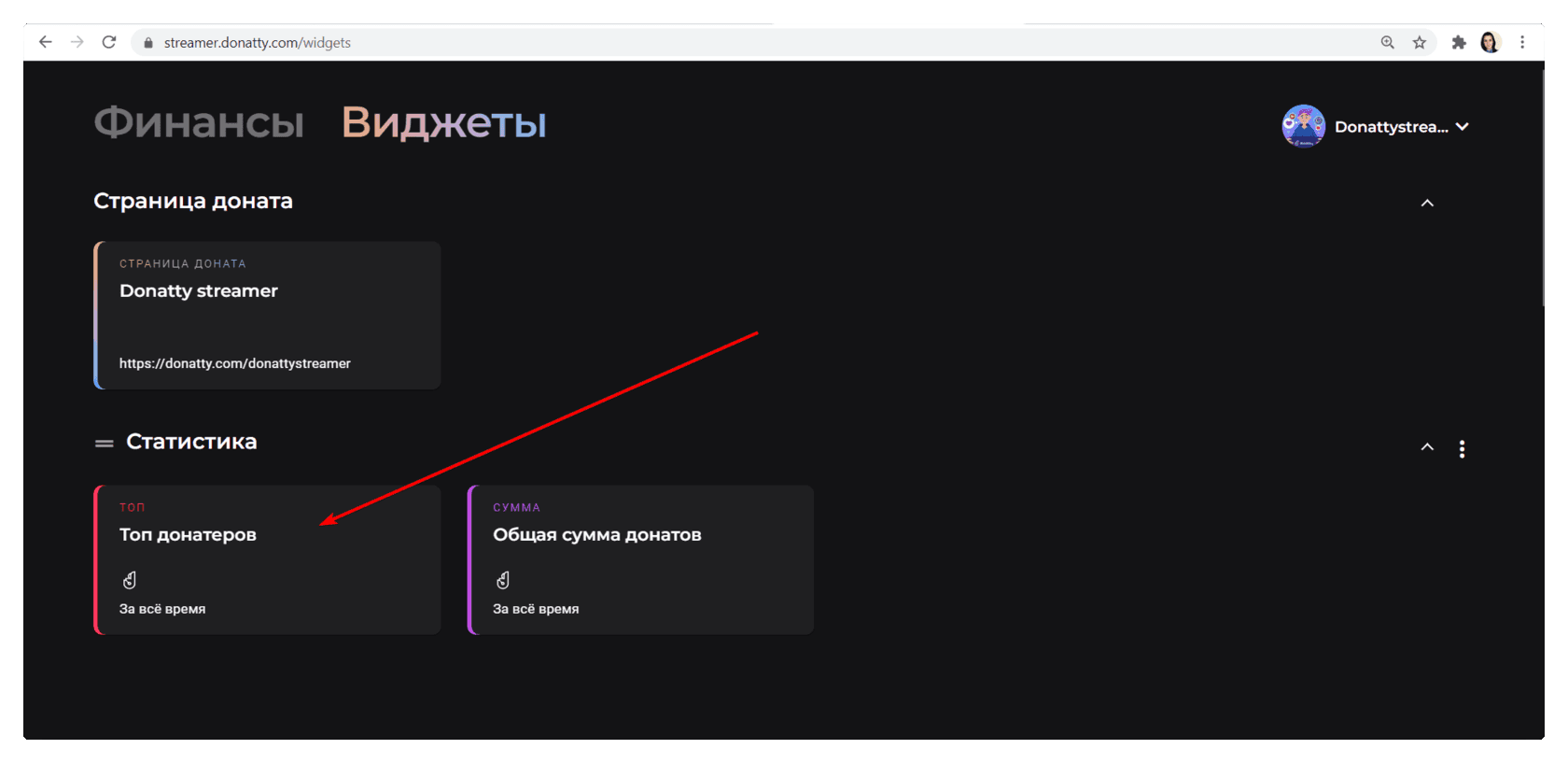
Configuring the widget
In this guide we will configure: the widget style; the data type and time period; the number of donors in the list and the number of rows.
What data goes into the list
In the Top widget settings you can choose what data appears in the list and over what period it is collected. The Conditions block has two drop-downs for this: “which data to use” and “over what period”.
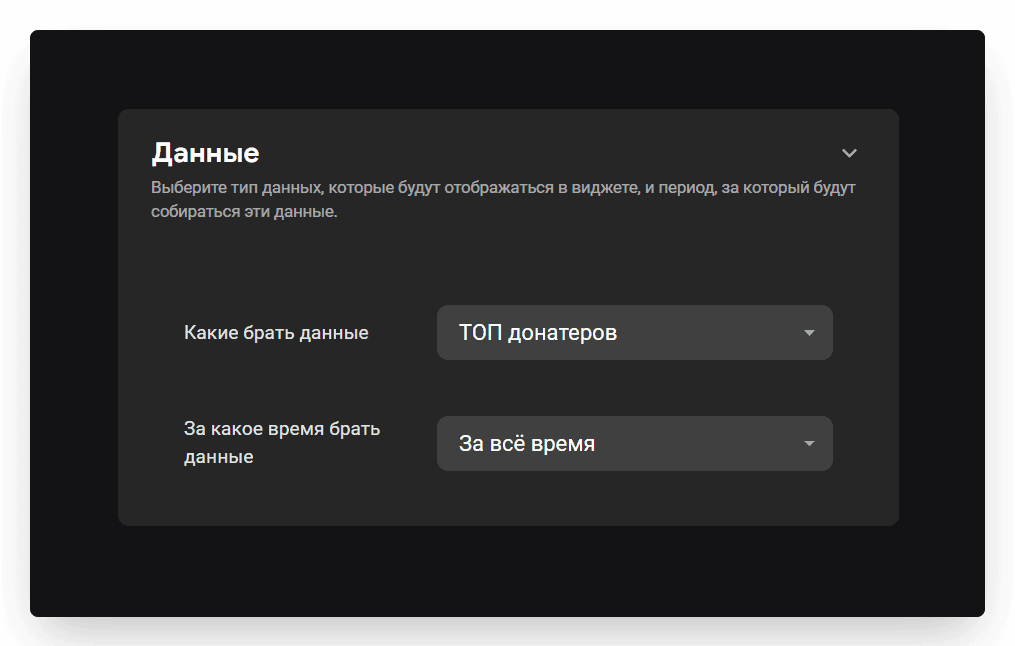
For “which data to use” we need Top donors. As the time period, popular streamers usually choose “Current month”, while newer streamers often do not limit it at all and choose “All time”.
Widget style
On the Style tab you can choose how the widget is displayed. There are two main options: showing the top as a flat list or as a ticker.
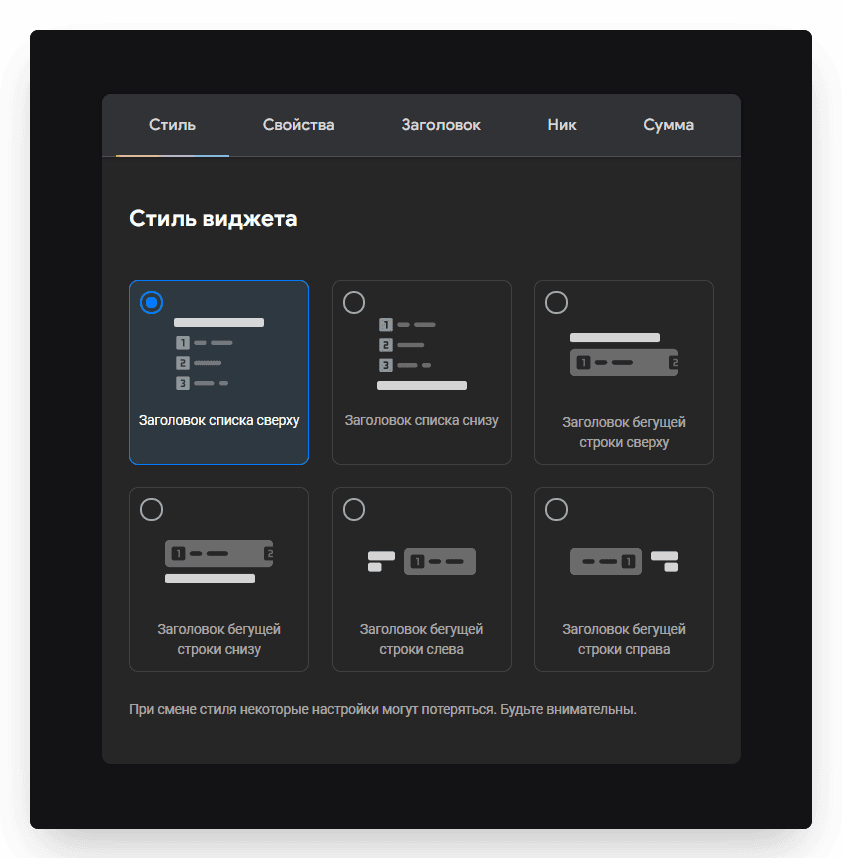
Which you pick depends on how much free space you have on your OBS scene and how much attention you want to draw to the ranking. A ticker draws less attention; a large list draws more.
Number of donors and rows
In the widget settings, on the Properties tab, you will find two important options: the number of entries and the number of rows. How they work needs a little explaining.
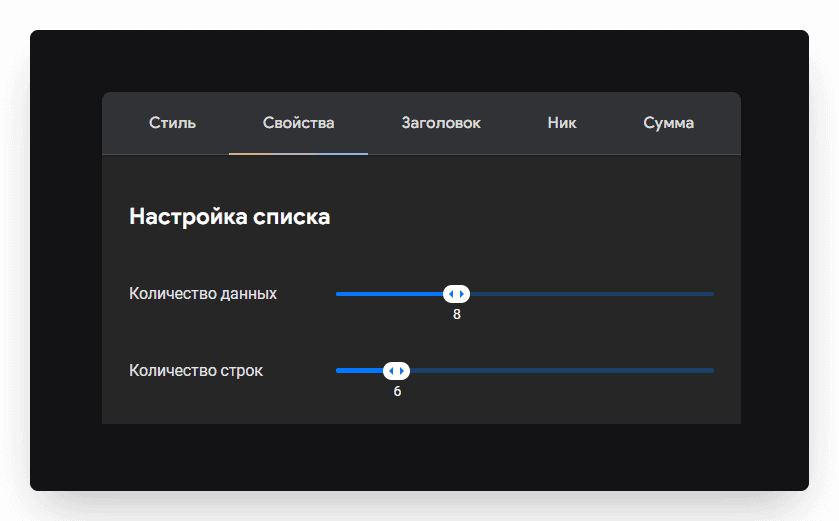
The “Number of entries” setting determines how many items the list holds in total. The maximum here is 20 and the minimum 1. The “Number of rows” setting determines how many rows are shown on screen at once. The maximum is 10 and the minimum 1. If the number of entries is greater than the number of rows, the list first shows the first X rows and then switches to the next ones — the same way airport departure boards work. The speed of that switching is controlled by the “List animation scroll speed” setting.
Tip: for obvious reasons, a ticker cannot have more than 1 row.
Adding the top donors widget to your stream in OBS
Once the widget is configured, we need to add it to the stream. First copy the widget link, which you will find at the top of the widget settings screen. To copy it, just click the button to the right of the link field.
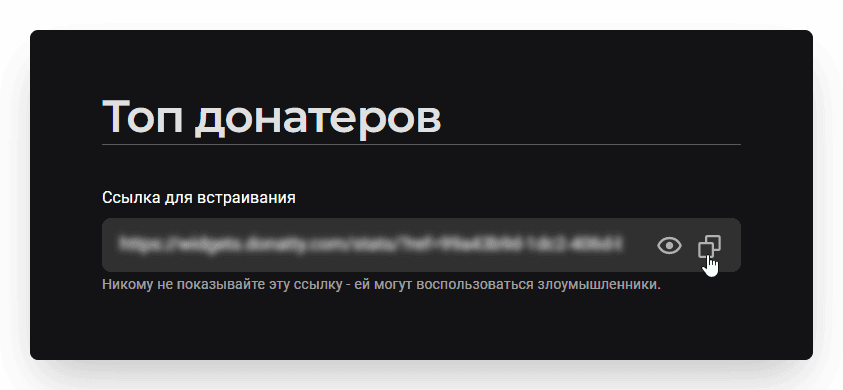
Then go to OBS, click Add in the Sources panel, choose Browser and enter a name for the source, for example “Top donors”. In the dialog that appears, paste the link you copied earlier into the URL field and click OK.
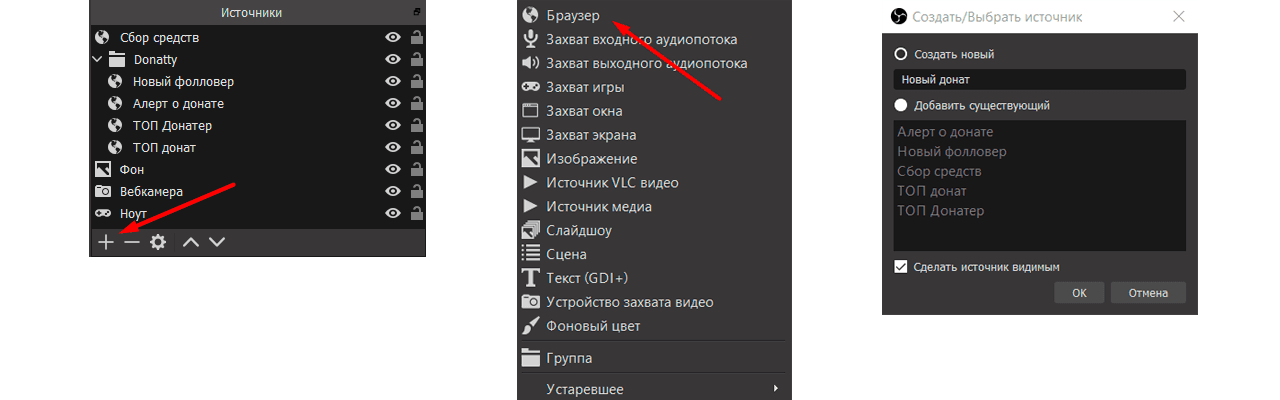
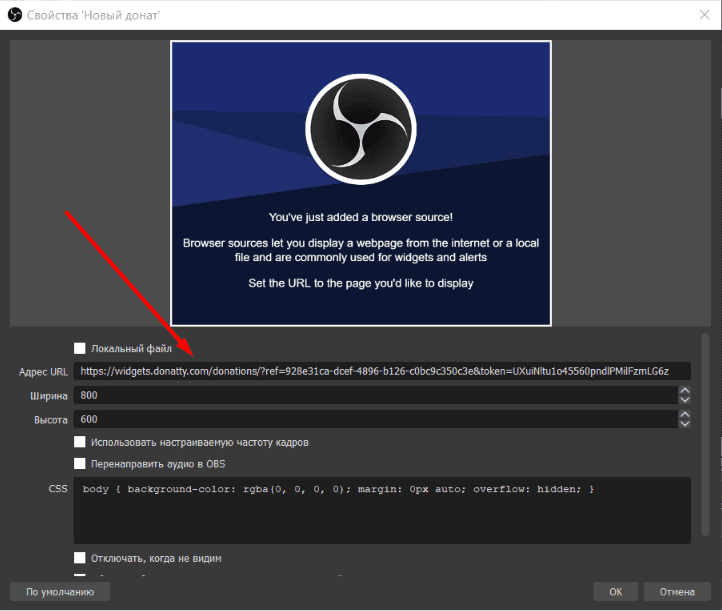
That completes adding the widget.
The default top donors widget
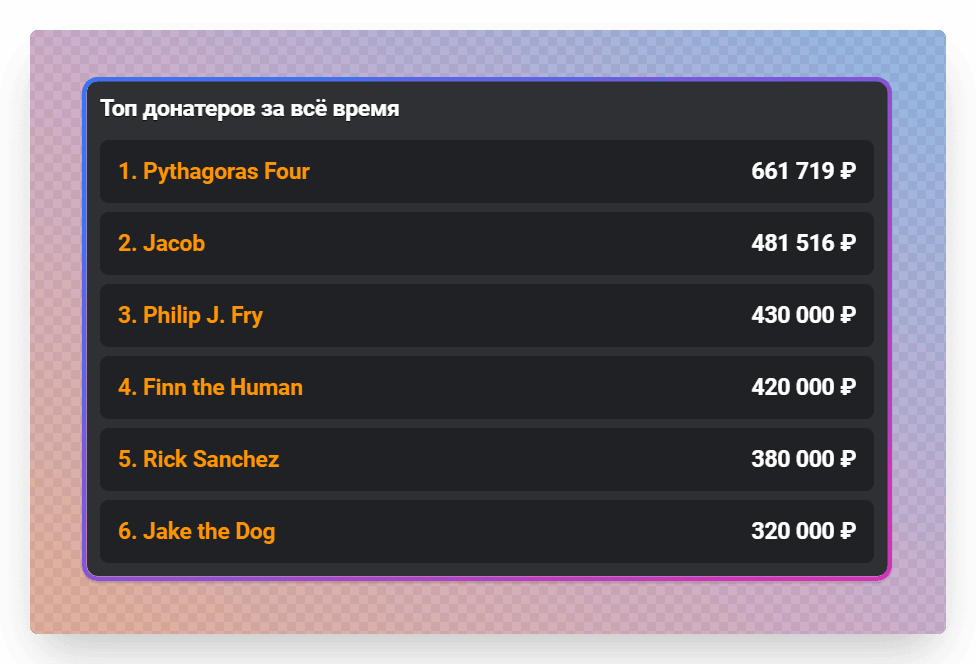
On stream, the top donors widget with its default settings looks roughly like this:
Adding the Goal widget to your stream: creating the widget, styling the bar, adding it to OBS
Customising the look of the goal bar