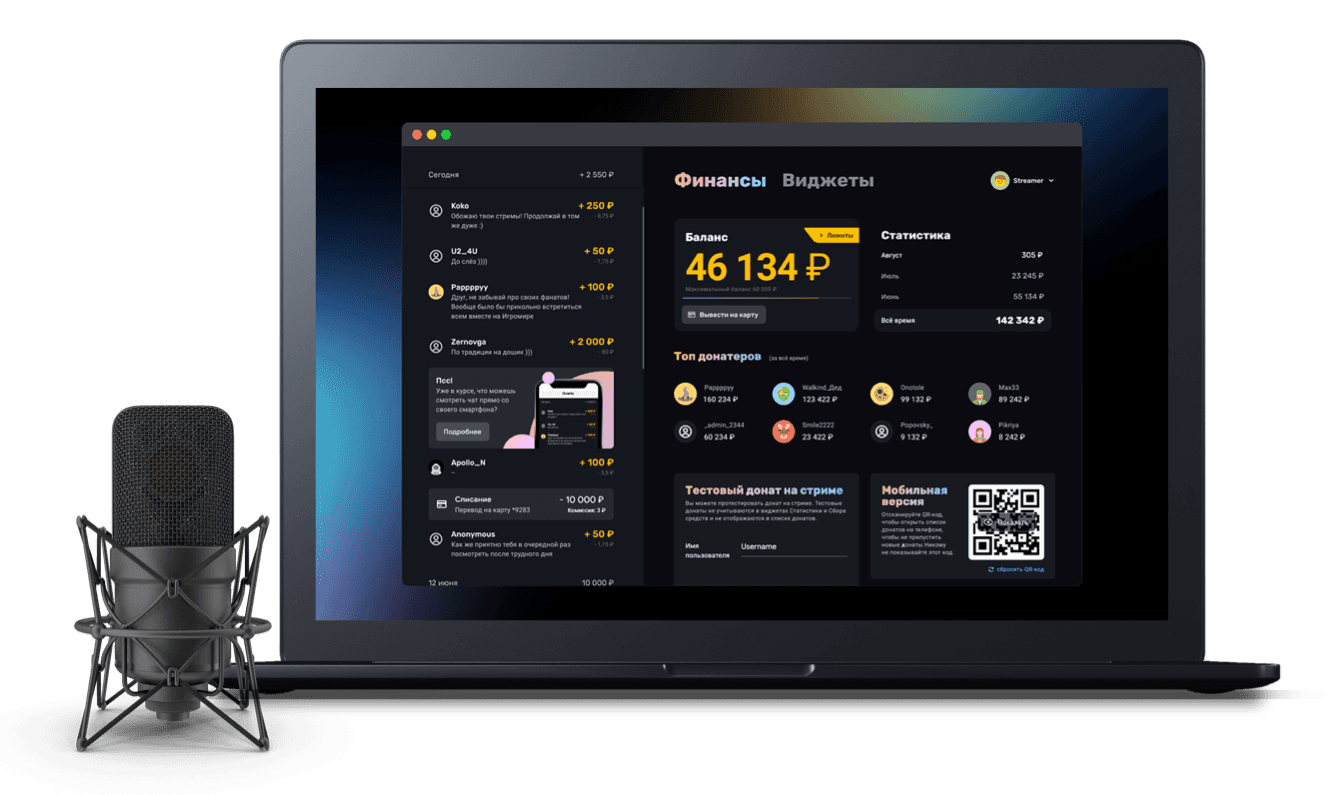
How to show a goal bar on stream
Adding the Goal widget to your stream: creating the widget, styling the bar, adding it to OBS
A goal bar is a very common widget on popular streamers' broadcasts. It is a bar that fills up as donations come in — usually showing the fundraising target and the number of days left until it ends. To build one in Donatty we will use a Goal type widget. To do that you need to:
find the default goal widget in the list, or create a new one;
configure the goal widget to your taste;
add it to your stream;
see how it behaves on your donation page.
Finding or creating the fundraising widget
When a user registers, the system automatically creates all the default widgets, the goal widget among them. It is called Fundraising. You will find it in the group of the same name in the Widgets section.
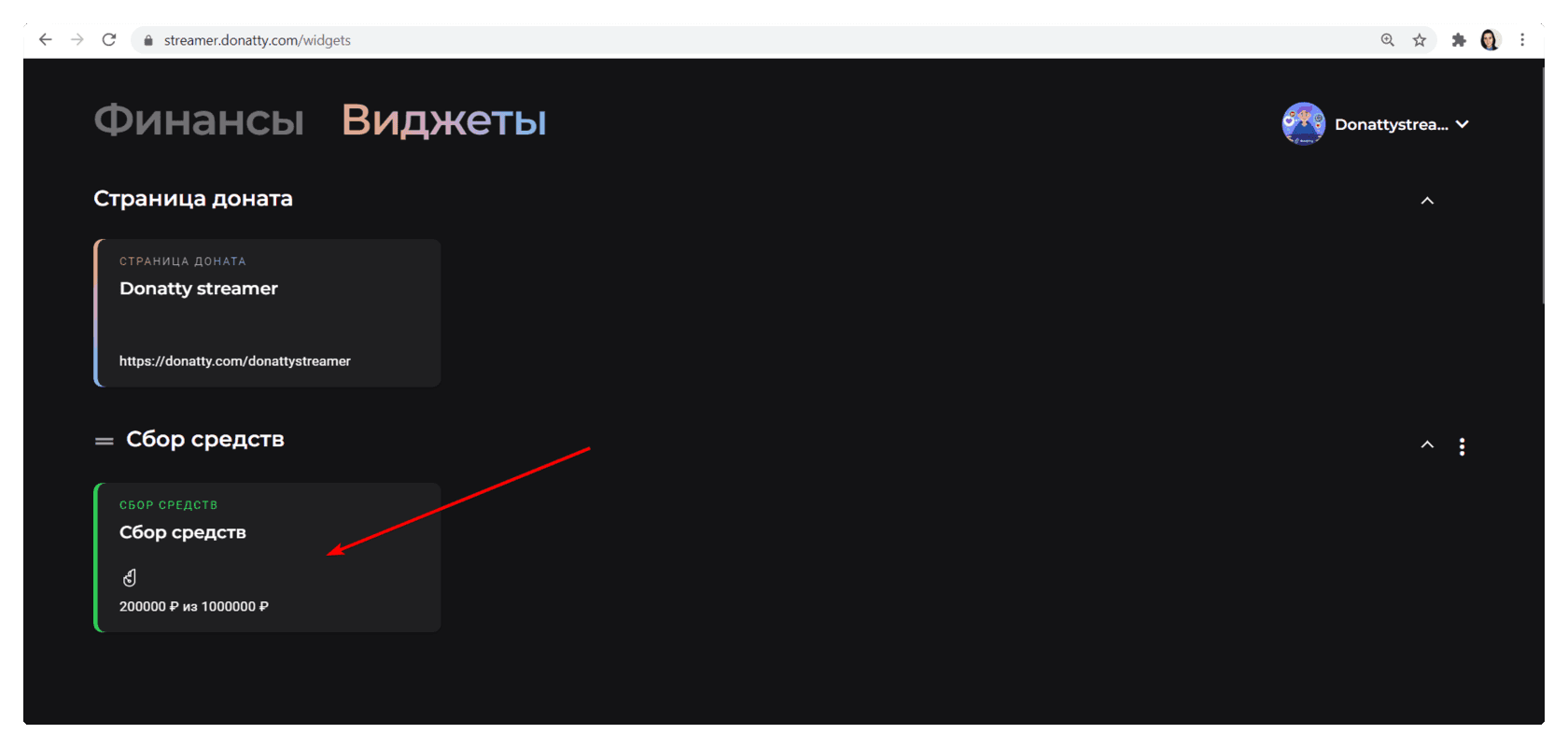
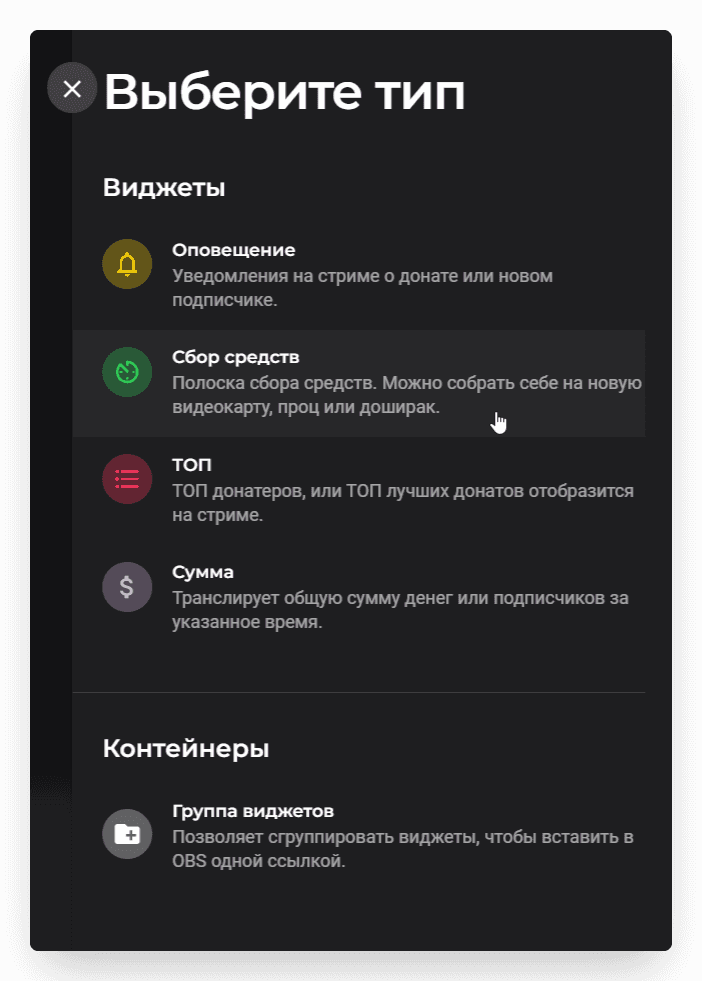
If you accidentally deleted the widget or simply want a new one, use the Create widget button and choose Fundraising from the menu.
Setting up the goal bar for your stream
The fundraising widget settings screen lets you change almost everything about how the widget looks and works. This time, though, we will only cover how to:
change the target and starting amounts on the goal bar
change the heading and the text on the goal bar
Target and starting amounts on the goal bar
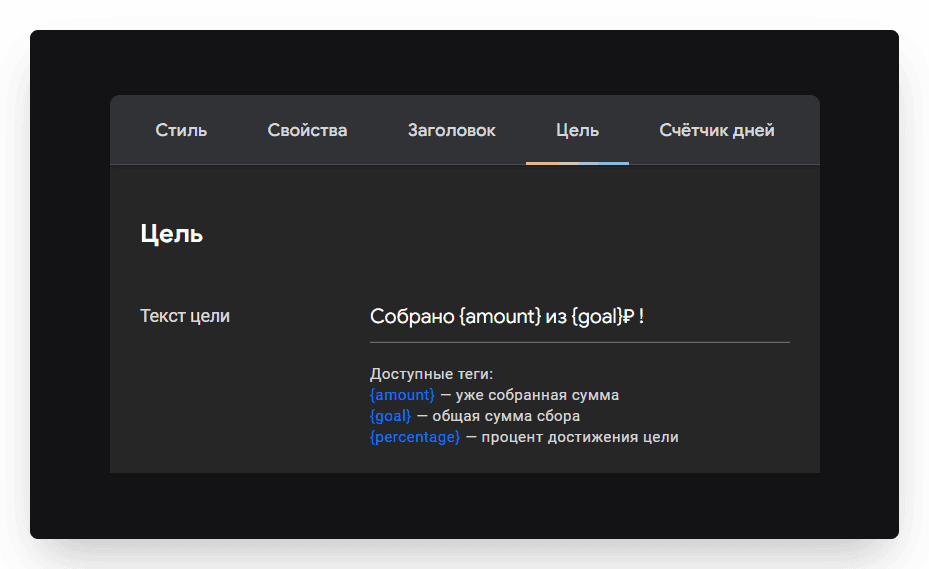
The target and starting amounts are the amounts the fundraiser runs from and to. They are shown on the goal bar itself, in the format “Raised {amount} of {goal} ₽!”, where {amount} is the starting amount (or the amount already raised) and {goal} is the overall target.
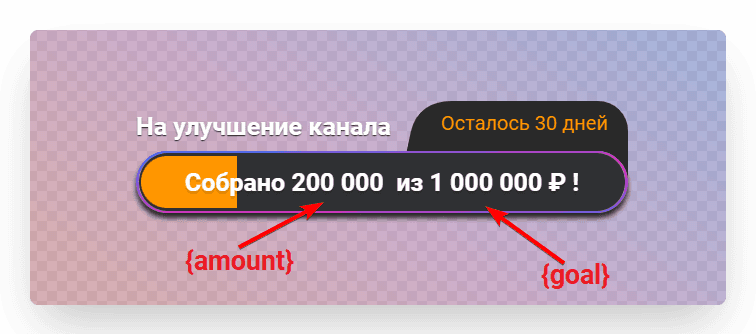
You can change these at any time in the widget settings, in the Fundraising target block.
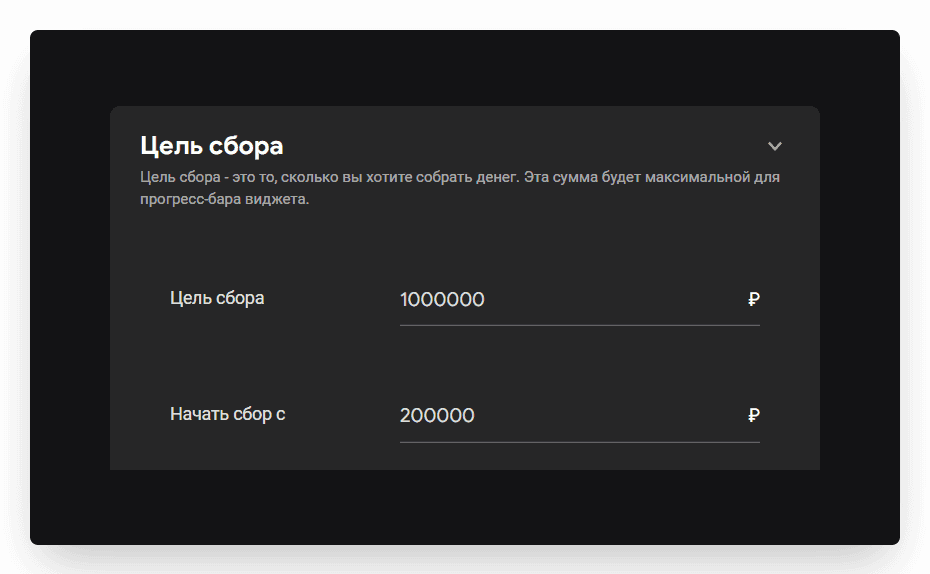
Important: the “Start the fundraiser at” setting can be changed at any time. For example, if you receive part of the money through a channel Donatty does not see, you can simply raise that amount by hand.
Heading and text on the goal bar
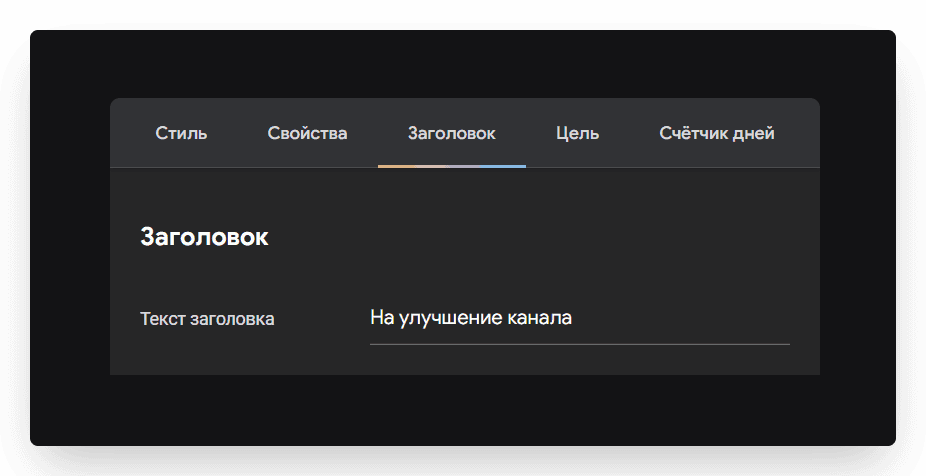
The heading is the text that usually states what you are raising money for. It is shown somewhere near the goal bar, but outside it. You can configure it in the settings, on the Heading tab.
The text shown on the goal bar itself can be configured too. Open the Goal tab in the widget settings. The tags listed under the Goal text field make this text easy to compose.
Adding the goal bar to your stream in OBS
Once the fundraising widget is configured, we need to add it to the stream. First copy the widget link, which you will find at the top of the widget settings screen. To copy it, just click the button to the right of the link field.
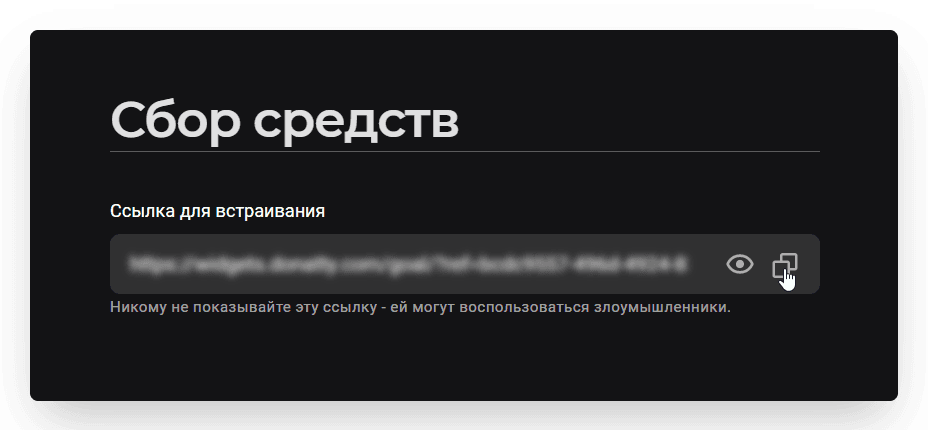
Then go to OBS, click Add in the Sources panel, choose Browser and enter a name for the source, for example “Goal bar”. In the dialog that appears, paste the link you copied earlier into the URL field and click OK.
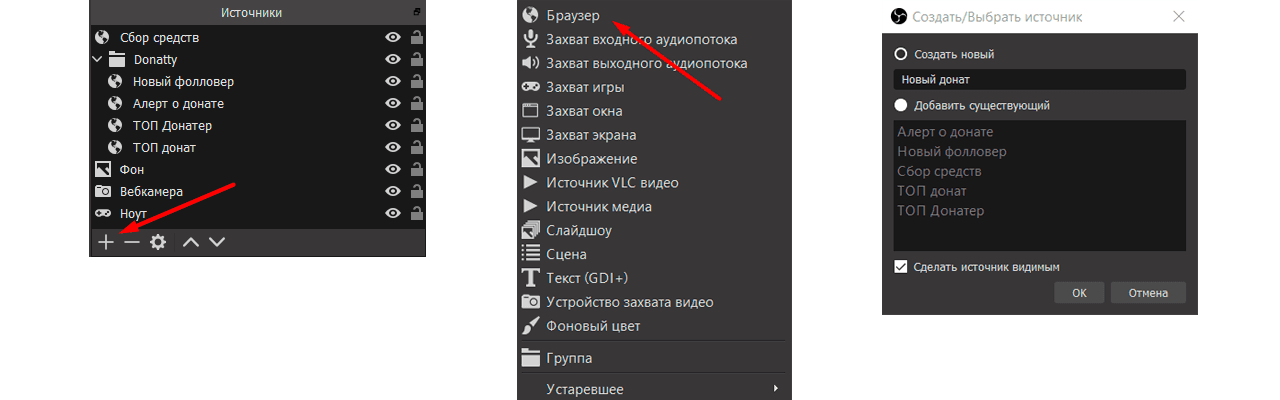
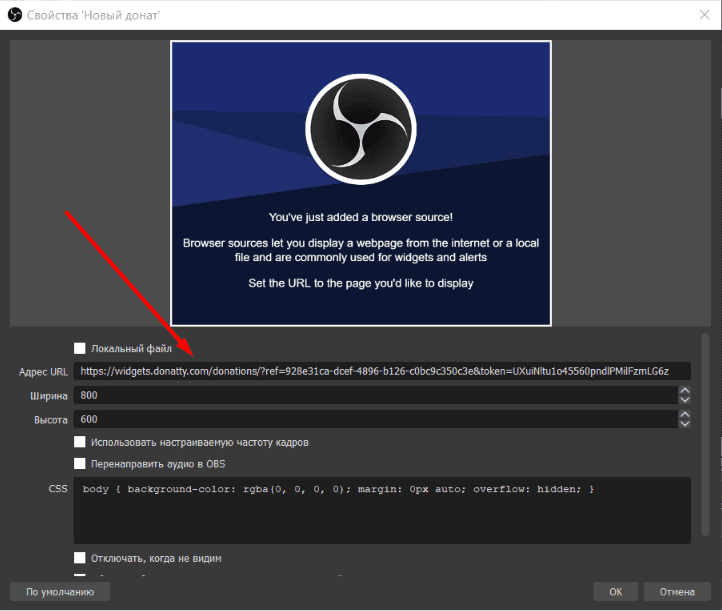
That completes adding the widget.
The goal block on your donation page
Once the fundraising widget is on your stream (or at least added to an active scene in OBS), a donation goal block appears on your donation page. If you only have one fundraising goal, it is selected by default for every donation. If, however, you create several goal widgets and add them to your stream, the goal block on your donation page will let the donor choose which goal to support.
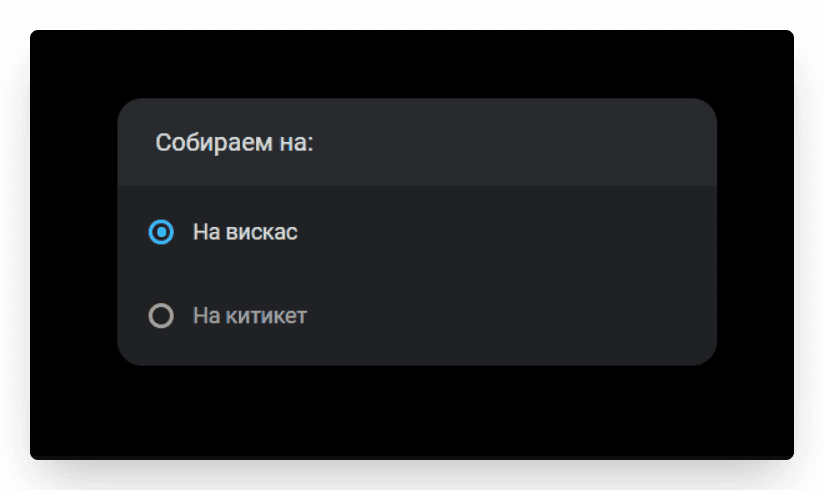
Important: the donation goal selector appears on your donation page only while the corresponding widgets are active in OBS. If you want the goal bars hidden on stream but the choice still available on your donation page, just turn off those sources' visibility (the eye icon) in OBS.
Inspiring viewers to give and creating friendly competition with the top donors widget on stream
Customising the look of the goal bar