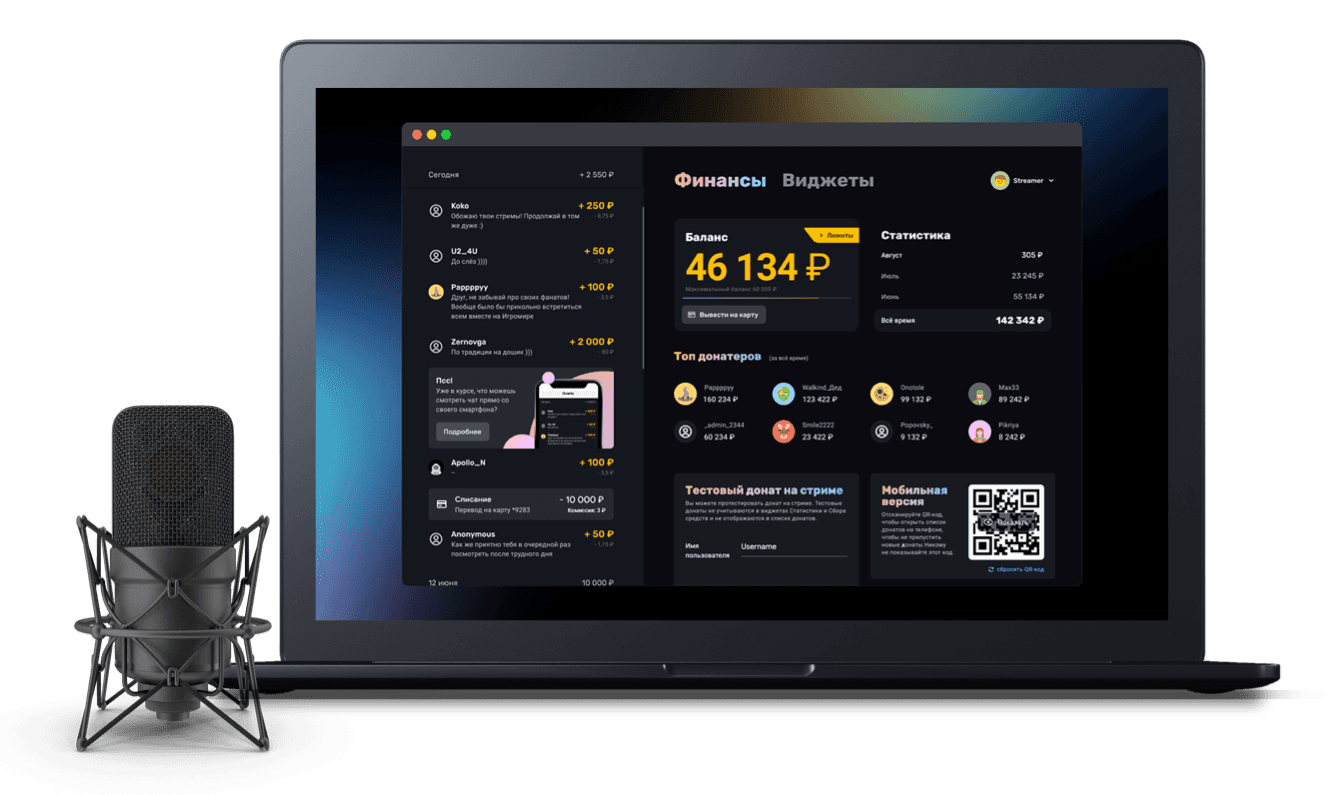
MEDIA WIDGET

Every time viewers tip to launch a track or a YouTube video, a player with their content appears on the stream. It makes the stream more fun, the audience gets involved and tips more.
Keeping viewers around
The media widget pulls viewers into the stream: reactions, replies, taking part, feeding the local memes. The more of that kind of talk there is, the faster your audience grows.
More tips
When a viewer can genuinely change something on the stream (and music certainly counts!) tipping becomes more interesting. So the media widget = more tips.
Background music
The widget can also be used to let viewers control the background music while the streamer is busy: carrying a match or deep in a story.
All media lines up in a single playlist: you can show it on stream, manage the queue and use it as the basis for games and interaction.
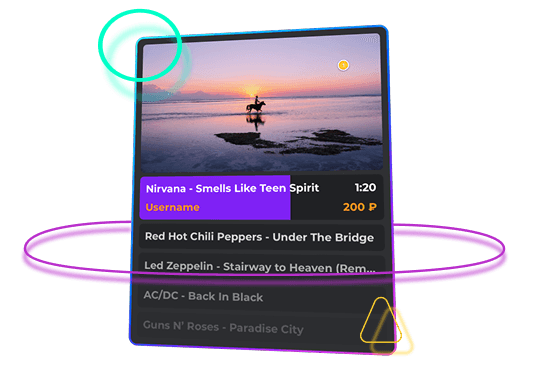

You decide which videos can make it onto the stream, by number of likes and views. No accidental cringe or banned content.
Getting media into the playlist can be tied to conditions on the tip. For example, content is added only when the amount is over 100 roubles.


Control playback from your phone, your computer or a dock panel in OBS
The widget is highly customizable: you can control the position of the elements, their colors, transparency, shadows, outline and many other properties.

Switch to the Pro plan and enjoy a 5% fee on tips, faster withdrawals and other extra features for professional streamers.
More about pricing


▶

Sign up for Donatty from your computer
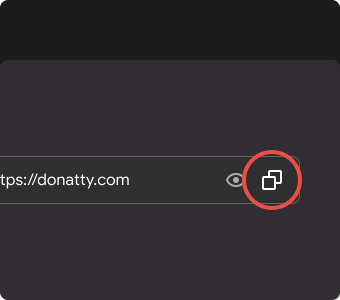
Go to Widgets – Media and copy the widget link

Paste the link into OBS via Menu – Source – Browser
A guide to setting up the media widget
The media widget lets viewers send videos along with a tip, and lets the streamer put them on stream and control playback in a convenient way.
Read more →
How to set up tip moderation
Pre-moderation exists so that tips are not sent to the on-stream alert automatically, but are checked first.
Read more →