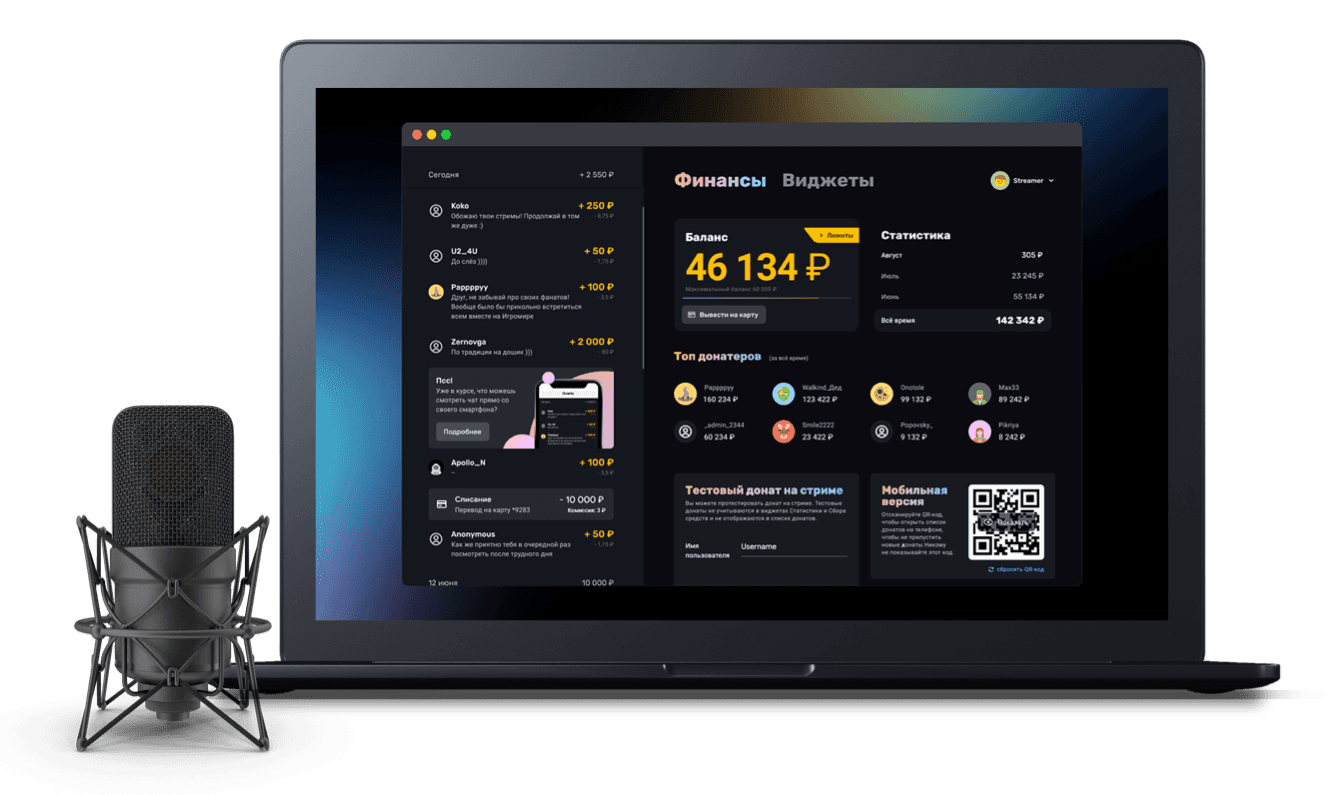
How to hide the day counter and the goal amount on the fundraising widget
Customising the look of the goal bar
A goal bar usually shows, alongside the amount raised, the target of the fundraiser and the number of days left until it ends. But sometimes there is no need to show the day counter or the amount you want to raise. That is where the widgets' extensive design settings come in — they let you hide the elements you do not need.
Hiding the day counter background
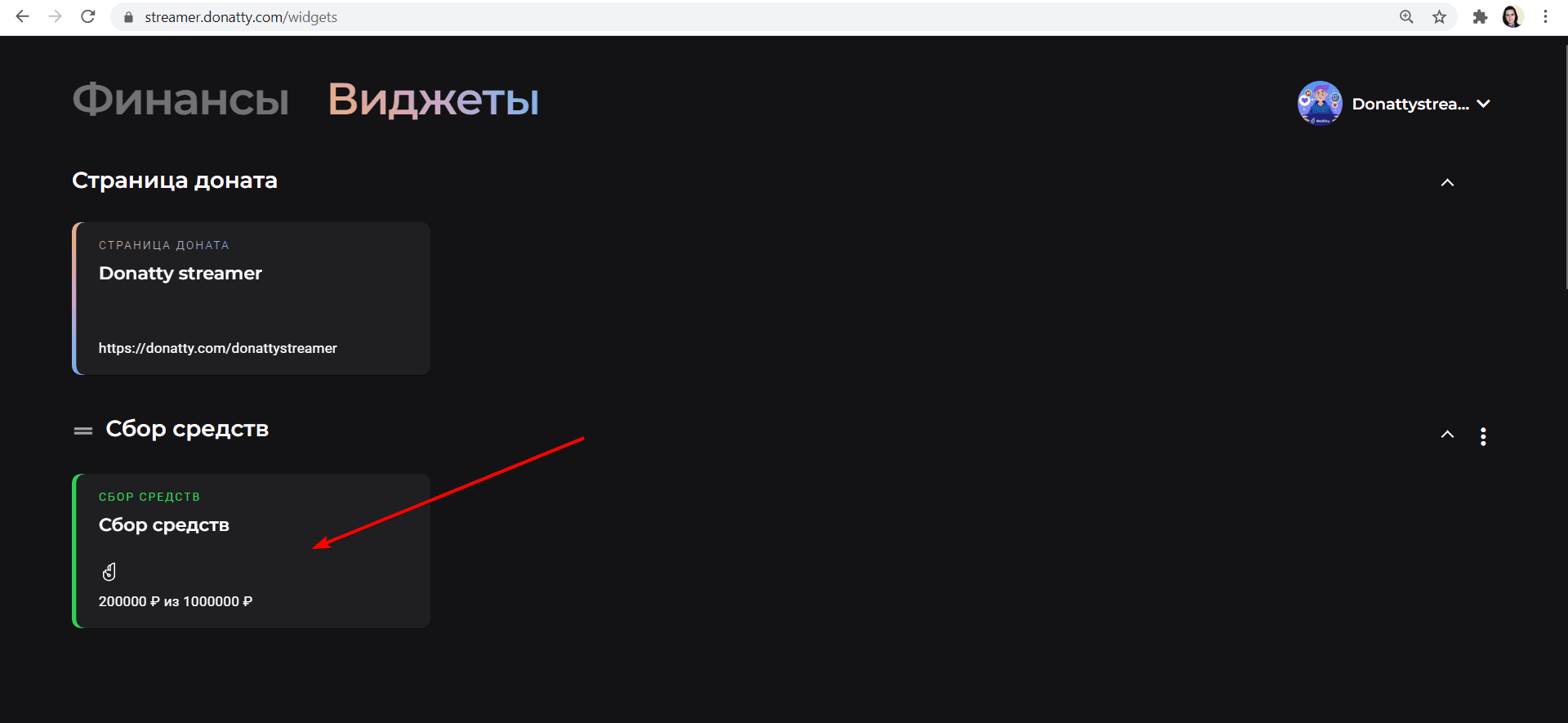
To get to the settings, open the Widgets tab and click the fundraising widget you want to change.
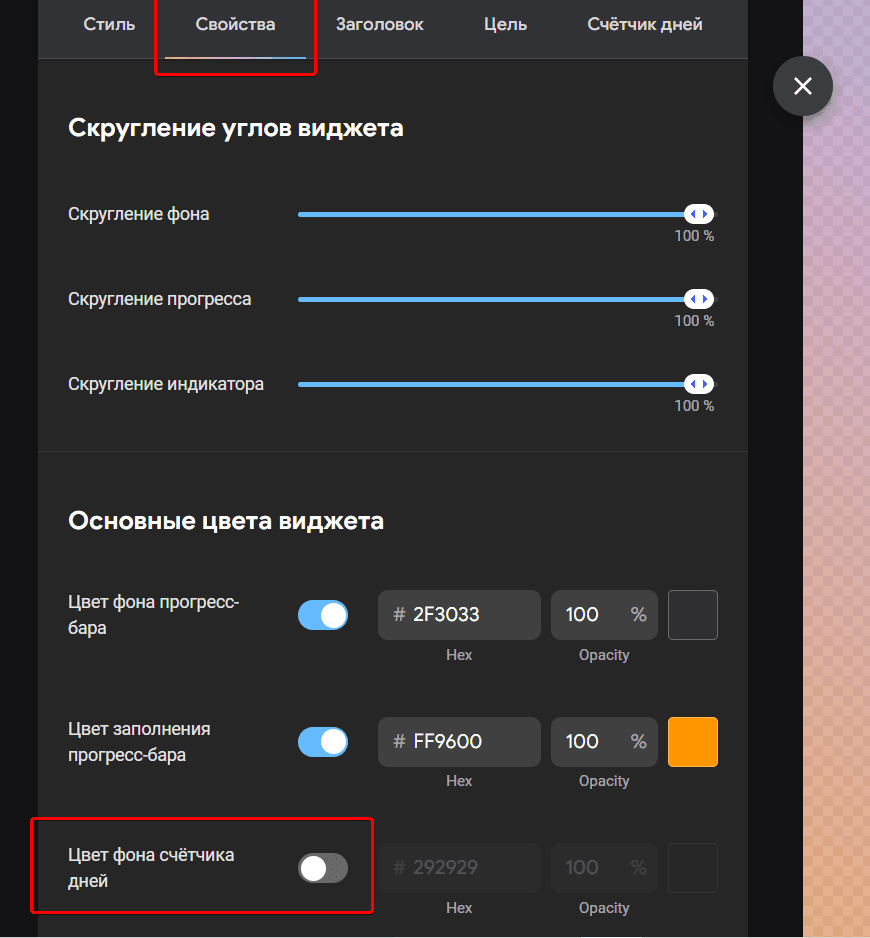
In the window that opens, go to the Properties tab and, in the Main widget colours section, switch off the toggle in the Day counter background colour row.
Hiding the day counter text
Go to the Day counter tab and, in the Font colour row, set Opacity to 0%.
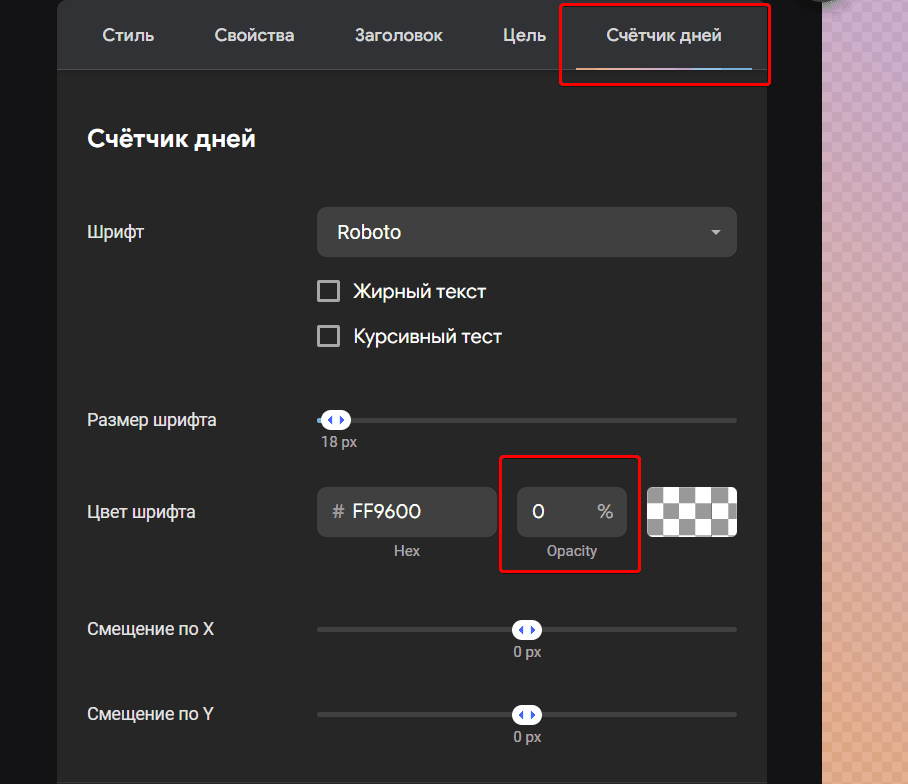
The day counter will no longer be shown on your widget!

Hiding the fundraising target
Important: you cannot hide the amount just by clearing the fields in the fundraising target settings. The system will not let you save your changes if you leave the fields in the Fundraising target block empty!

Go to the Goal tab and, in the Font colour row, set Opacity to 0%.
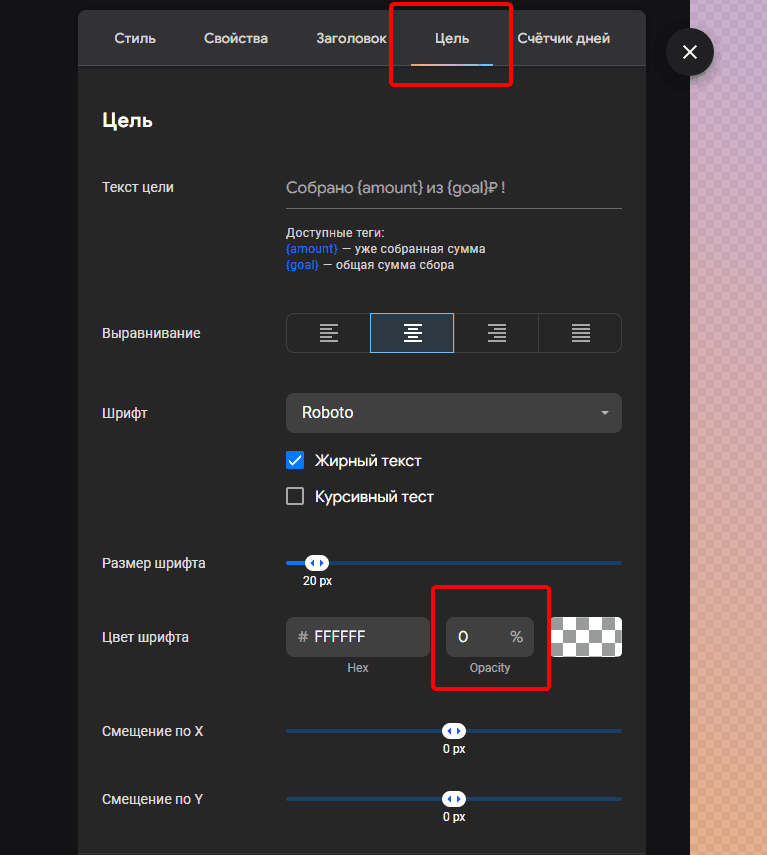
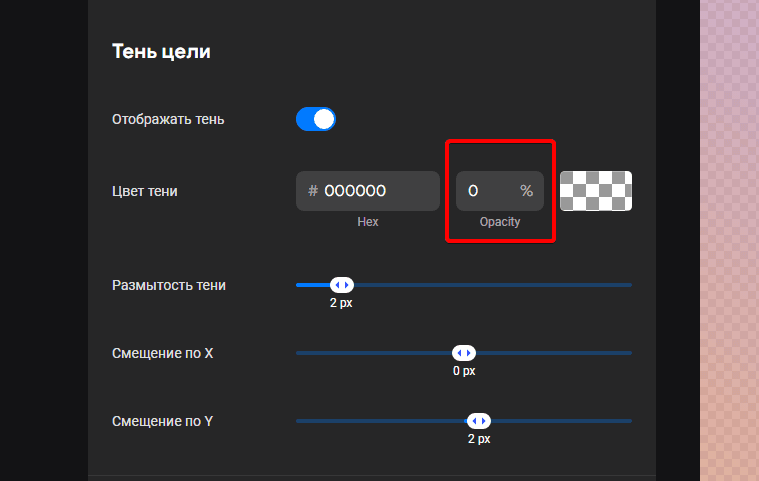
If you have the goal shadow turned on, do the same there and set Opacity to 0%. Or simply switch off the toggle in the Show shadow row.
Our fundraising widget now looks as simple and clean as it gets:

Inspiring viewers to give and creating friendly competition with the top donors widget on stream
Adding the Goal widget to your stream: creating the widget, styling the bar, adding it to OBS