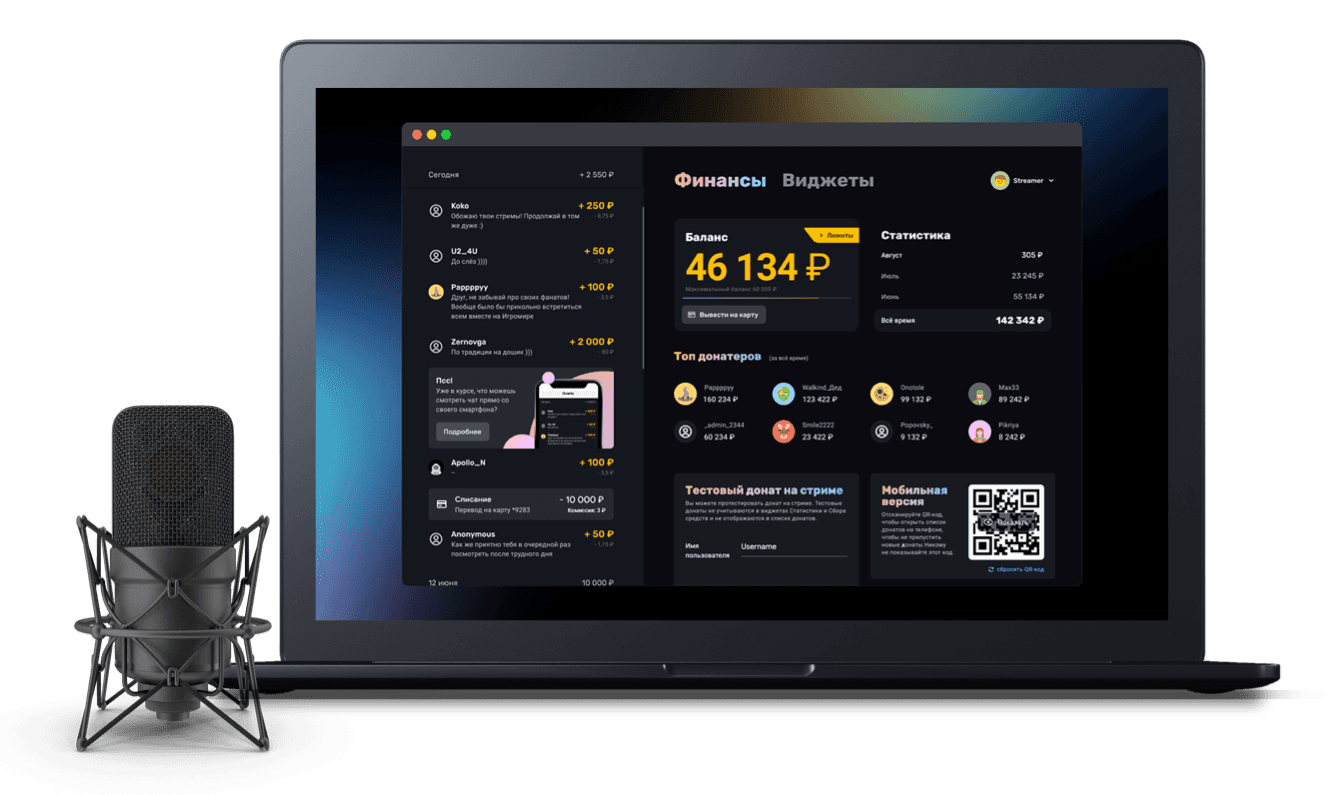
How to show an events feed on stream
Adding the events widget to your stream: creating the widget, configuring it, adding it to OBS
To keep your viewers up to date with what is happening on your stream, we recommend a widget that shows a list of recent events. It shows the latest donations sent to you, as well as Twitch and YouTube events. You can see, for example, the nicknames of viewers who have just followed your channel, the latest Channel Points rewards redeemed, or a Super Chat donation.
Creating the widget
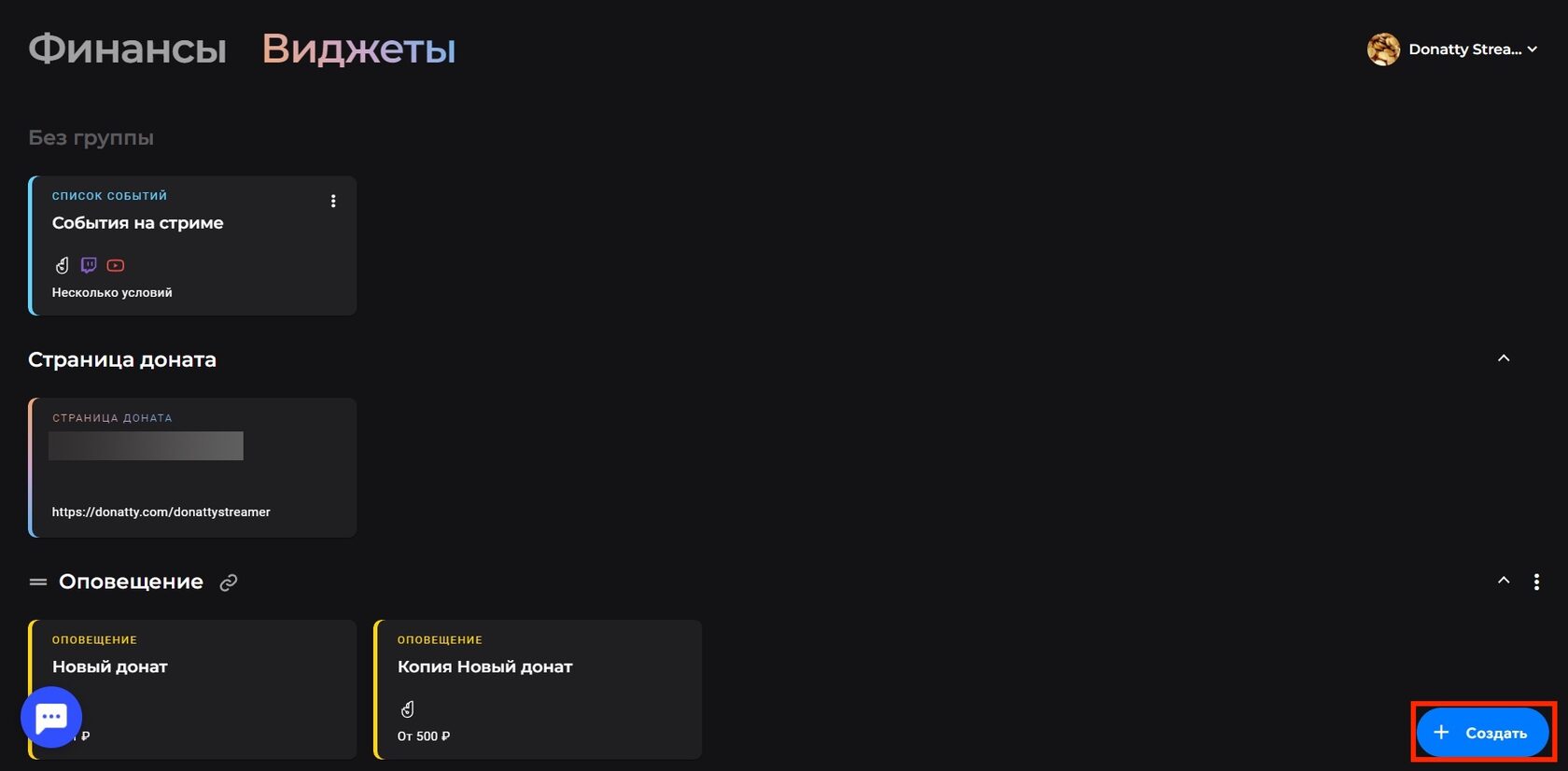
You can use the default Stream events widget or create a new one with the Create button in the bottom right corner.
Configuring the widget
Choosing data sources and conditions
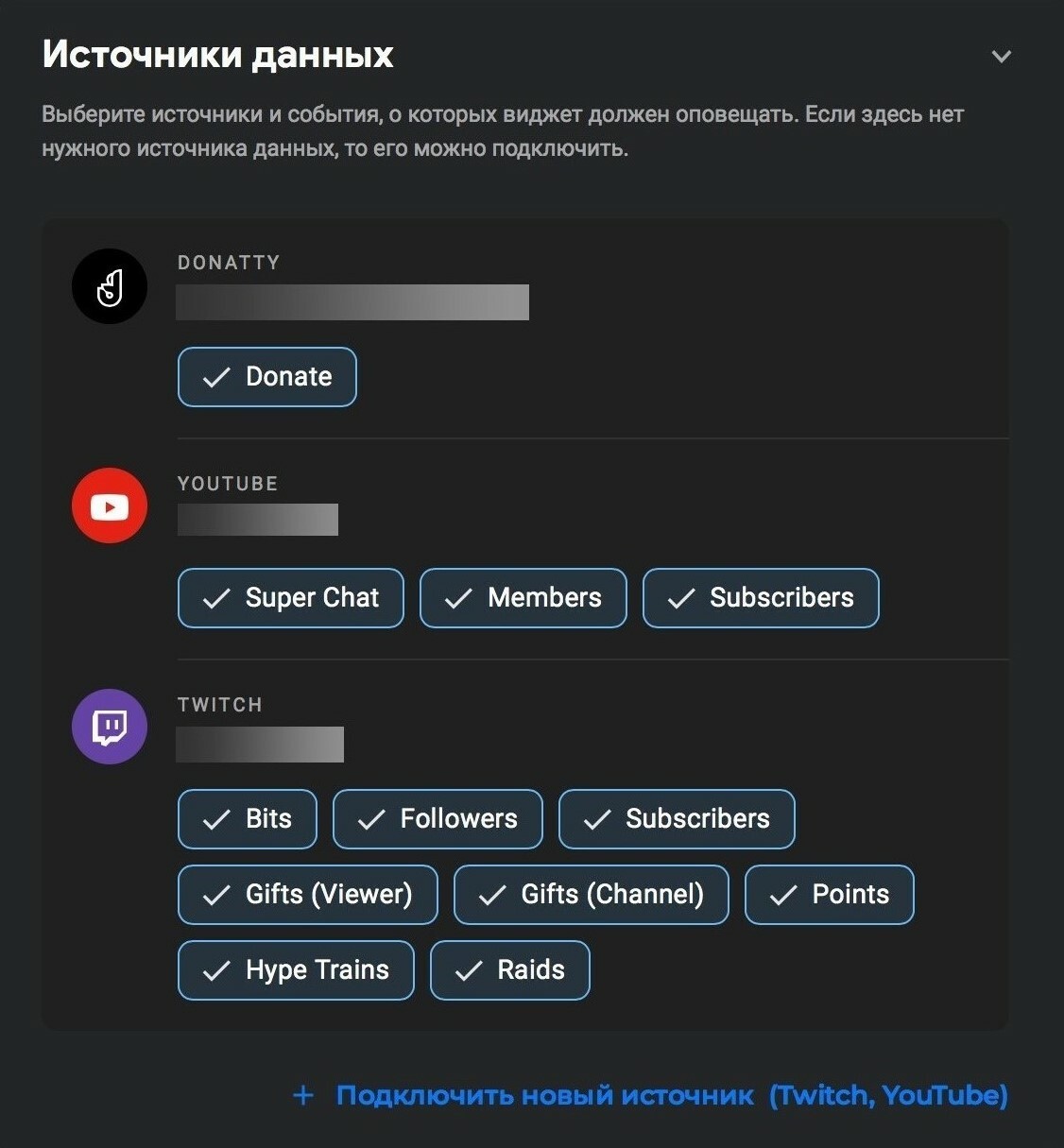
In the Data sources block, select the sources and events that should appear in the widget. If the source you need is not there, you can connect it by clicking Connect a new source. In the Conditions block, set the ranges for which events should appear in the list. For example, if you want the events widget to show only certain Channel Points rewards, tick those rewards in the drop-down list.
Styling the widget
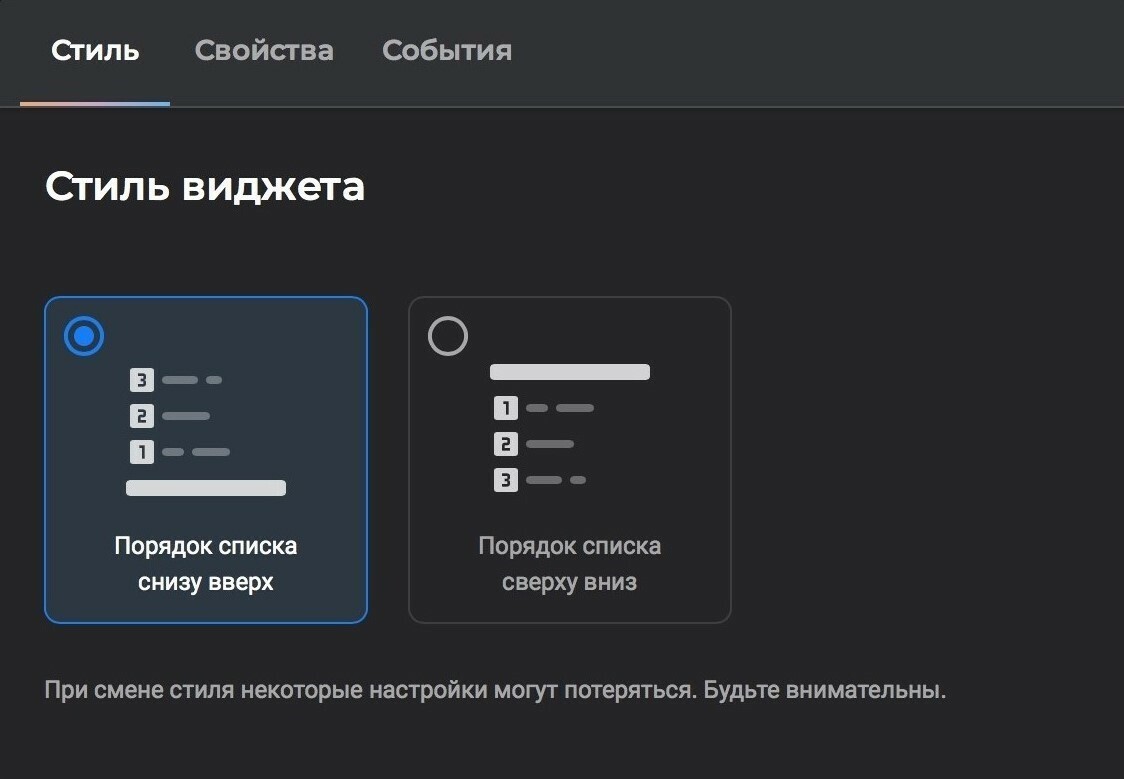
On the Style tab, choose the order in which new events appear in the list: bottom to top or top to bottom.
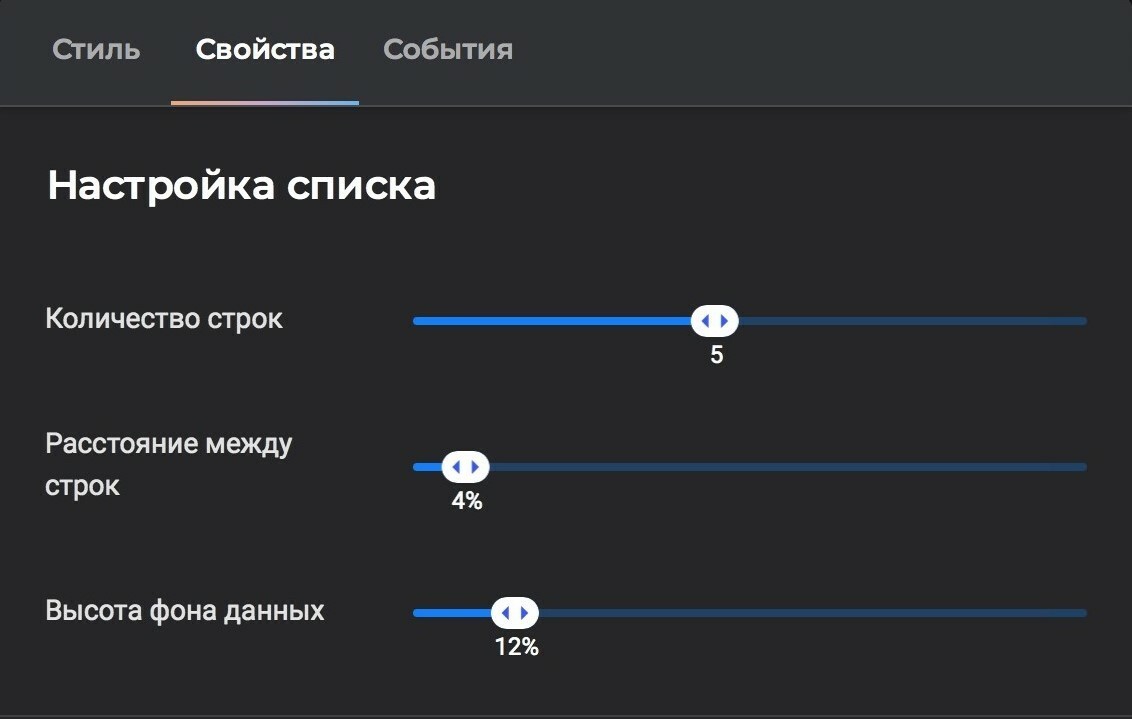
On the Properties tab, configure the list: the number of rows, the spacing between them and the height of the data background.
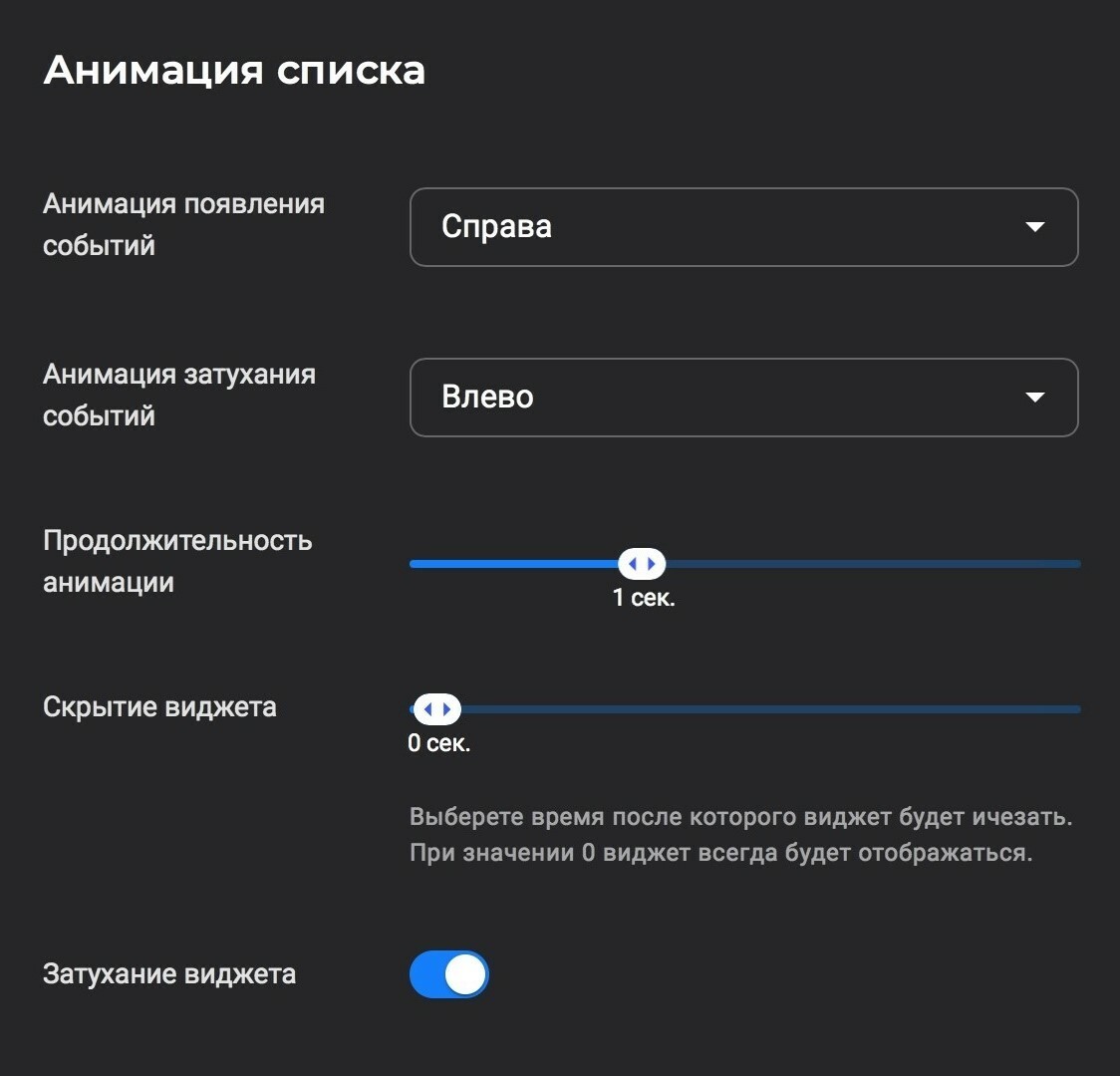
You can also configure the list animation: how events appear and disappear in the list, how fast and so on.
If you need to, turn on the link and profanity filters and set your widget's background colour. How to set up the profanity filters is covered in this guide.

Styling the widget
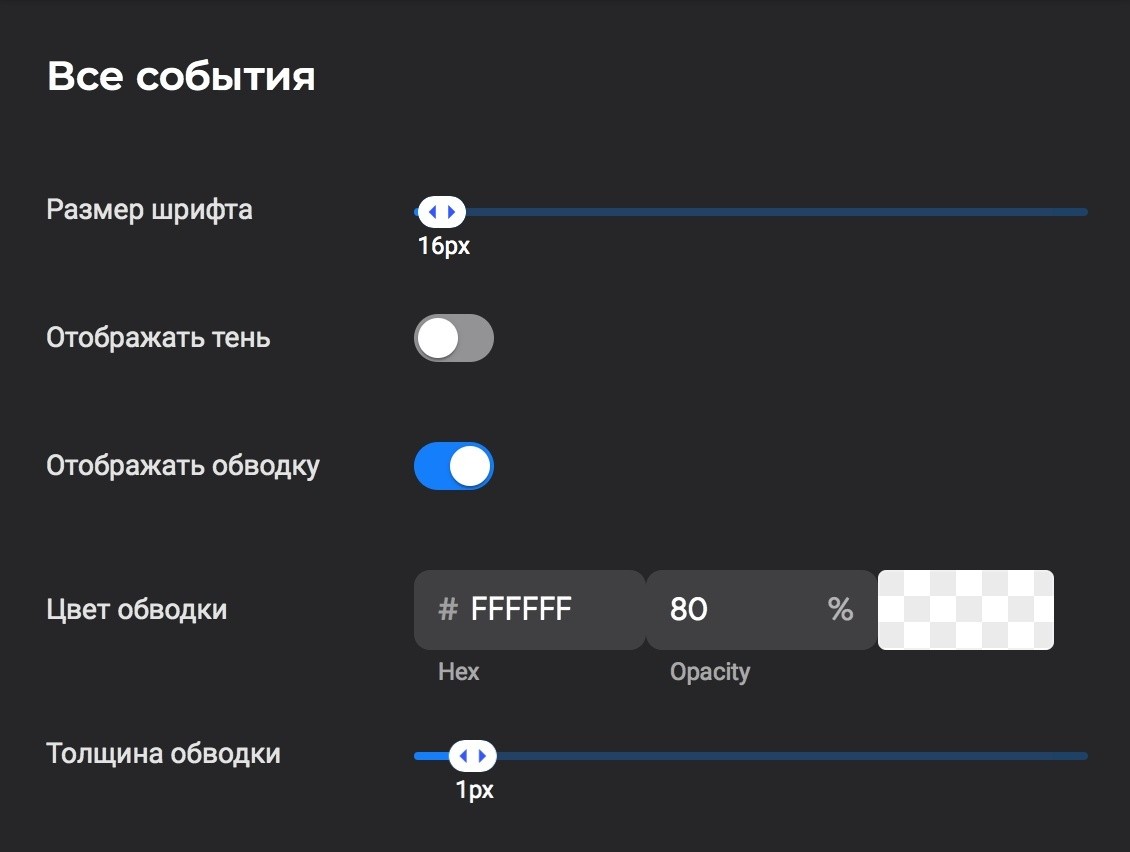
On the Events tab you can make general settings and also style each event type separately. The general text settings are:
font size;
shadow (colour, blur, offset);
outline (colour and thickness).
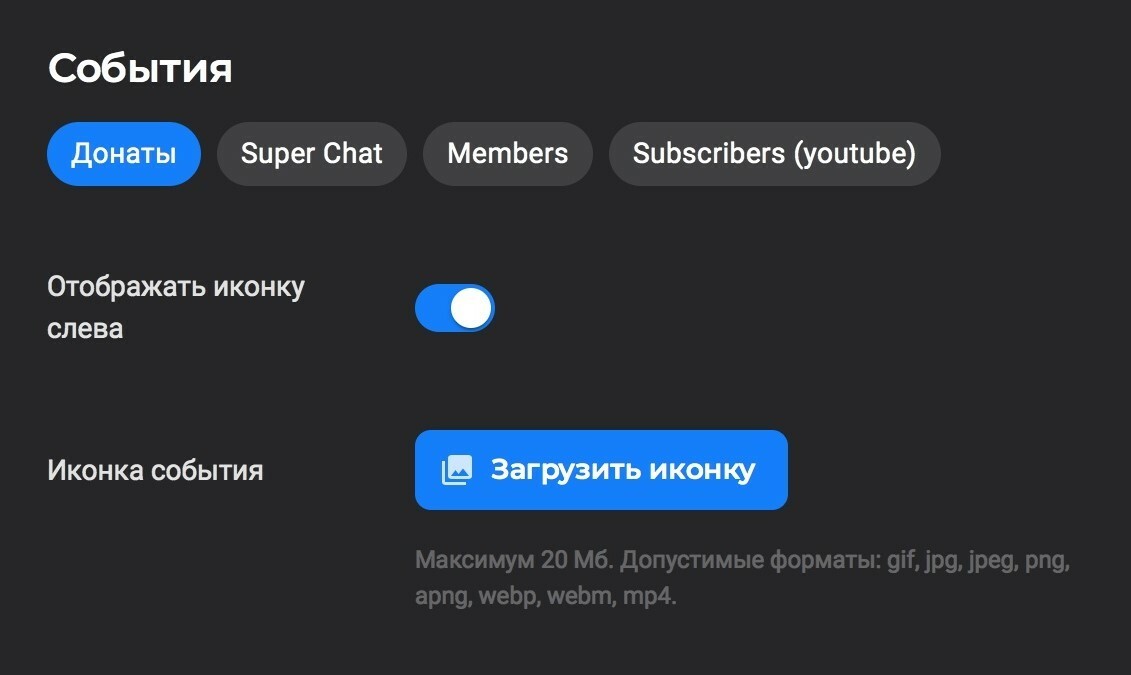
You can upload your own icon for each event type. The maximum file size is 20 MB. Supported formats: gif, jpg, jpeg, png, apng, webp, webm, mp4. Use the toggle to set where the icon appears — to the right or the left of the event text.
Now let's set up a template for each event type. The template is made up of static text and tags — special variables in curly braces. When an event arrives on the stream the static text stays the same, while the tags are replaced with the matching values. For example, in the template for a new donation event, {username} is replaced with the donor's nickname, {amount} with the donation amount and {message} with the accompanying message. There is more on tags and how to use them in widget settings in this guide. You can set your own font for the template text and for each tag separately, and control colours, opacity and other properties.
Adding the events list to OBS
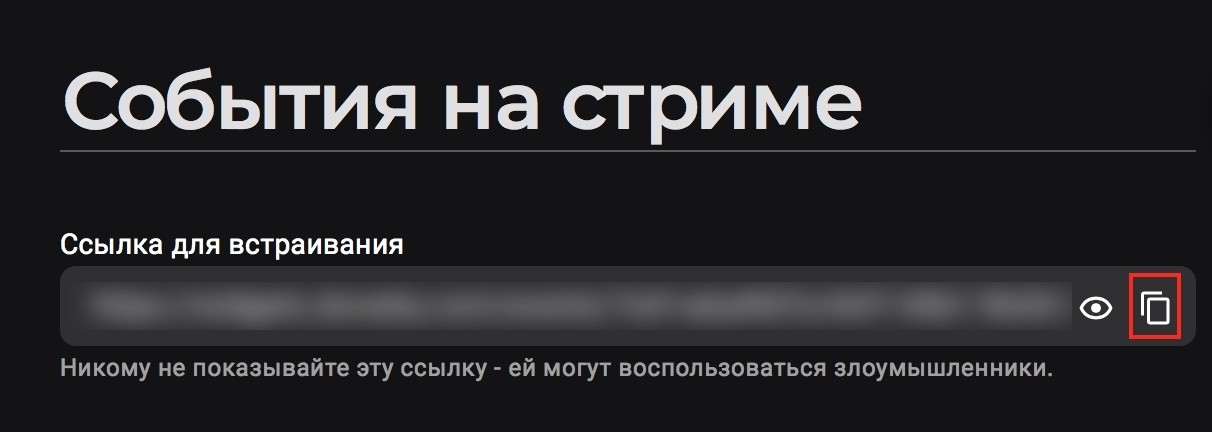
Once the widget is configured, we need to add it to the stream. First copy the widget link, which you will find at the top of the widget settings screen. To copy it, just click the button to the right of the link field.
Then go to OBS, click Add in the Sources panel and choose Browser. Enter a name for the source, for example Events. In the dialog that appears, paste the link you copied earlier into the URL field and click OK.
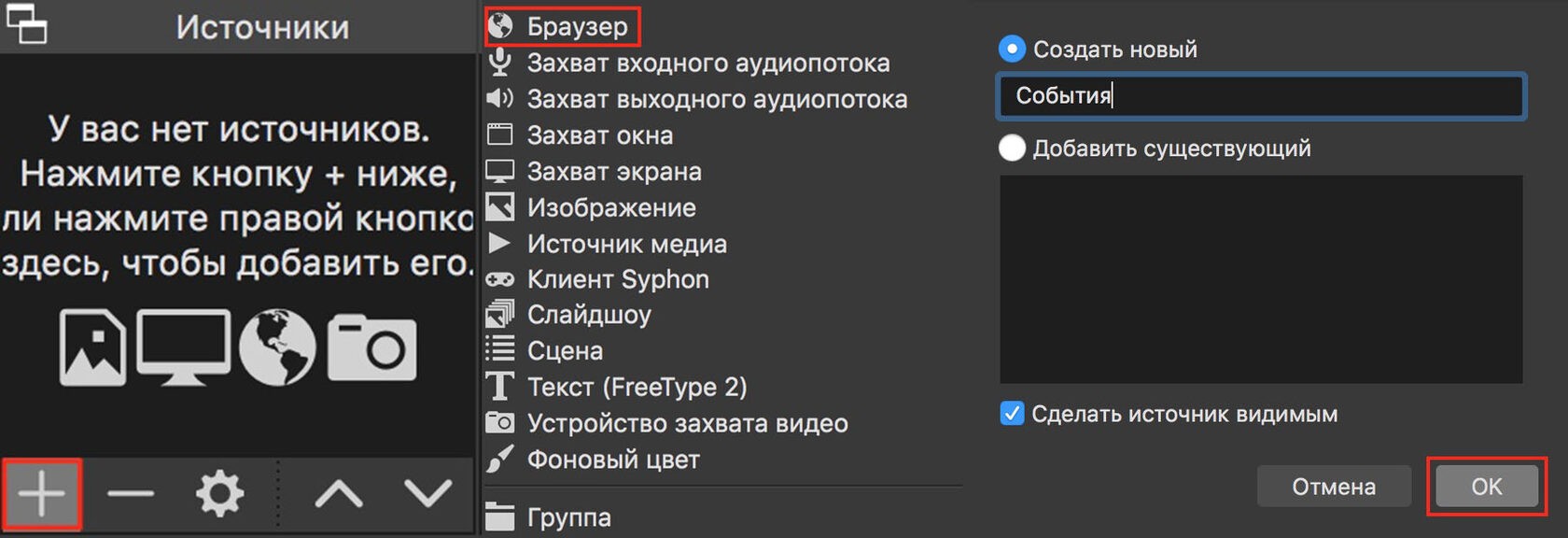

That completes adding the widget.
The default stream events widget
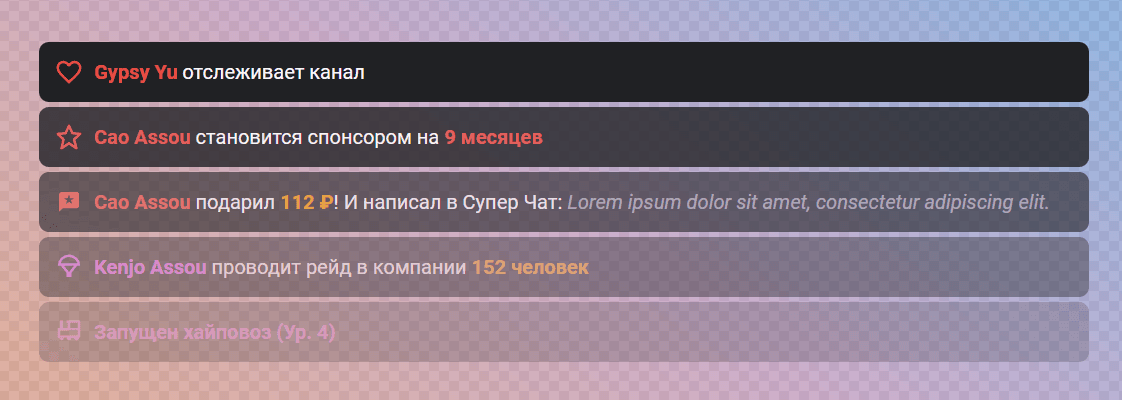
On stream, the events list widget with its default settings looks roughly like this:
Inspiring viewers to give and creating friendly competition with the top donors widget on stream
Adding the Goal widget to your stream: creating the widget, styling the bar, adding it to OBS