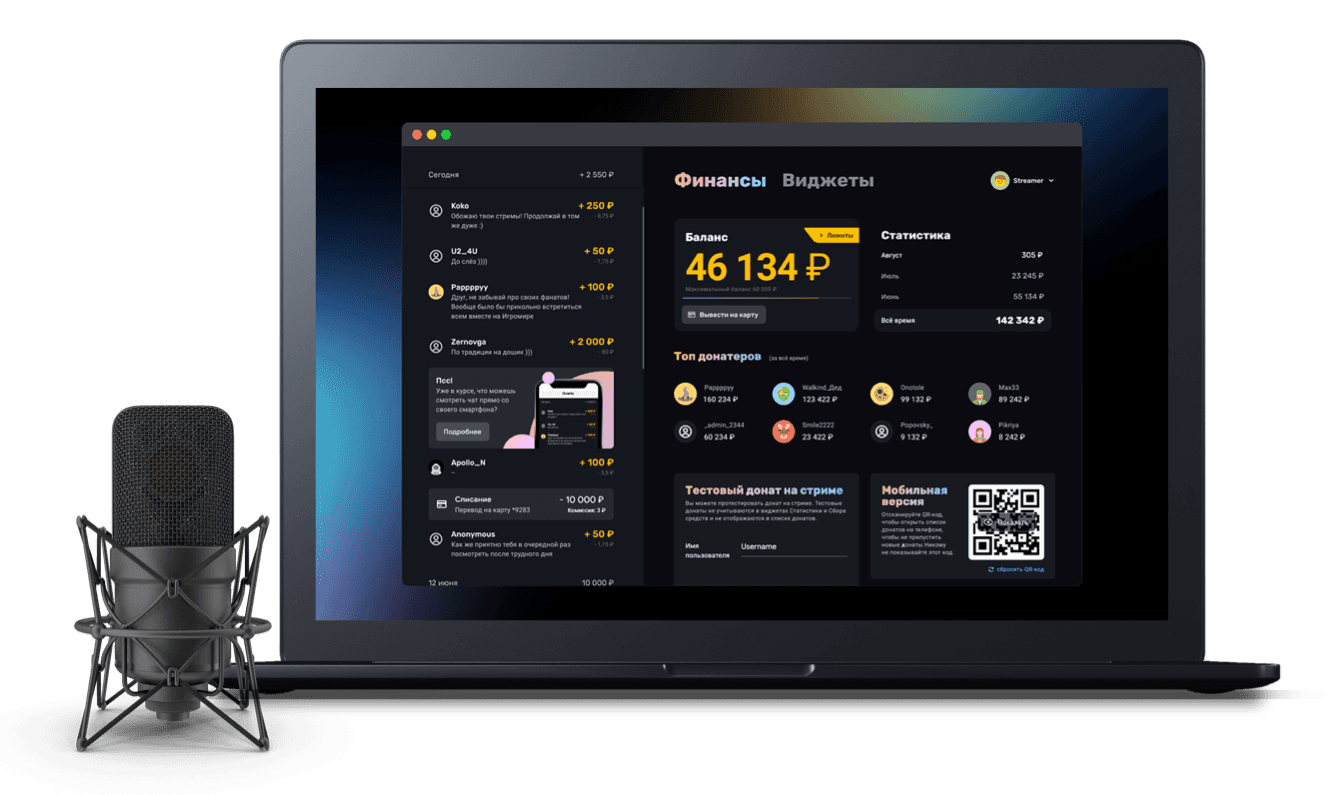
How to track donations on stream from your phone or in OBS
Showing the donation list in OBS or opening it on your phone or tablet
In some situations it is awkward to keep the Donatty streamer dashboard open throughout a stream. For example, if you only have one monitor and you are running the game you are streaming on it, or your stream requires OBS to stay open on a second monitor. For those situations we have built a dedicated mobile interface and an OBS dock panel. They look like this:
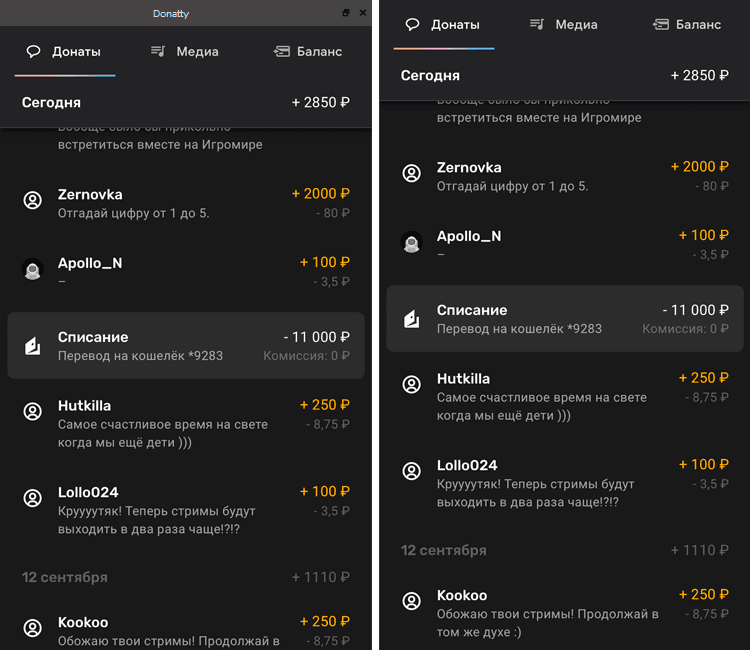
The donation list on your phone
Important: never show anyone the QR code or the OBS link, and take particular care not to show them on stream by accident. Anyone who has your code or link can track your donations too. If it does happen, read the section Resetting the QR code and the OBS link.
To open the donation list on your phone, simply scan the special QR code on the Finance page with your phone. You will find it in the Mobile version block. Before scanning, click the Show button.
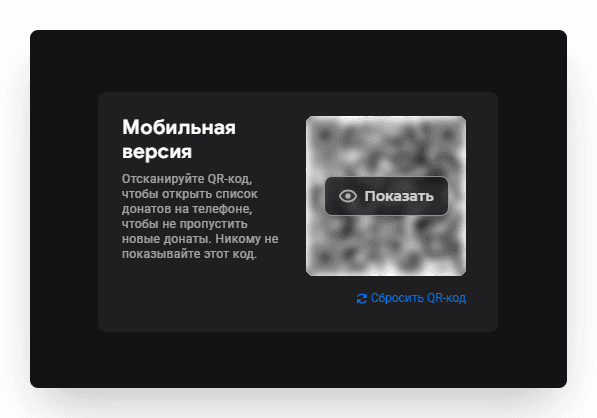
You will not have to sign in to Donatty again: the donation list opens on your phone straight away.
Tip: for the duration of the stream, it is best to set your phone so the screen does not dim and the phone does not lock automatically.
The donation list in an OBS dock panel
To embed the transaction list in OBS, find the OBS version block and click Copy there.
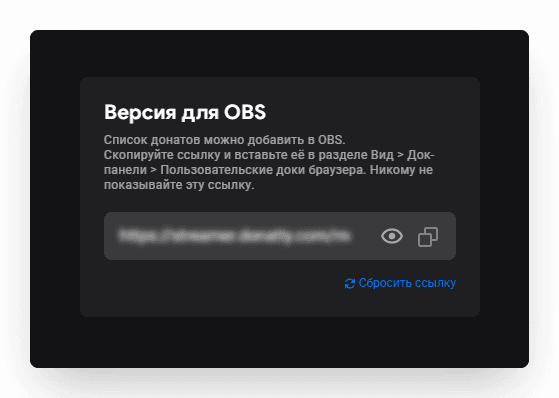
Then start OBS and open the menu View → Docks → Custom Browser Docks.
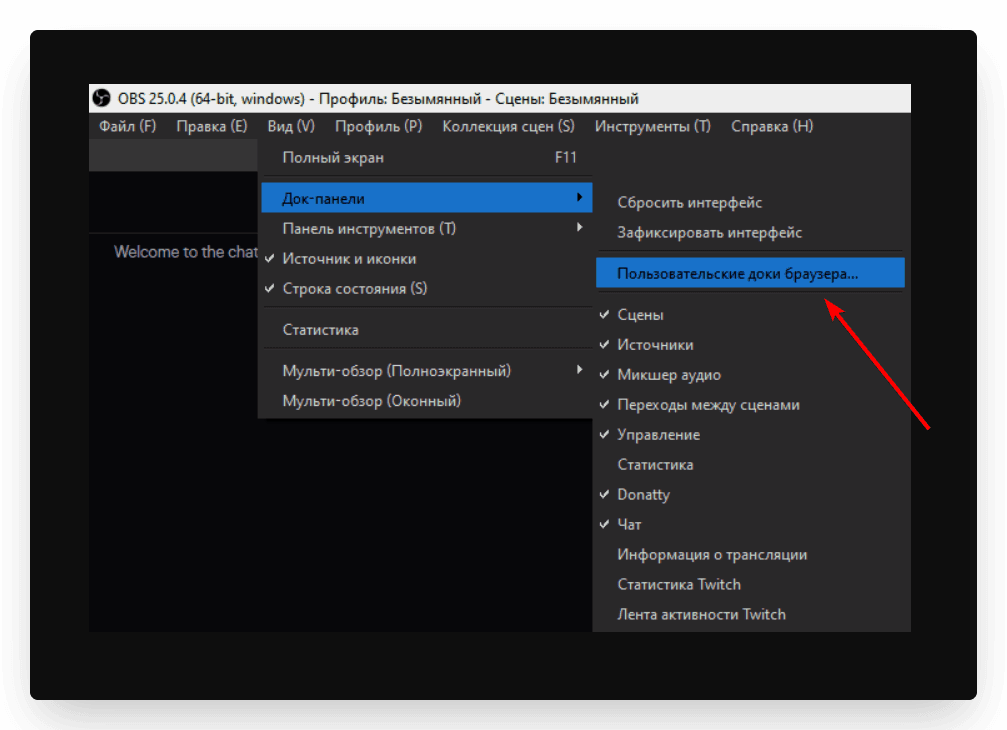
In the window that opens, type any name into the Dock Name field, for example “Donatty”, and paste the link you copied earlier into the URL field. It should look something like the screenshot below.
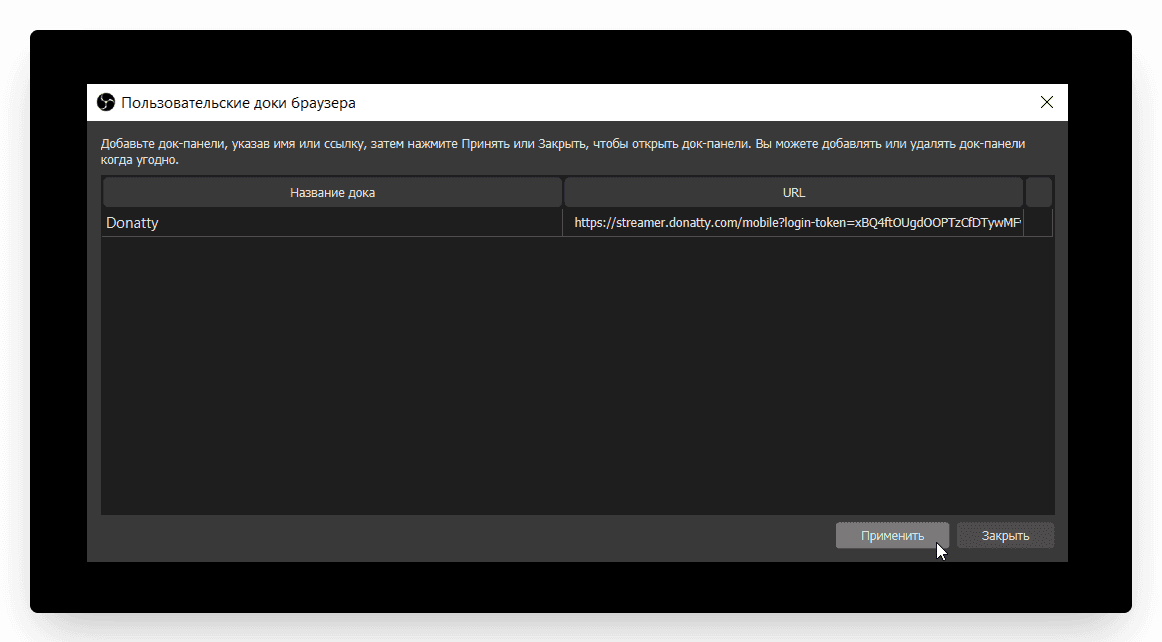
Click Apply and Close. That is all — your OBS now has a dock panel with the transaction list.
Resetting the QR code and the OBS link
If you have accidentally shown someone the link or the QR code, there is no reason to panic. What matters is resetting them to new ones as quickly as possible. To do that, go to the Finance section and, in the Mobile version or OBS version block, click the Reset QR code or Reset link link. At that moment the old code and old link stop working, and you will have to reopen the mobile version or reconfigure OBS. But the old link will also stop working for anyone who might have seen it.
Setting up widget and notification links in other popular live streaming apps
The media widget lets viewers send videos along with their donation, and lets the streamer show them on stream and control playback conveniently.