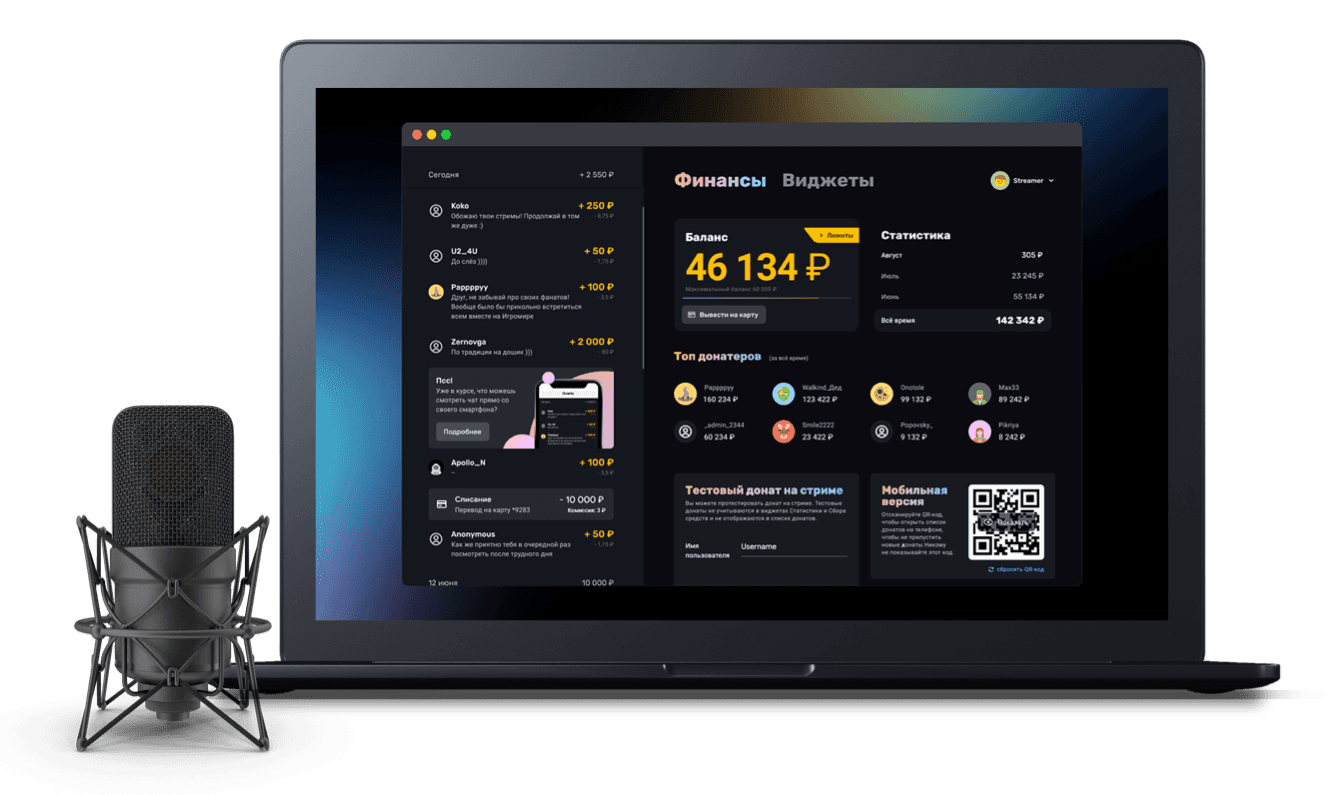
How to add several alert widgets to OBS with a single link
Adding a widget group to your stream
If you have set up different alerts for different donation amounts, you do not have to add each widget to OBS separately. An alert widget group has a shared link that lets you add the whole group to OBS in one go.
Important: adding a widget group to OBS with a single link currently works only with alert groups.
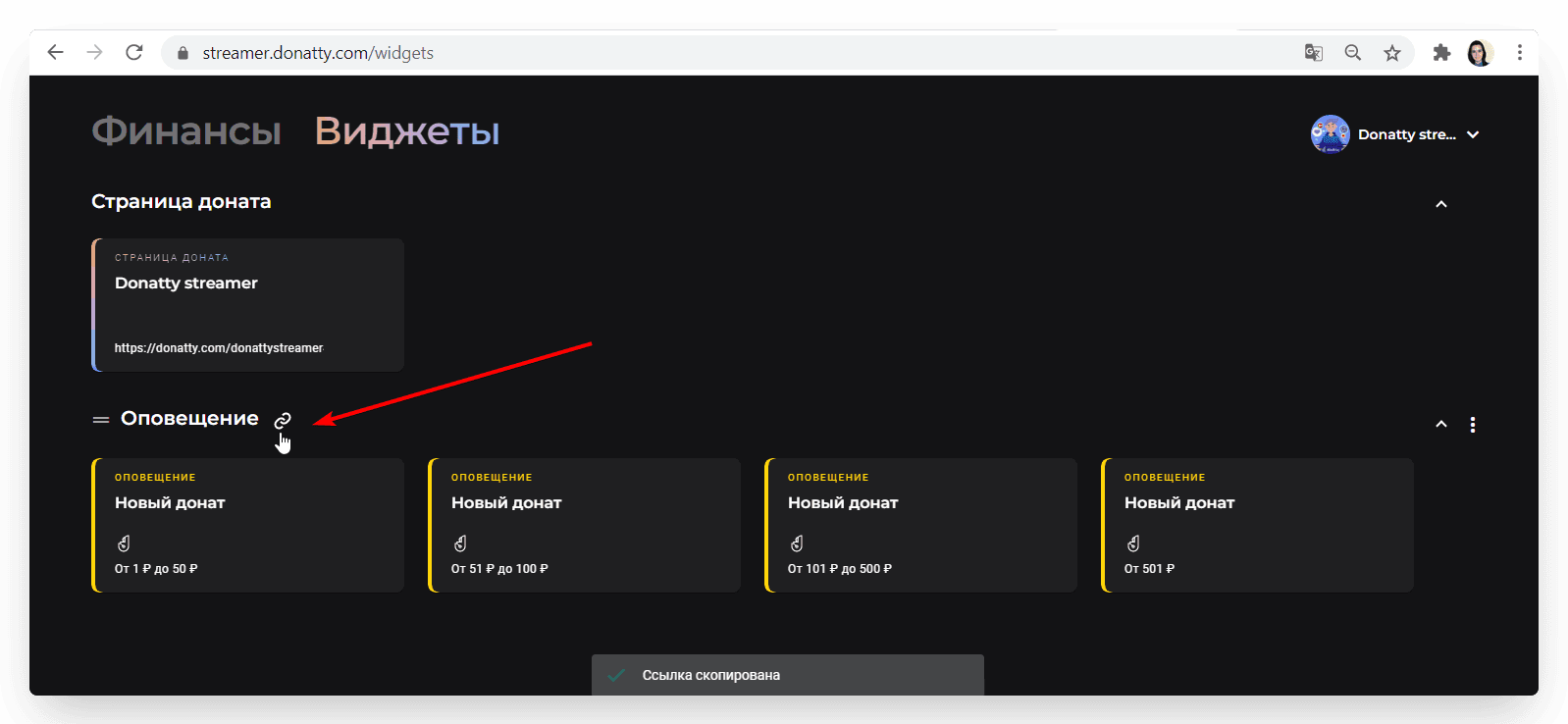
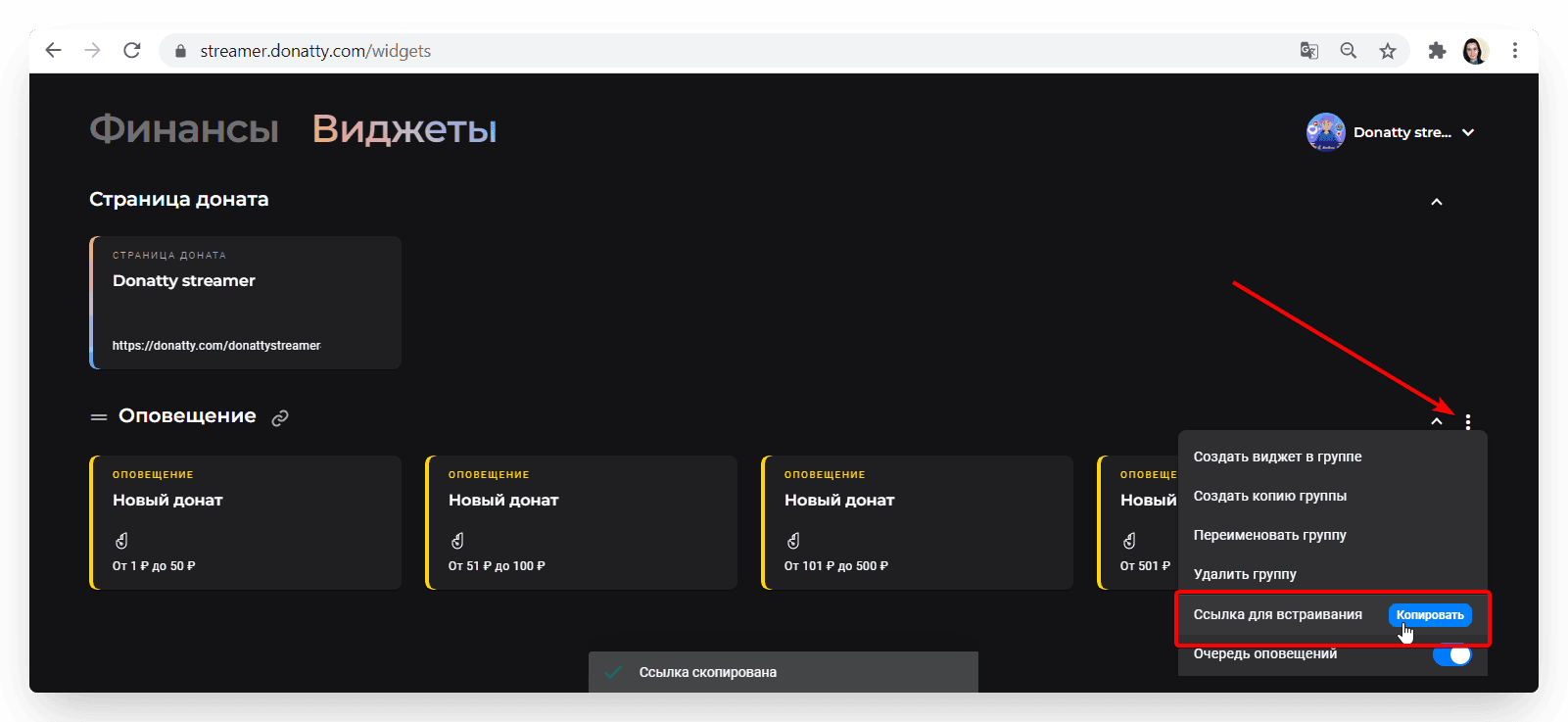
Copy the link to the alert widget group. There are two ways to do this:
click the chain icon next to the group name;
click the three dots on the right of the screen next to the group, and then, in the group menu that opens, click Copy in the Embed link row.
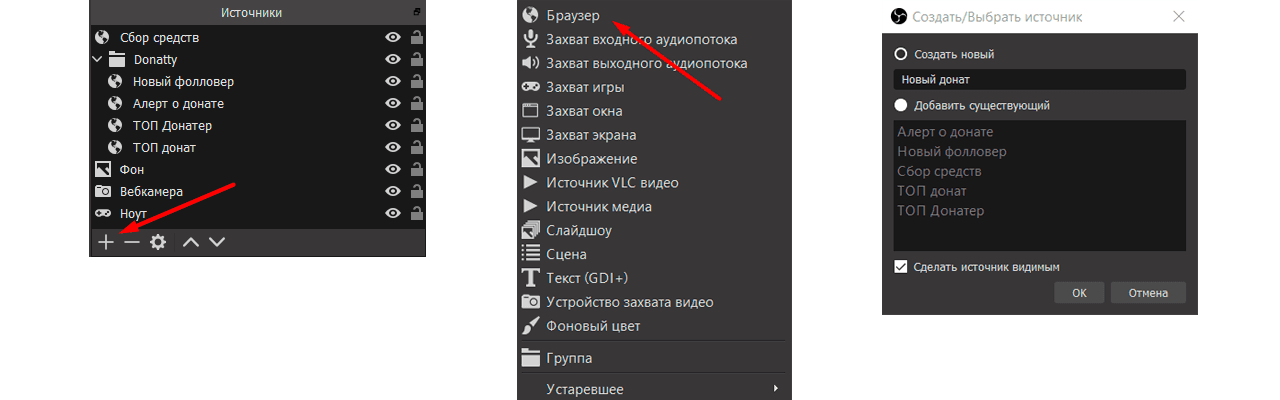
Then go to OBS, click Add in the Sources panel, choose Browser and enter a name for the source, for example “Alerts”. In the dialog that appears, paste the link you copied earlier into the URL field and click OK.
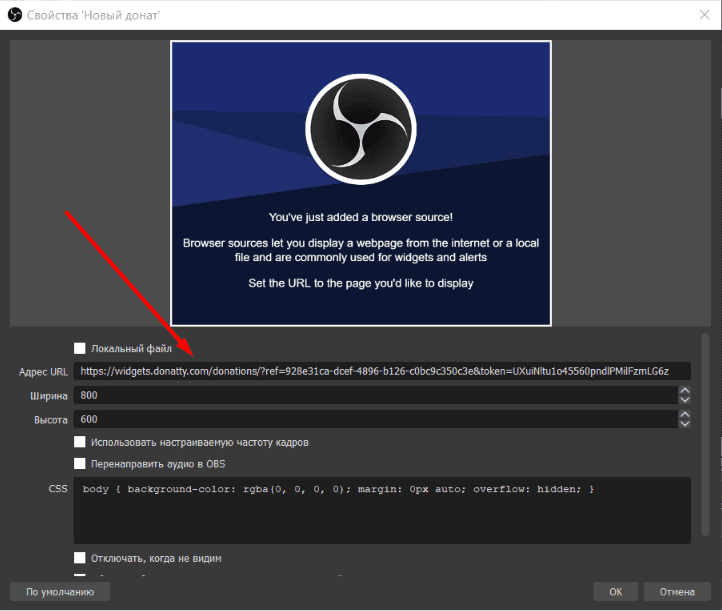
That is it — the widget group has been added with a single link. You can check how any individual widget fires using the Test on stream feature.
Creating an alert widget group and configuring the widgets
Showing alerts on stream in sequence or the moment the event happens