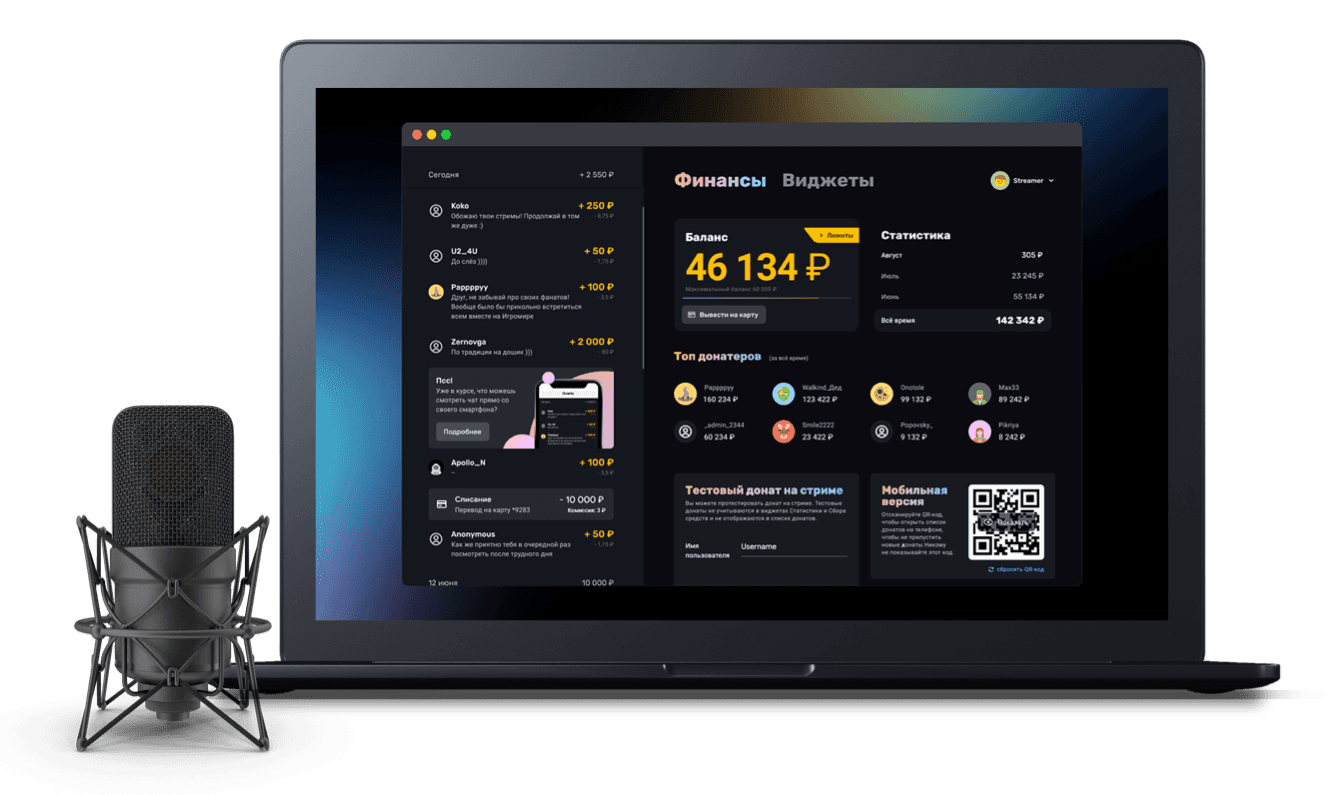
How to set up a donation alert on stream
Setting up a donation alert on stream: amount conditions, custom text and GIFs, adding it to OBS
A donation alert is a special notification that pops up on stream when someone donates to the streamer. Almost every streamer who accepts donations has one set up. Let's look at how to set up and configure donation alerts on stream in Donatty.
The donation alert widget card
All widgets in Donatty live in the Widgets section. On registration, every user automatically gets a full set of default widgets, but a streamer can delete them and create their own. To find the donation alert widget, go to the Widgets section, find the card called New donation and click it.

We are now on the widget settings screen, where you can customise the conditions under which the alert appears and how it looks.
Important: you can create new widgets yourself by clicking the Create widget button in the bottom right corner.
Customising the donation alert widget
The widget settings screen lets you change everything about how the widget looks and works. In this guide, though, we will only cover how to:
change the amount from which the alert appears
change the image (GIF) in the alert
change the text template in the alert
turn on text-to-speech for the message
The donation amount that triggers the alert
On the alert widget settings screen, find the Conditions block.
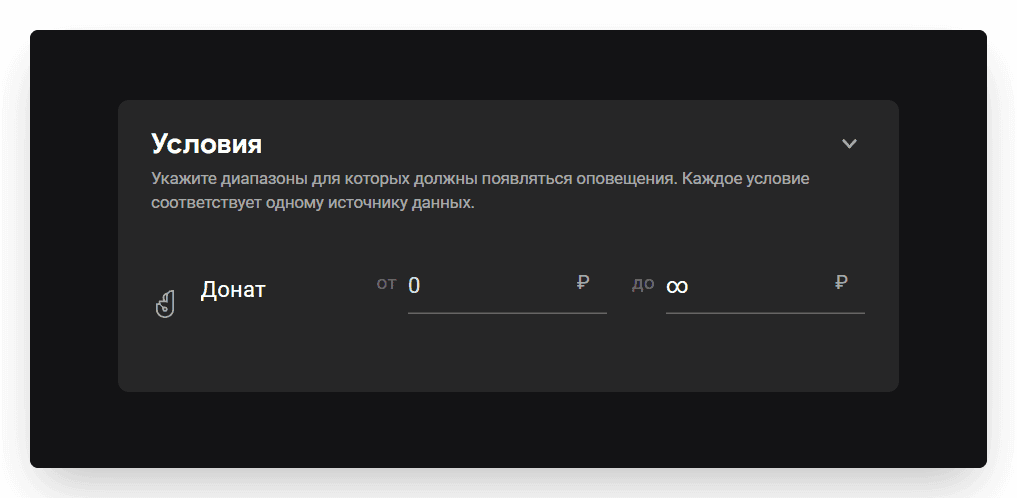
In this block you can set the conditions under which this widget appears on stream. If you set the “from” field to 100 roubles, the alert will not appear on stream for donations under 100 roubles.
Important: you can set not only a minimum donation amount but a maximum one too — handy if you want the alert to look different depending on the amount.
The image in the donation alert
To change the image in the donation alert, open the Image tab on the alert widget settings screen.
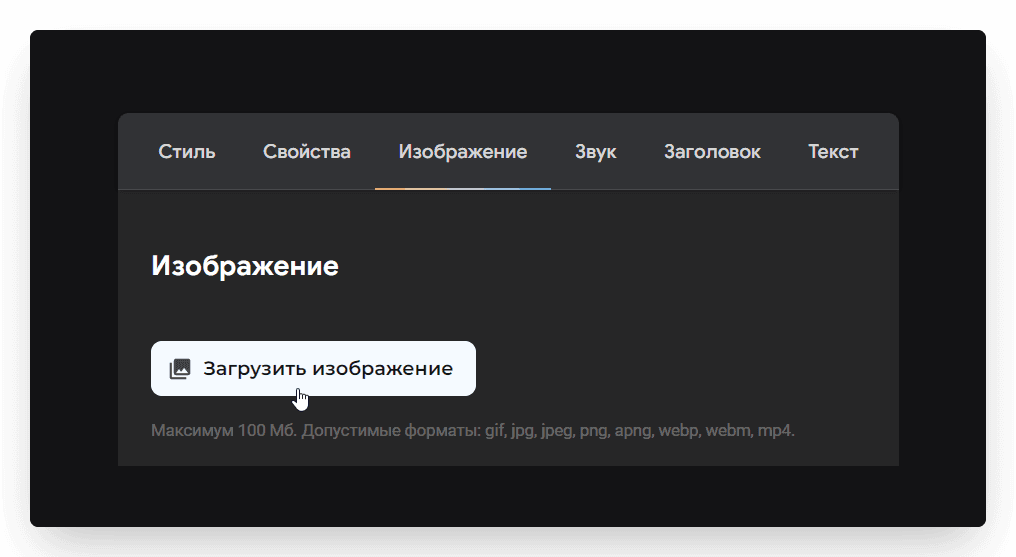
On this screen you can upload the image you want to see in the alert. This tab also lets you control the image's size and opacity and offset it along the X and Y axes.
Important: clicking the cross next to an uploaded file's name deletes it, and the alert will fall back to the default image.
The donation alert text template
The alert text template can be changed on the Heading and Text tabs. The process is very similar for both, so we will only show how to change the heading text.
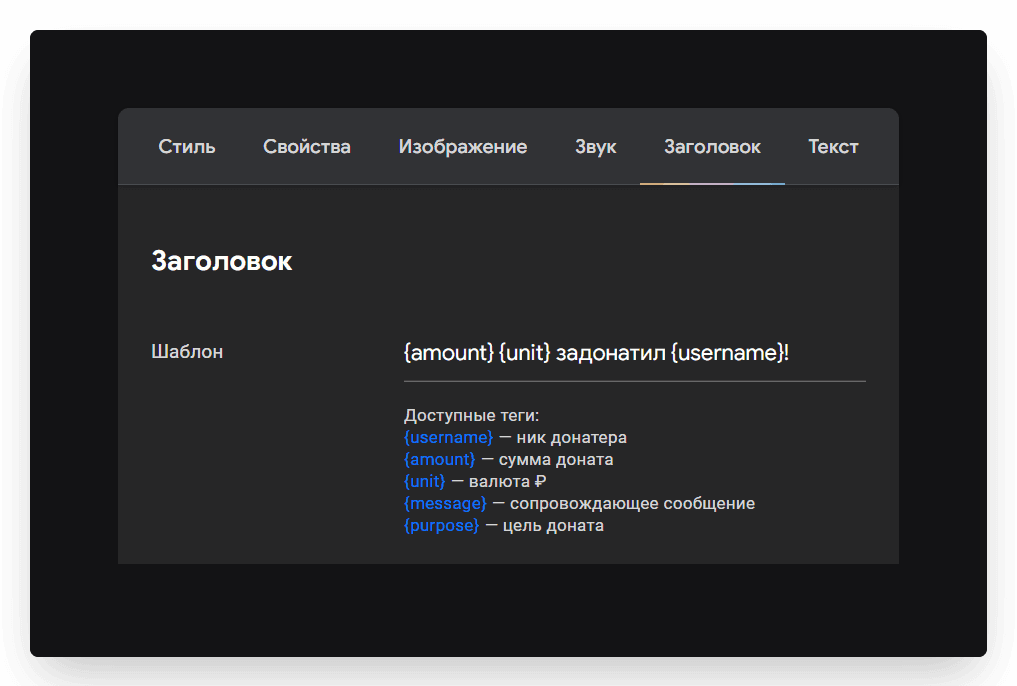
The template is made up of static text and tags — special variables in curly braces. While the widget is running, the static text stays the same, while the tags are replaced with the matching values in the alert. For example, {subscriber} will be replaced by the nickname of the person who donated. To make the tags easier to work with, we made the hints interactive — clicking the tag you want inserts it into the template automatically.
Important: the same tab also lets you set how the text looks. You can change the font and colour, and add a shadow or an outline.
Text-to-speech in the donation alert
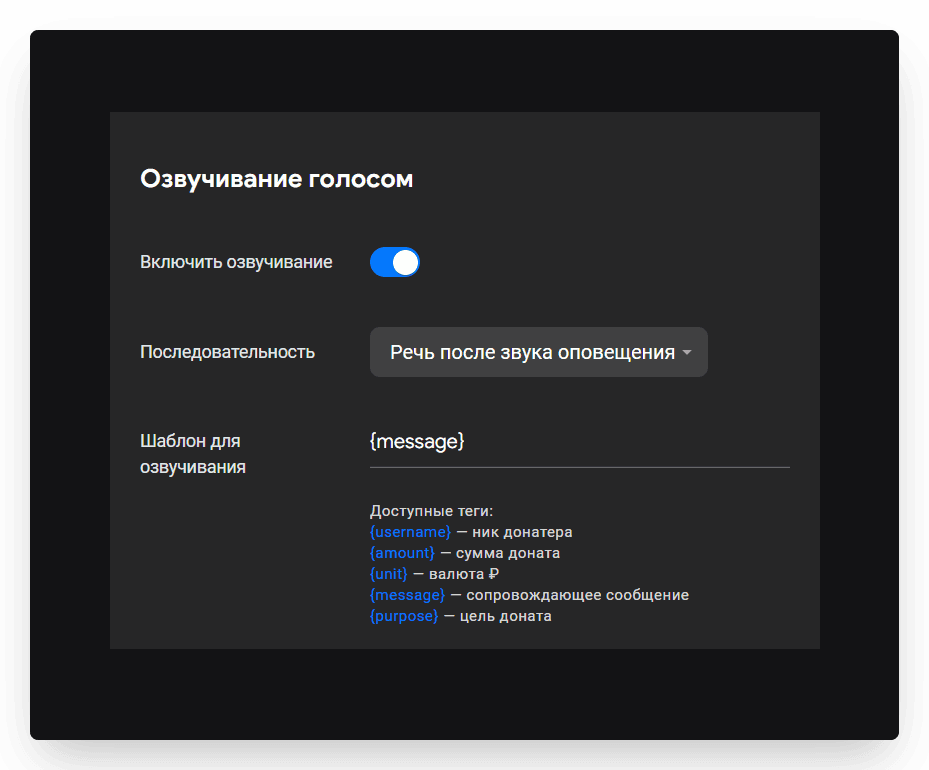
In Donatty you can not only turn on text-to-speech for the donation message but also configure the template it reads. To do that, find the Text-to-speech block on the Properties tab of the alert widget settings screen.
Adding the donation alert to your stream in OBS
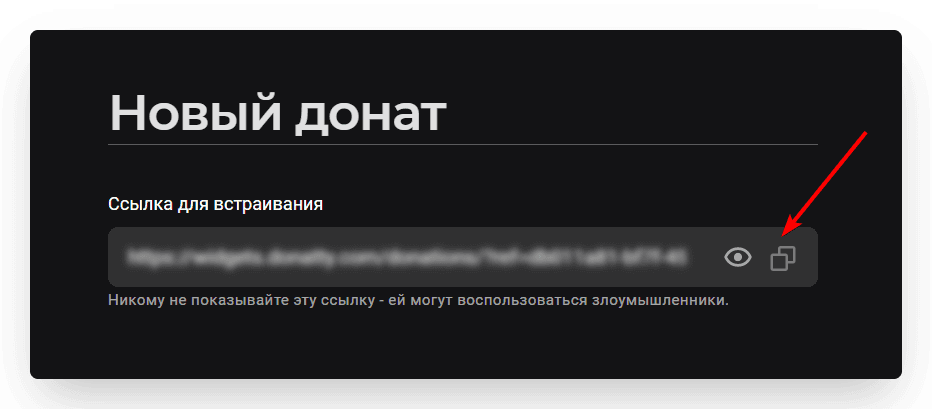
Once the alert widget is configured, we need to add it to the stream. First copy the widget link, which you will find at the top of the widget settings screen. To copy it, just click the button to the right of the link field.
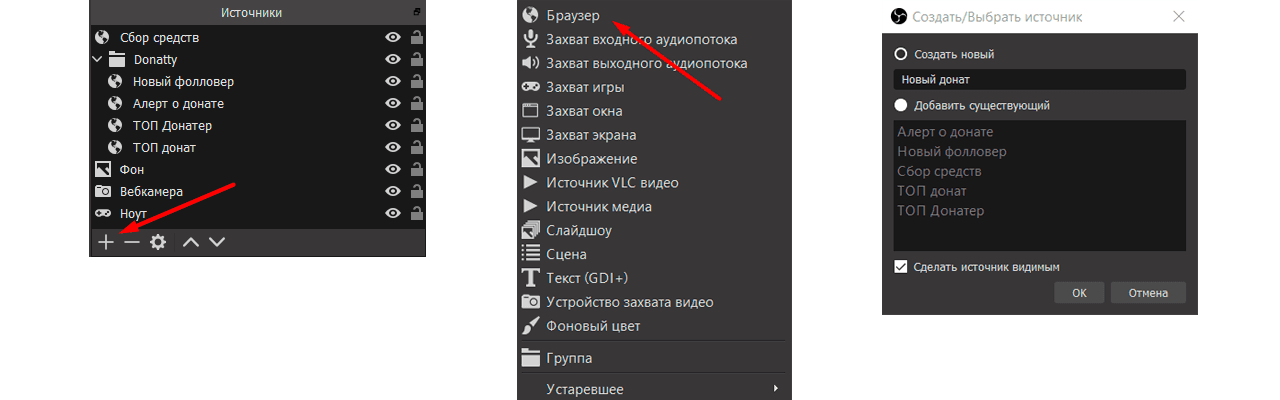
Then go to OBS, click Add in the Sources panel, choose Browser and enter a name for the source, for example “New donation”. In the dialog that appears, paste the link you copied earlier into the URL field and click OK.
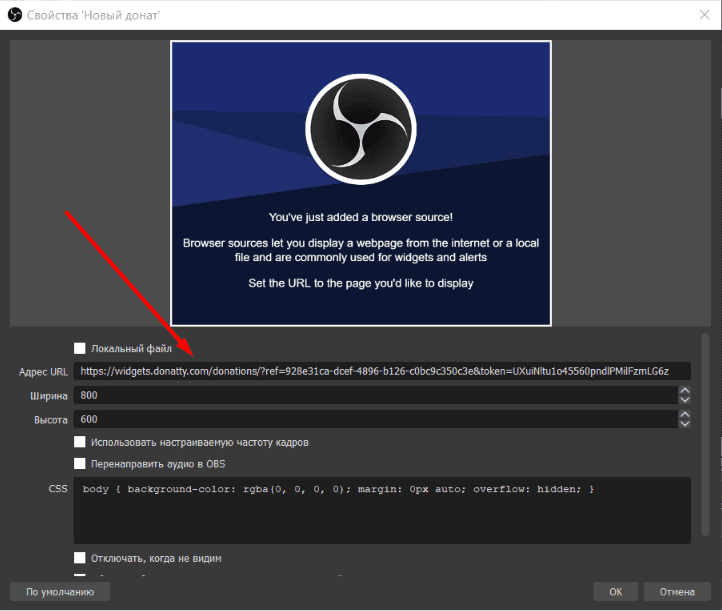
That completes adding the widget.
Checking that donation alerts work on stream
There are several ways to test the alert:
Go to your own page and donate to yourself
Click the Test on stream button in the widget settings
Click Test on stream in the context menu of the widget card in the Widgets section
Setting up donation alerts with amount conditions
Showing alerts for Bits, follows, subscriptions and raids