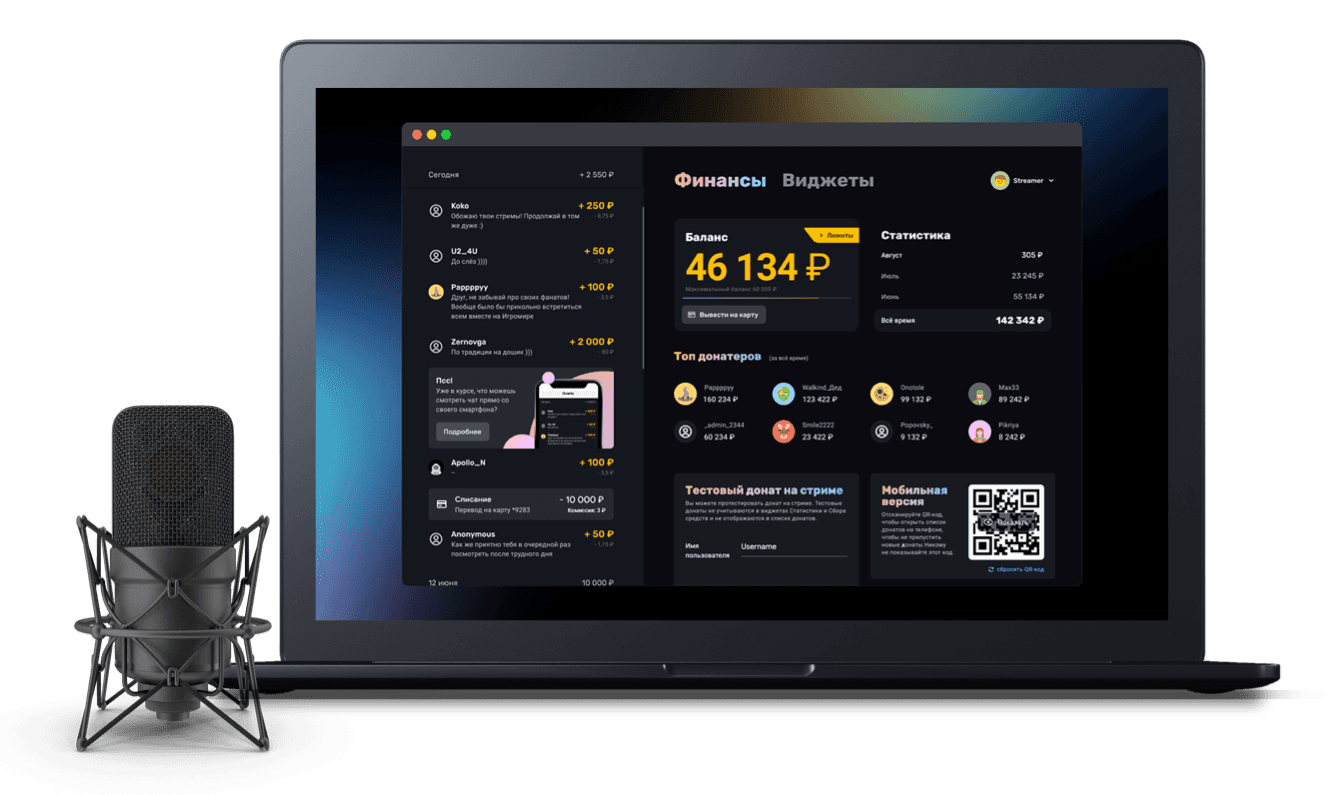
How to make different alerts for different donation amounts
Setting up donation alerts with amount conditions
Streamers often want to encourage viewers to donate larger amounts. One way is to show different alerts for different donation amounts: the bigger the amount, the flashier the alert. This is sometimes combined with text-to-speech settings, so that only messages above a certain amount are read out loud. In this guide we look at how to do that in Donatty. To get started you need a donation alert already set up. If you have not done that yet, here is a link to the guide.
How widgets work in Donatty
In Donatty a streamer can create and keep any number of widgets and configure them however they like. Normally, every donation alert widget added to a stream fires at once if the donation amount falls within its range in the Conditions block. So to get one widget firing while another stays quiet, we need to set the right conditions in the widget settings. Let's say we want to set up two alerts: one for donations from 0 to 500 roubles (we will call it widget A) and another for 500 roubles and above (widget B).
Changing the amount condition on widget A
Open widget A's settings, find the Conditions block and change it to what we need: from 0 to 500 roubles.
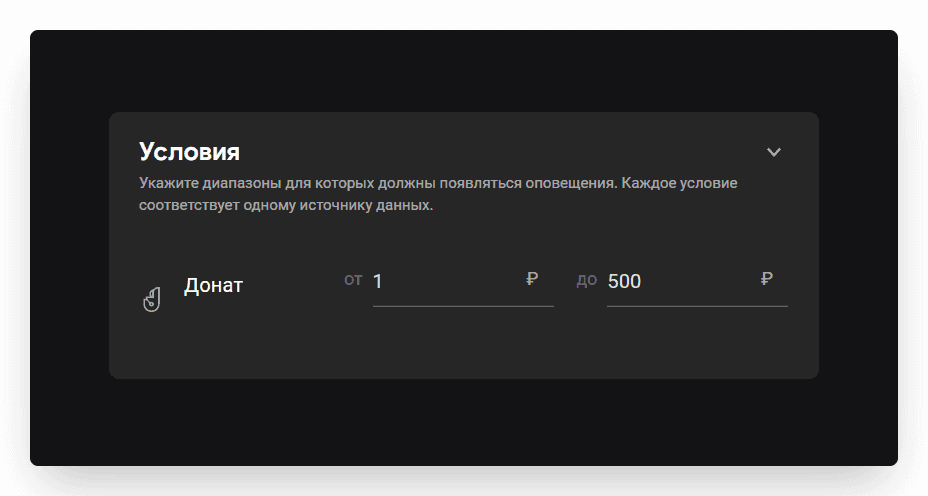
You can also style this widget the way you want a small-donation alert to look: turn off text-to-speech for it, use a simpler sound and so on.
Creating widget B by copying widget A
Leave the settings, go back to the Widgets section and find our widget. Click the context menu button (three dots) and choose Duplicate.
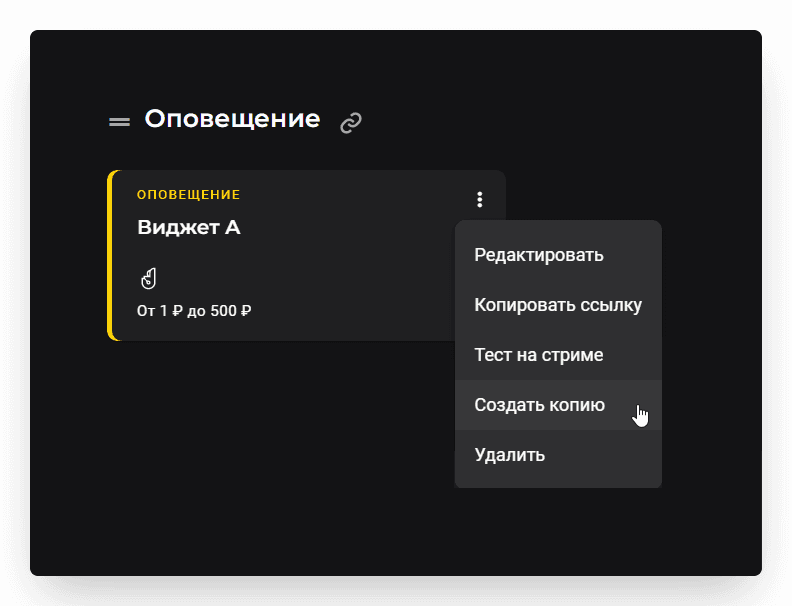
A new widget called “Copy of Widget A” is created, identical to widget A.
Editing widget B
Rename the newly created widget to “Widget B”, then find the Conditions block in it and change the range to “from 501 to ∞”.
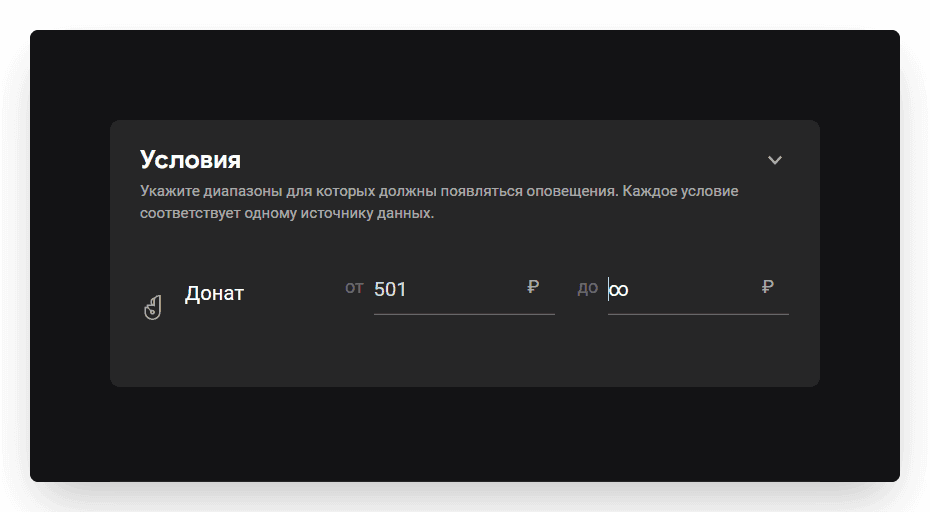
Style this widget the way you want a large-donation alert to look: turn on text-to-speech, pick a nice image and sound. Save widget B and go back to the Widgets section.
Adding widget B to your stream
We now have two widgets, with conditions from 0 to 500 and from 501 to ∞.
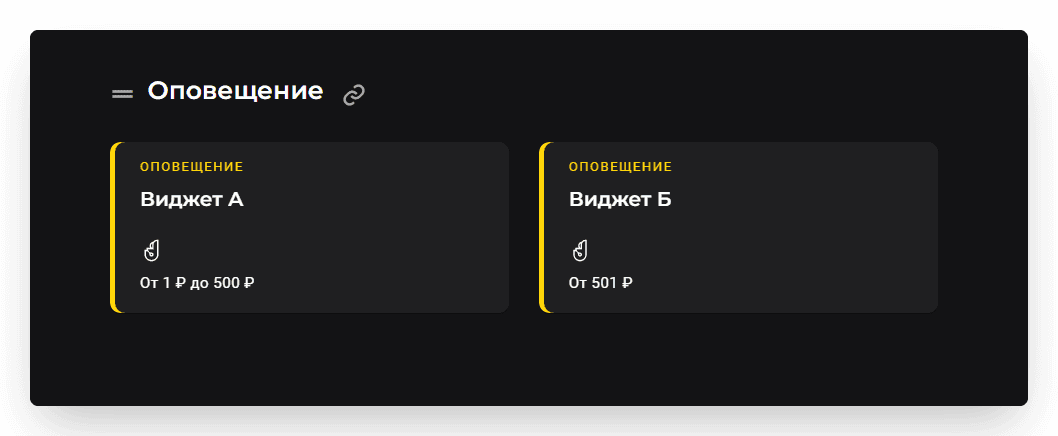
Now add widget B to your stream (widget A should already be in OBS). That process is described in this guide.
Click the context menu on widget B and choose Copy link;
Go to OBS, click Add → Browser in the Sources panel and enter a name for the widget (for example “Big donation”)
Paste the copied link into the URL field
Tip: to keep things tidy, you can group all your alert widgets into one folder in OBS. To do that, click Add in the Sources panel and then Group. You can also add several alert widgets to OBS with a single link — we explained where to find that shared link in this guide.
You can check how any individual widget fires using the Test on stream feature.
Setting up a donation alert on stream: amount conditions, custom text and GIFs, adding it to OBS
Showing alerts for Bits, follows, subscriptions and raids