How to connect YouTube notifications
Showing alerts for Super Chat, subscribers and members
Streamers who broadcast on YouTube want to see, alongside donation alerts, notifications for events such as:
Super Chat donations;
subscribers;
members.
Using the default YouTube alert widgets
If you signed in to Donatty through YouTube, these widgets were created for you automatically in the streamer dashboard:
New YouTube subscriber;
New YouTube donation;
New YouTube member.
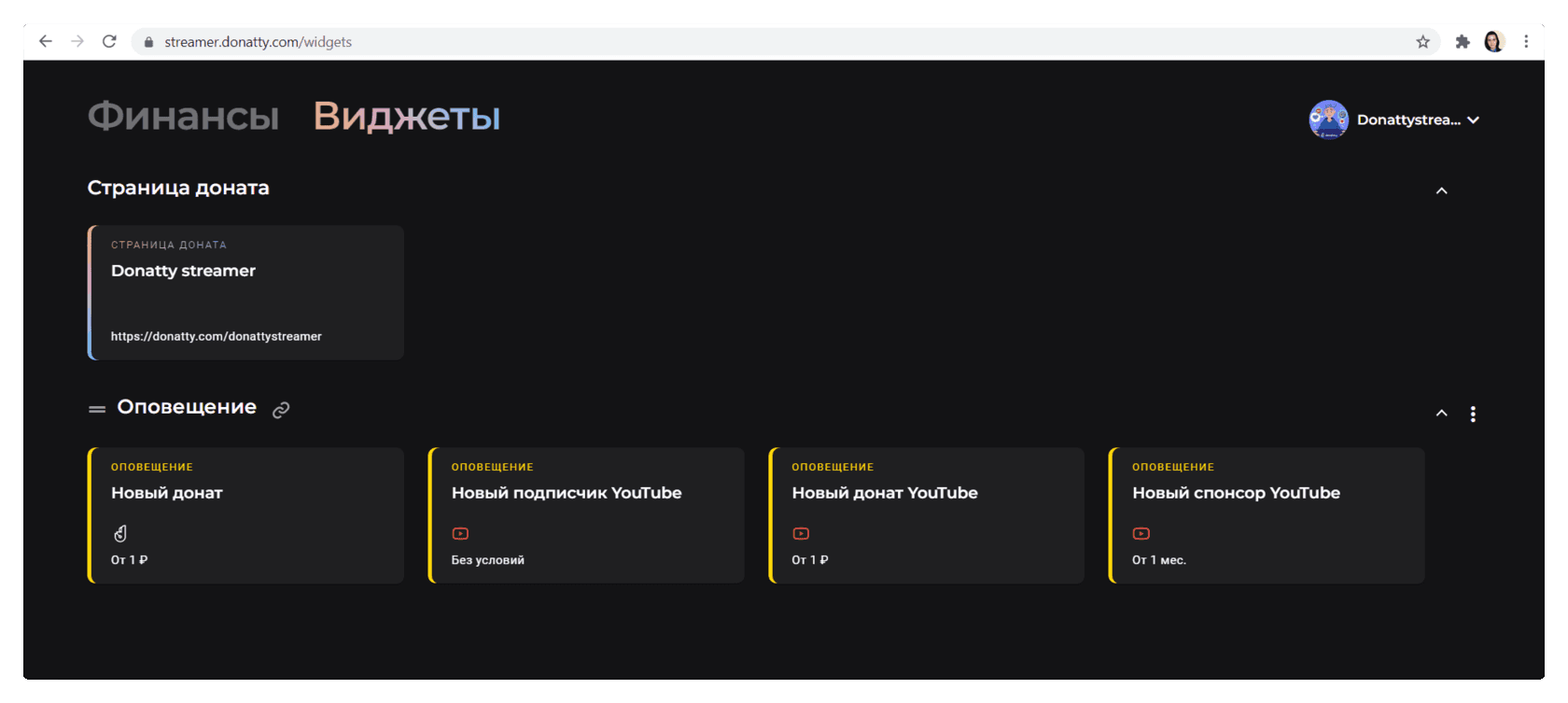
You can use these widgets or edit them however you like. If you signed in to Donatty through Twitch, Facebook or VK, the default YouTube widgets will not be there. They are created once you connect YouTube as a data source. There are two ways to do that:
in your Donatty user profile;
while configuring an alert widget.
Connecting YouTube in your Donatty user settings
Click the icon with your nickname and avatar in the top right corner of the streamer dashboard, then choose Settings from the list that opens. On the settings screen, click +Link a new account.
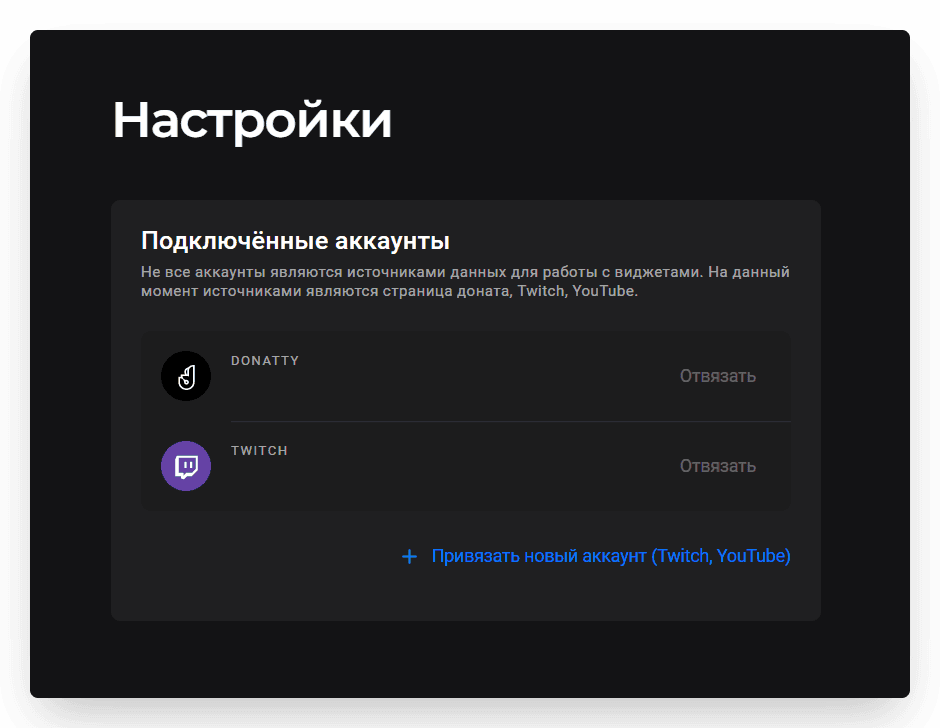
Choose YouTube and sign in to your Google account in the window that opens.
Connecting YouTube in the Alert widget settings
YouTube can also be connected right while you are configuring an Alert widget. To do that, click +Connect a new source in the Data sources block. From there it is the same as the first method — choose YouTube and sign in to your Google account in the window that opens.
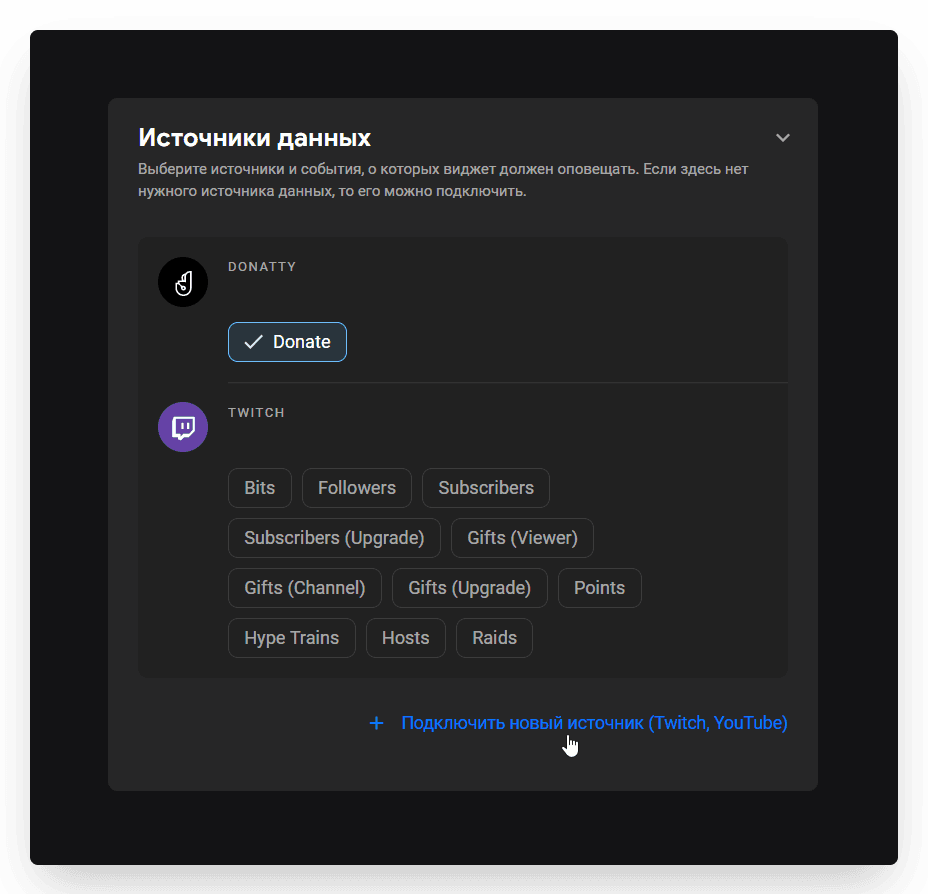
After that you will find the default widgets for YouTube event alerts already created on the Widgets tab.
Creating your own YouTube alert widgets
If the default widget settings do not suit you, you can create your own. Click the +Create button in the bottom right corner of the dashboard and choose the Alert widget type. When configuring the widget, remember to choose the data source type.
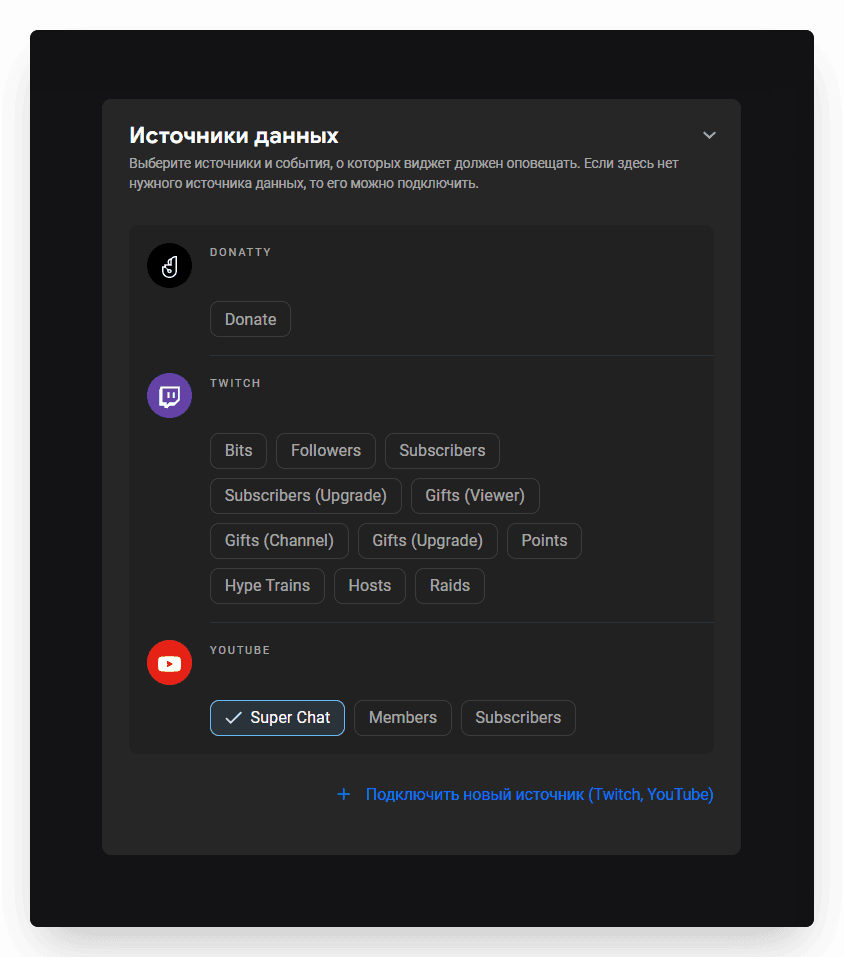
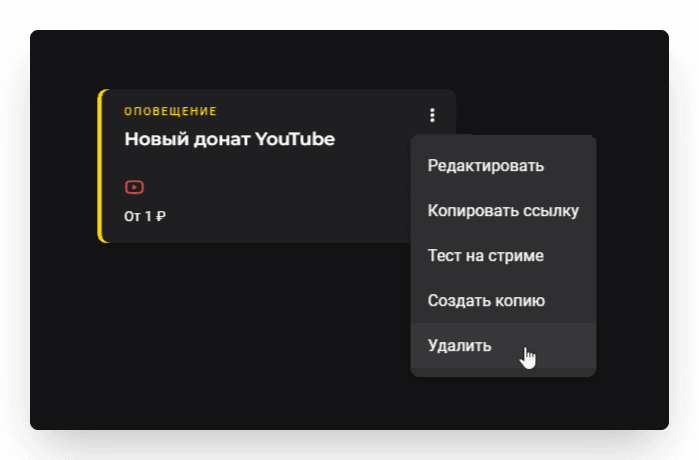
The default widgets are easy to delete in that case — just click the three dots in the widget's top right corner.
Adding YouTube event alerts to your stream
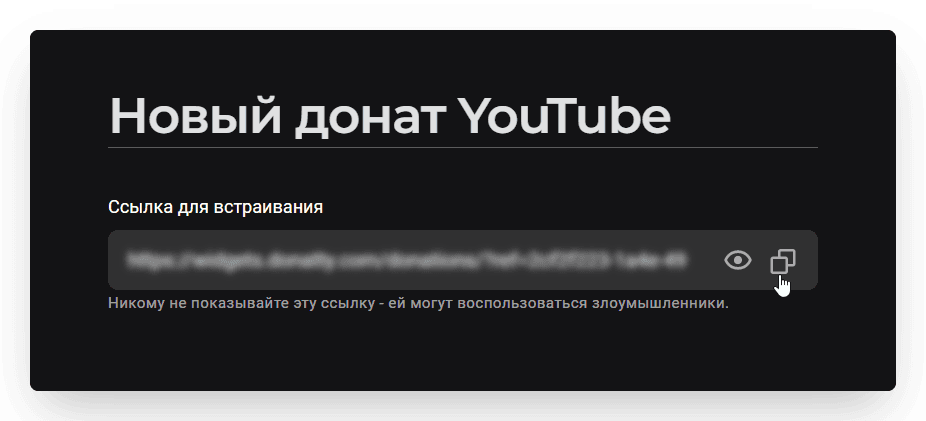
The process is the same as adding any other widget to your stream. Copy the widget link, which you will find at the top of the widget settings screen. To copy it, just click the button to the right of the link field.
Then go to OBS, click Add in the Sources panel, choose Browser and enter a name for the source, for example “New donation”. In the dialog that appears, paste the link you copied earlier into the URL field and click OK.
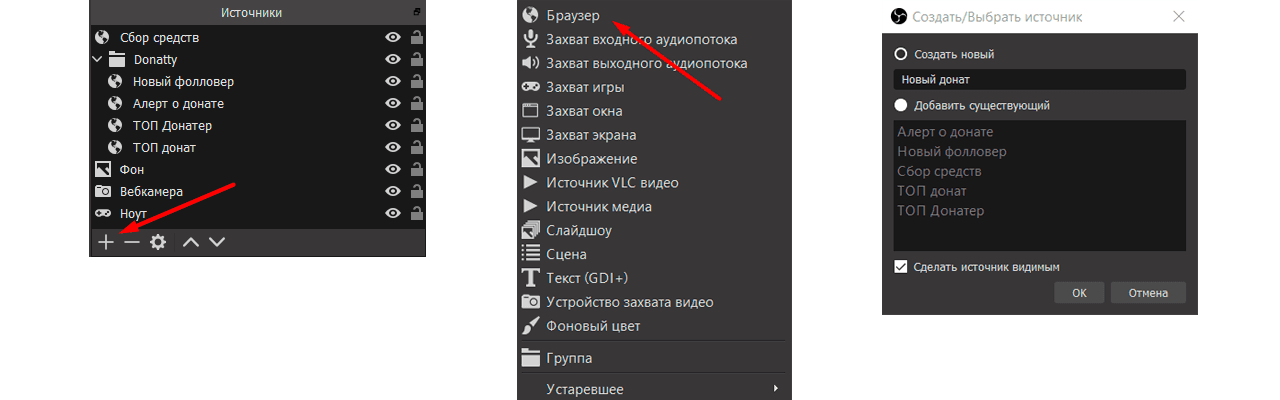
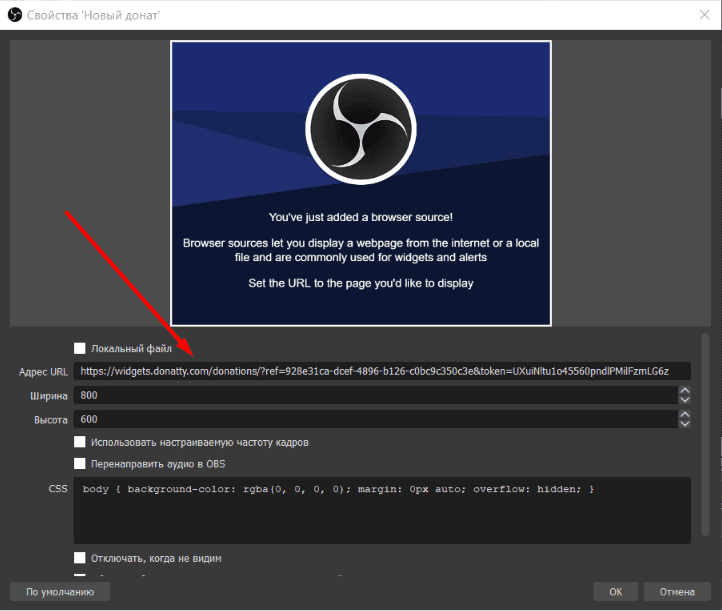
That completes adding the widget.
Checking that YouTube event alerts work on stream
There are several ways to test the alert:
Send a test to your stream from the dedicated block on the Finance page
Click the Test on stream button in the widget settings
Click Test on stream in the context menu of the widget card in the Widgets section
A new subscriber did not show up on stream
Donatty can only show subscriptions on stream that you can see in your own YouTube channel notifications (the bell). For subscriptions to show up, the viewer must have made their subscriptions public. By default, every YouTube user's privacy settings hide their subscription information. If your viewer has not turned that setting off and subscribes during your stream, the new subscriber alert will not fire. This is a YouTube platform limitation that Donatty cannot do anything about.
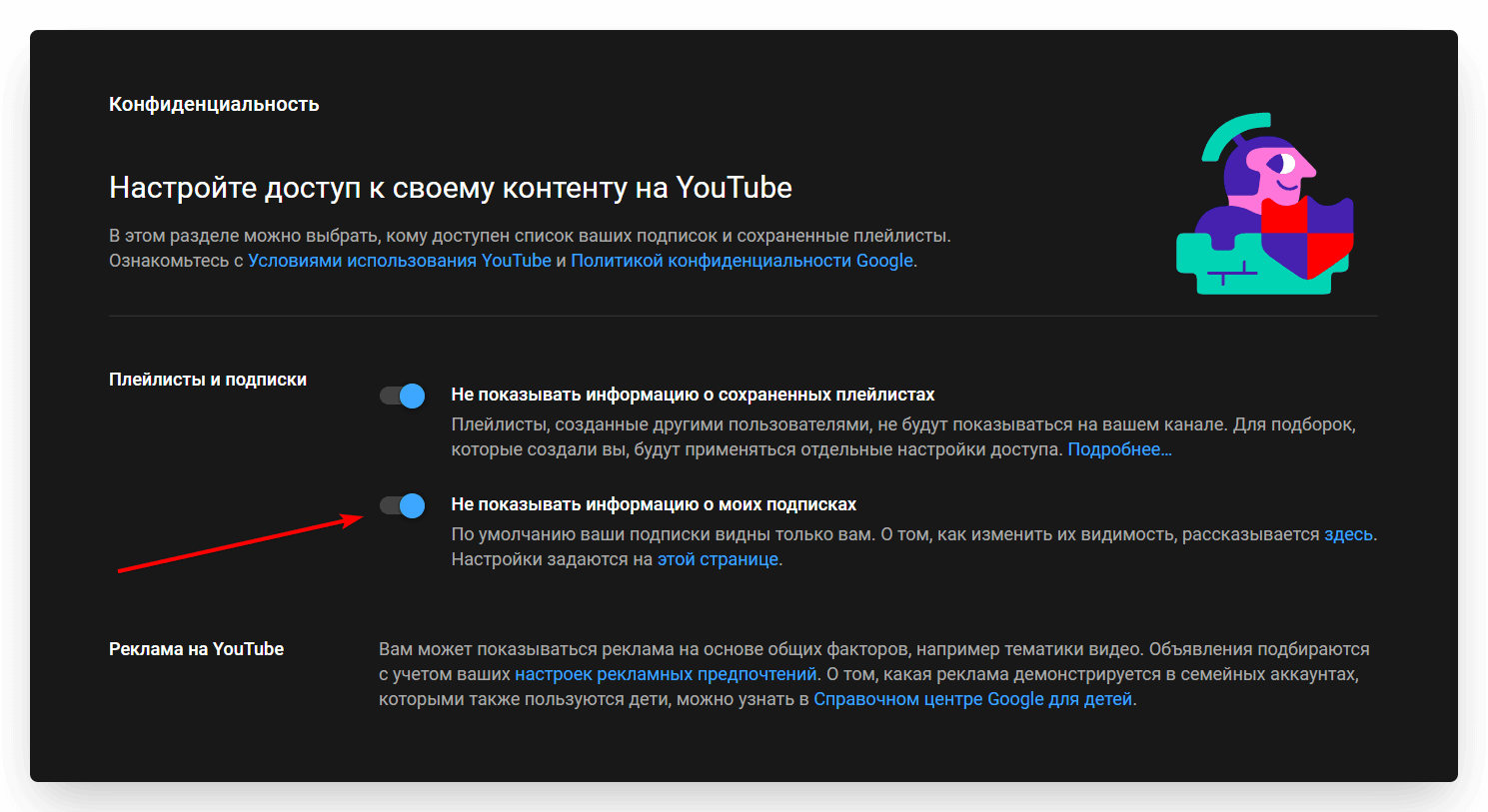
YouTube event notifications are not always reliable, so our service may not receive the data it needs to send an alert to your stream. Users of other donation platforms sometimes run into the same problem, unfortunately. We hope YouTube's developers will fix the notification issues soon.
Setting up a donation alert on stream: amount conditions, custom text and GIFs, adding it to OBS
Setting up donation alerts with amount conditions