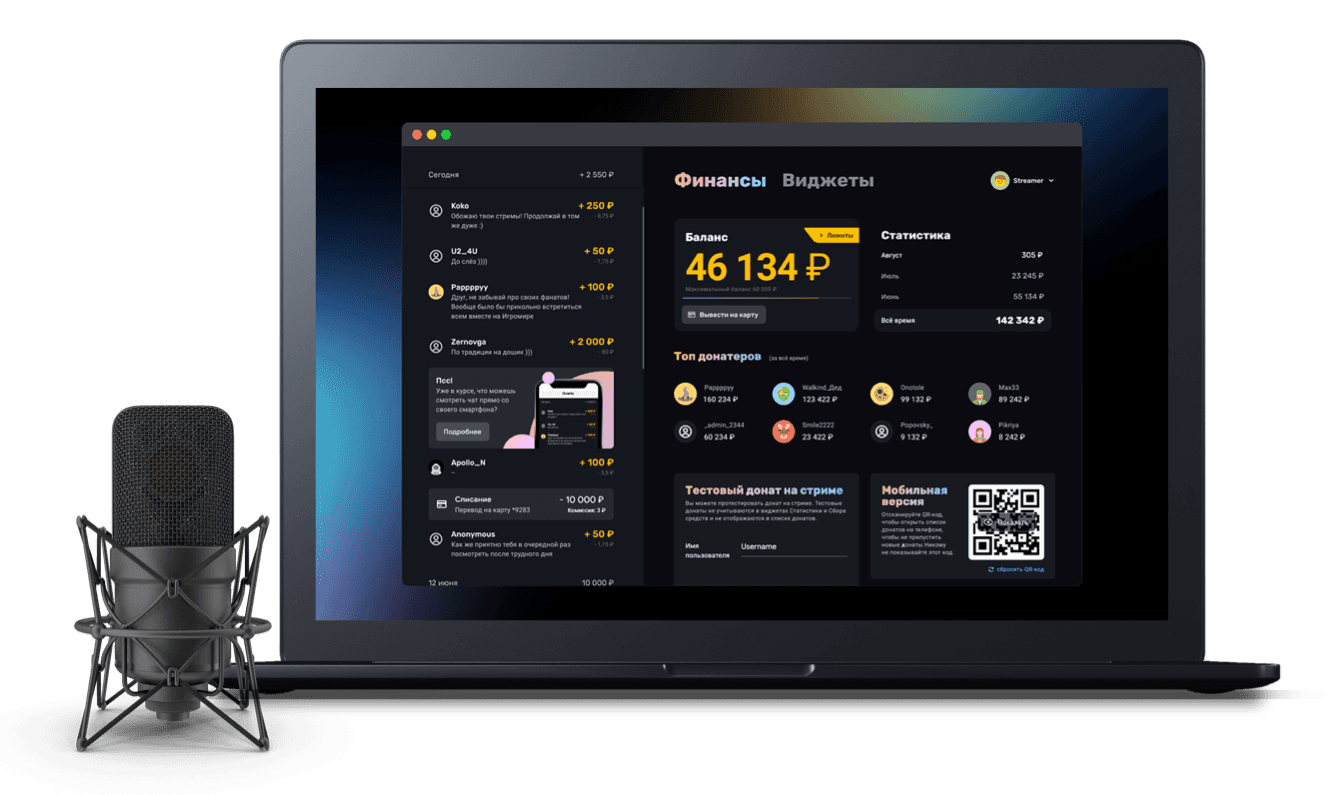
How to brand your Twitch channel with panels
Using ready-made Donatty panels to brand your Twitch channel
Making a Twitch channel look good matters to every streamer — it shapes the first impression viewers get. The channel description is a streamer's calling card. Streamers often use bright, eye-catching images to dress it up. Some hire a designer to make them; others do it themselves. We have put together several sets of Twitch panels so you do not have to spend time designing your own.
Choosing a set of Twitch panels
On the Twitch panels and stream frames page we have posted several panel sets for dressing up your Twitch channel description. Download the archive with the set that suits your channel's theme. Each set contains 6 Twitch panels and a Photoshop file for making your own buttons. Pick any of the banner options and edit it however you like. Or use it as it is.
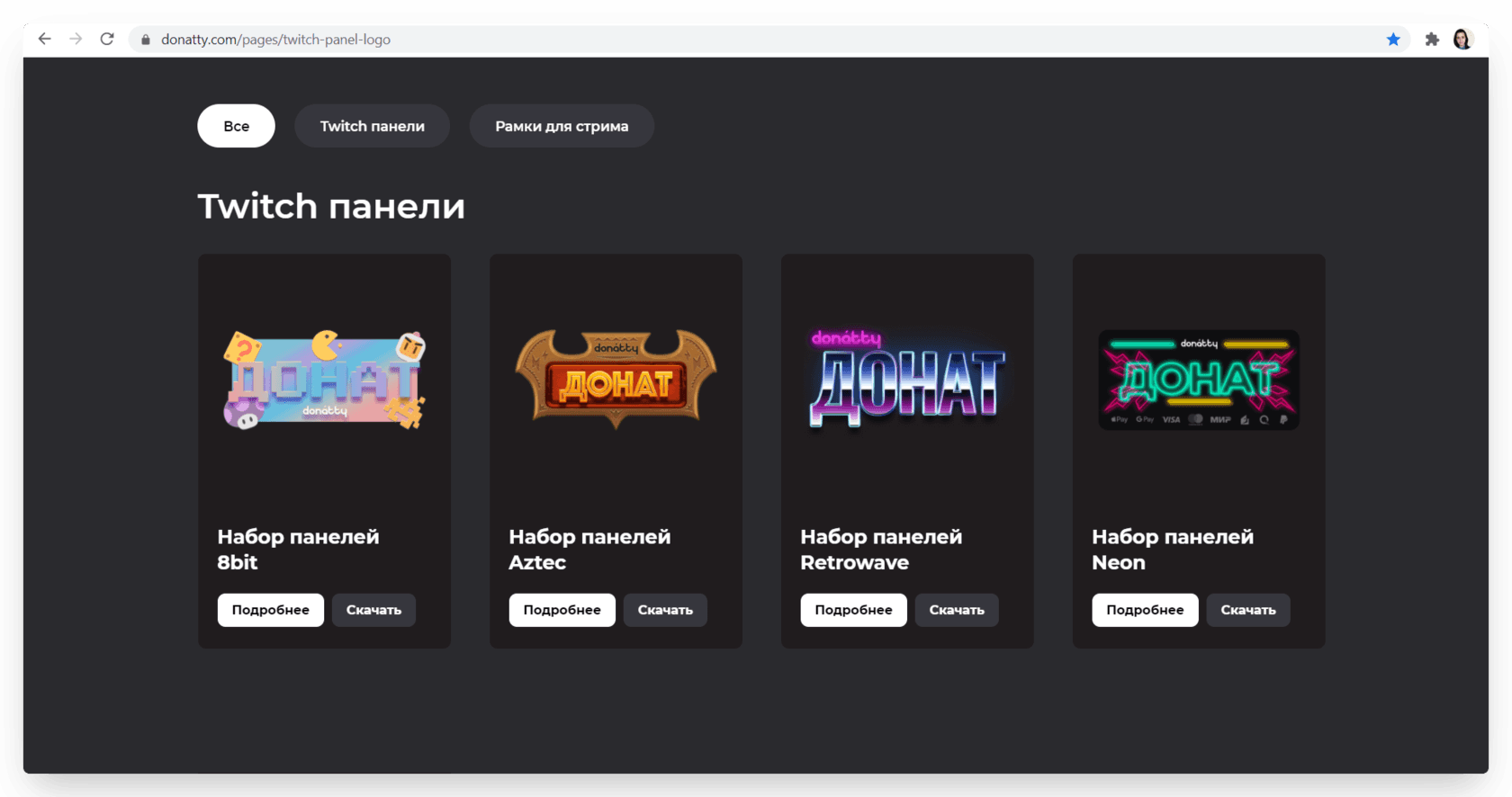
If none of our ready-made options appeals and you want to create your own unique Twitch panel using our logo, you can download an archive of Donatty logos on the Branding and logos page.
Dressing up the channel description
Once we have settled on a panel set, open Twitch. Click your avatar in the top right corner and choose Channel from the list that appears. Your channel page opens. Go to the About tab and switch Edit panels on.
Adding the Donate panel
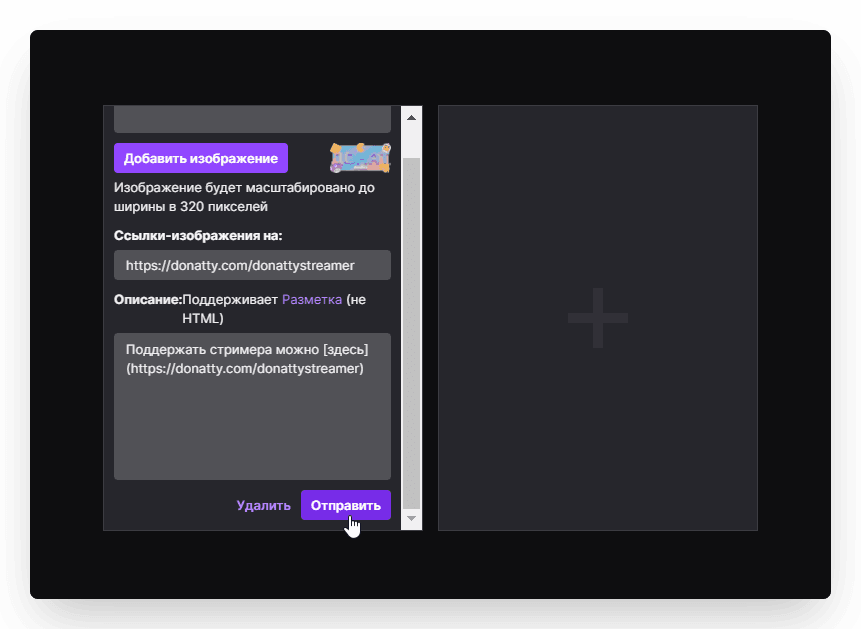
So that viewers can open your donation page and send you their contribution, you need to add a donation link to your channel description. Let's add a panel for it. Click +, then Add a text or image panel. Upload the Donate image. If you want clicking the image to take viewers to your donation page, paste the link to your donation page into the Image links to field. You can find the donation link by going to your Donatty dashboard, opening the Widgets tab and clicking the donation page card. You can also put the link in the description under the panel — just paste it into the Description field. That field supports Markdown. A link is written with square and round brackets: the square brackets hold the label and the round brackets the link itself.
[link_label](the_link)
Click Submit.
Adding the Schedule panel
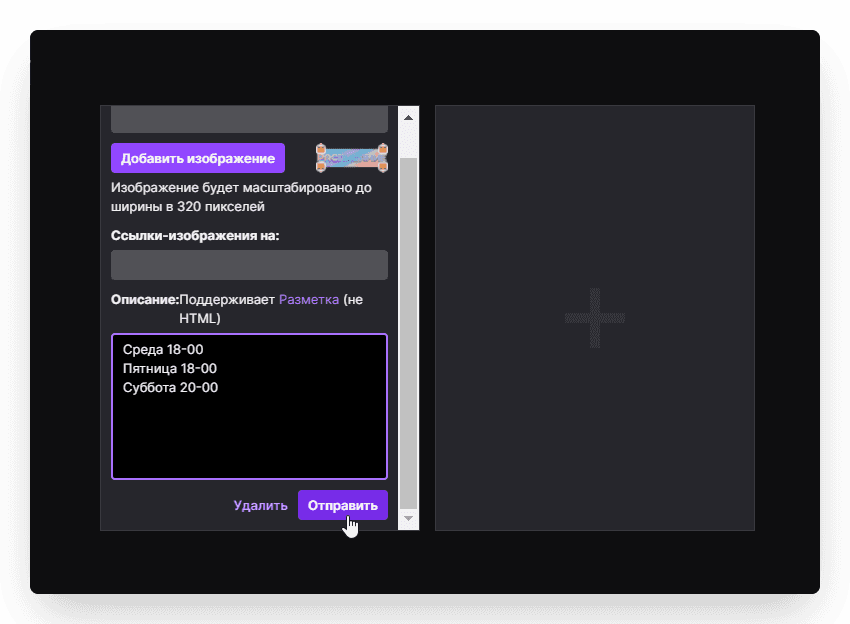
Streamers often list the days and times they usually go live in their channel description, so their viewers do not miss the next interesting broadcast. Let's add a separate panel for that. Click +, then Add a text or image panel. Upload the Schedule image. In the Description field, write when you plan to stream. Click Submit. If your schedule changes later, remember to update the information here.
Adding the About me panel
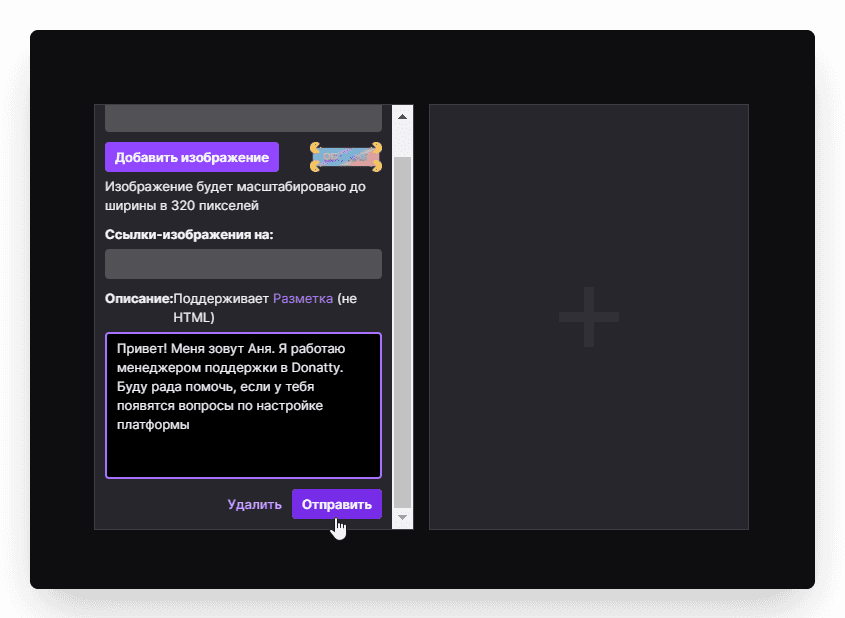
Your name, your age, the games you like to play and what you do. You can put all of that under the About me banner. To add a new panel, click + again, then Add a text or image panel. Upload the About me image. In the Description field, write whatever you would like to share about yourself with your audience, then click Submit.
Adding the Rules panel
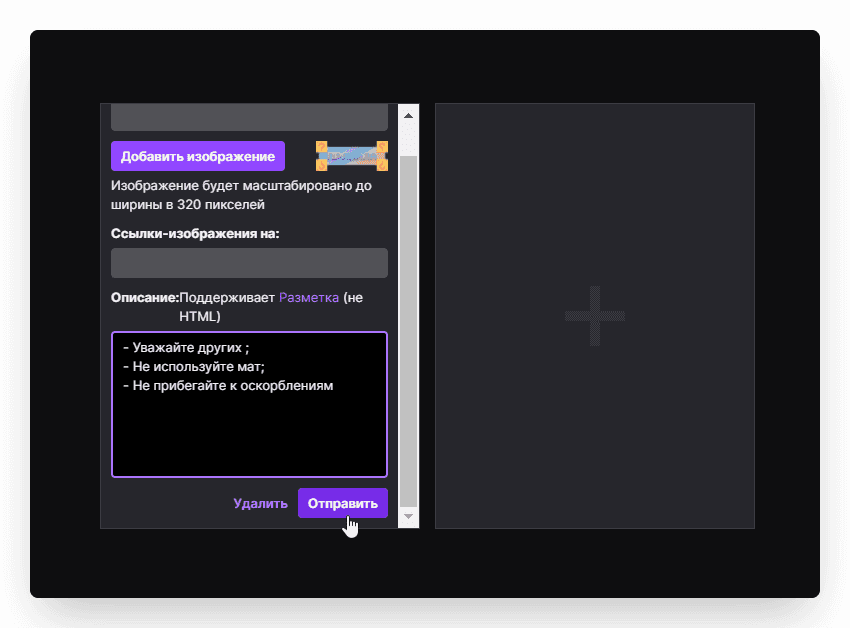
To keep negativity and profanity out of your chat and make viewers feel comfortable, you can set out your chat rules in your channel description. Following those rules helps avoid possible bans and restrictions. Let's add a separate panel for it. Click +, then Add a text or image panel. Upload the Rules image. Write the rules themselves in the Description field. Click Submit.
Adding the Links panel
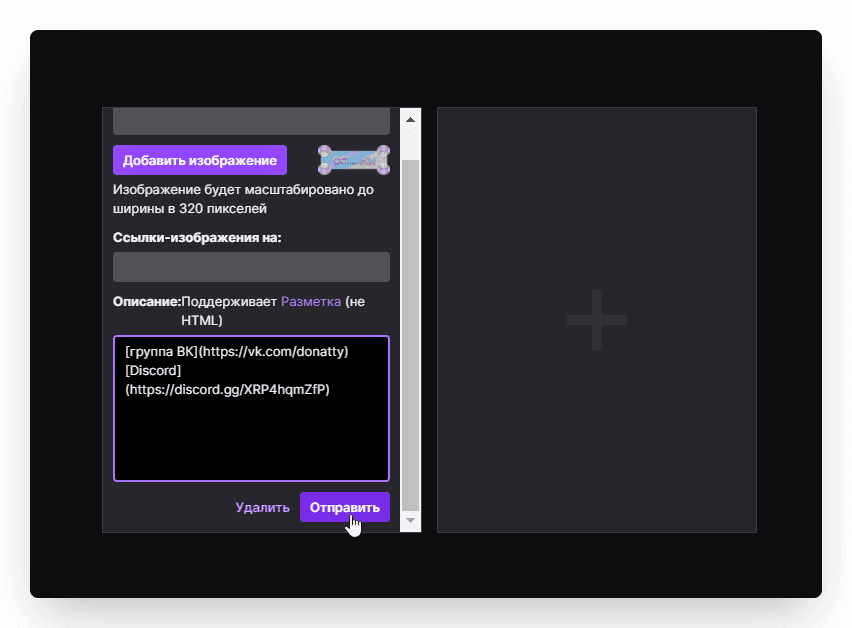
Social media helps streamers stay in touch with their viewers. Streamers use it to share news and schedule changes and to post new photos. So that your viewers can follow your VKontakte group or join your Discord server, click +, then Add a text or image panel, and upload the Links image. Put the links to your social accounts in the Description field and click Submit.
Adding the Subscribe panel
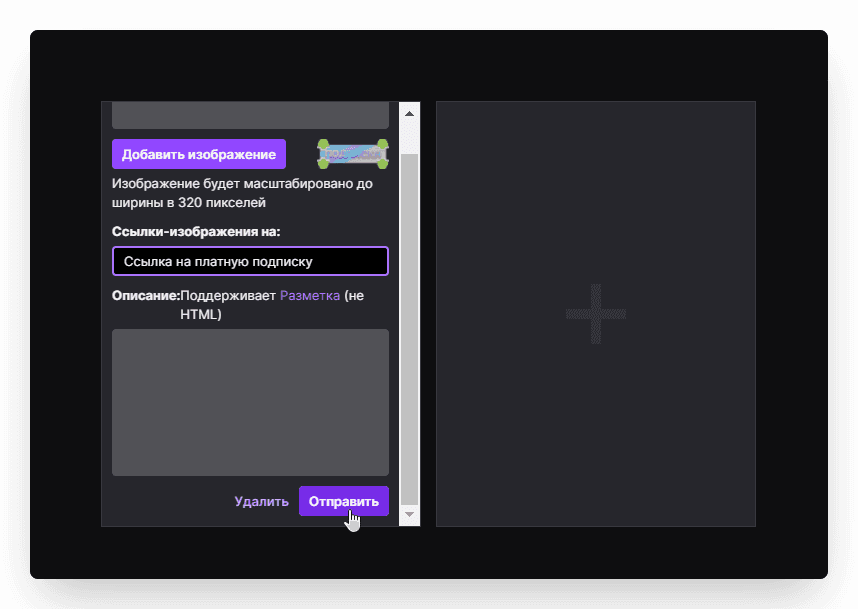
If your channel is a Twitch affiliate or partner, your viewers can support you through paid subscriptions. The Subscribe panel lets you put a subscription link right in your channel description. It is added the same way as the donation page link. Click +, then Add a text or image panel. Upload the Subscribe image. Put the paid subscription link in the Image links to field. Click Submit.
That completes dressing up your channel with Donatty panels.
Use our ready-made panels, create your own with our logo, make your channels more appealing to viewers, and earn more with Donatty!
Setting up your streamer page in Donatty: avatar, cover, URL and more
Setting up your streamer page in Donatty: writing the text of the welcome block