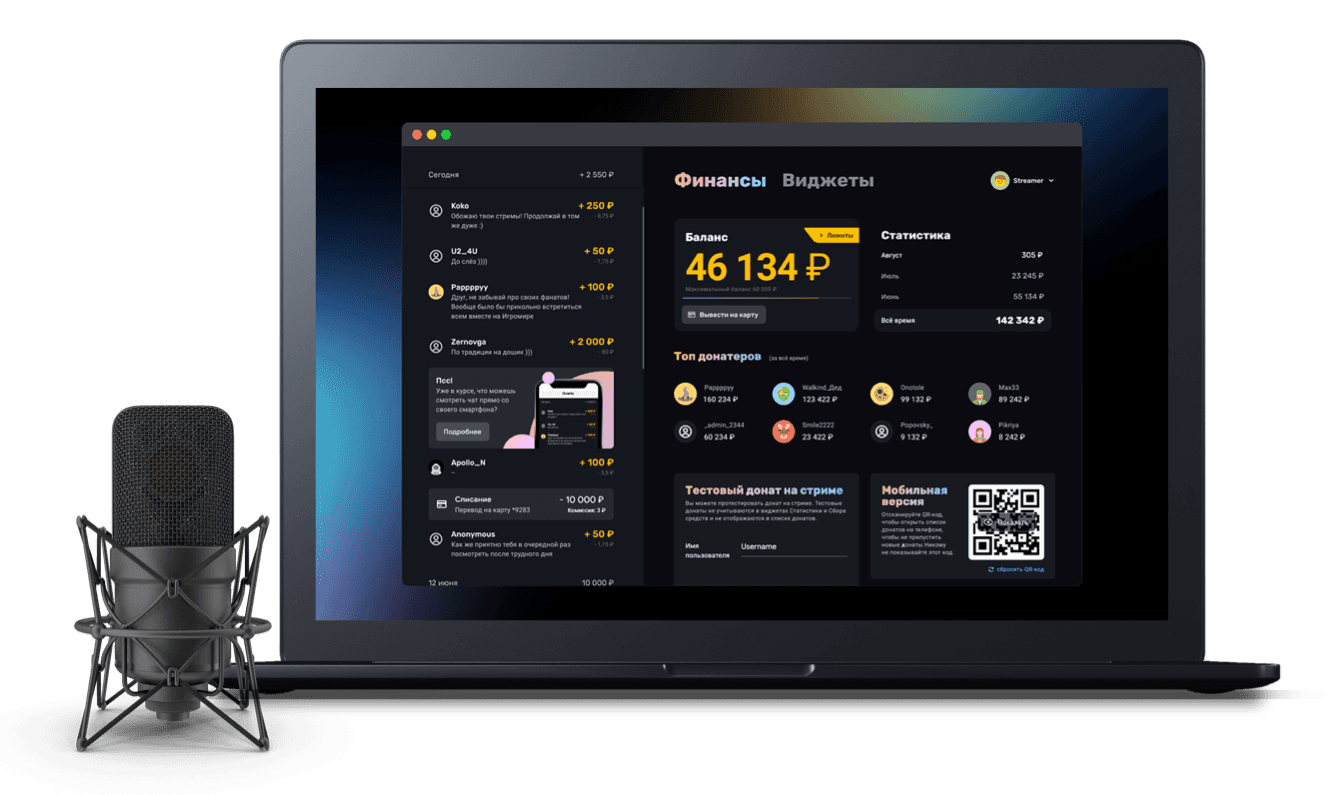
How to add a donation page link to your VK Video Live channel description
Using ready-made Donatty panels to brand your channel on any platform
So that viewers can open your donation page and send you their contribution, you need to add a donation link to your VK channel description. Streamers often use bright, eye-catching images (panels) to present the link.
Choosing a panel
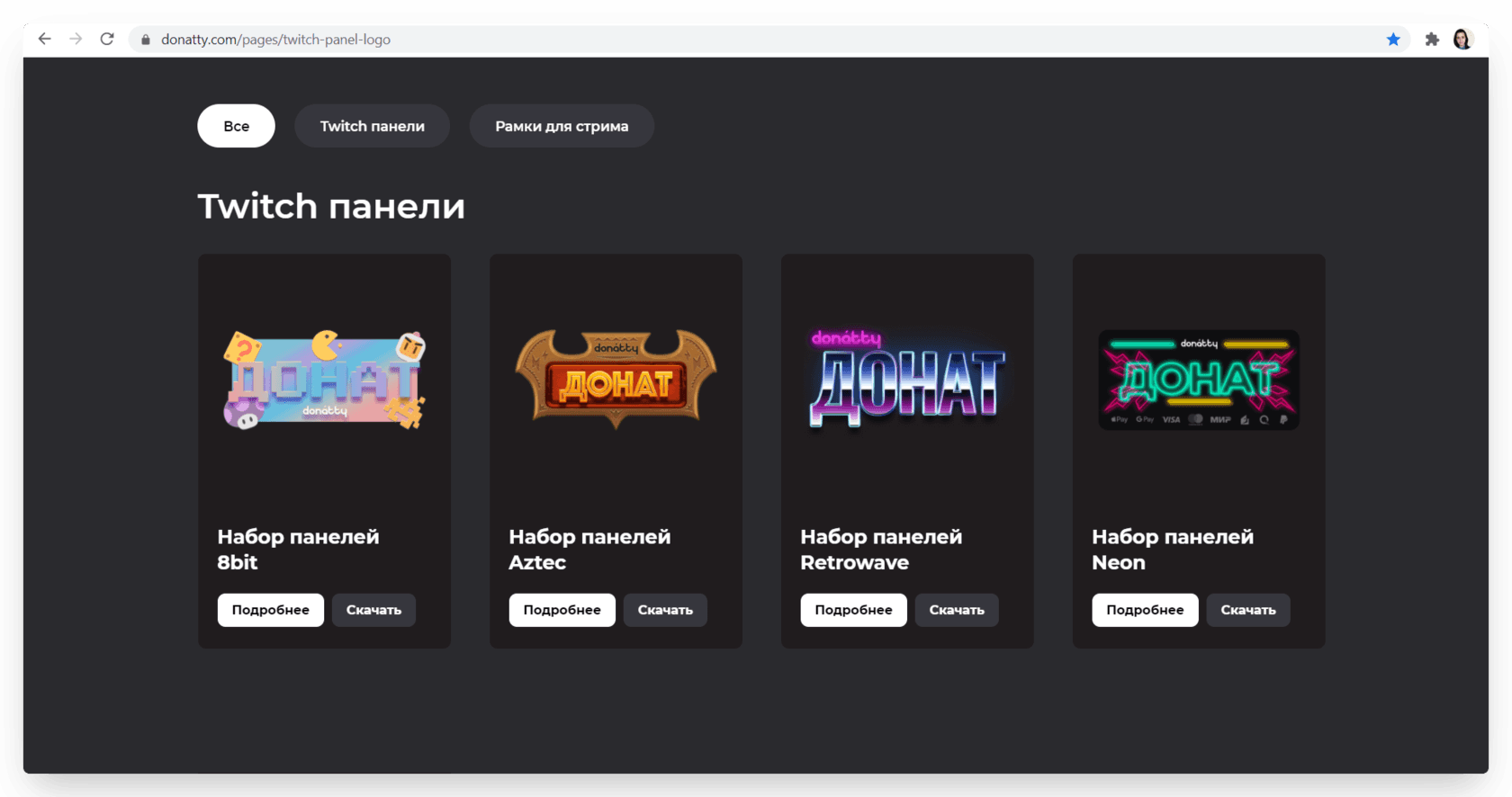
We have made ready-to-use panels so you do not have to spend time designing your own, and put them on a page on our site. Pick any of the banner options and edit it however you like. Or use it as it is. Download the image you like as *.png, or as *.psd if you plan to adapt it to your channel's brand style in Adobe Photoshop.
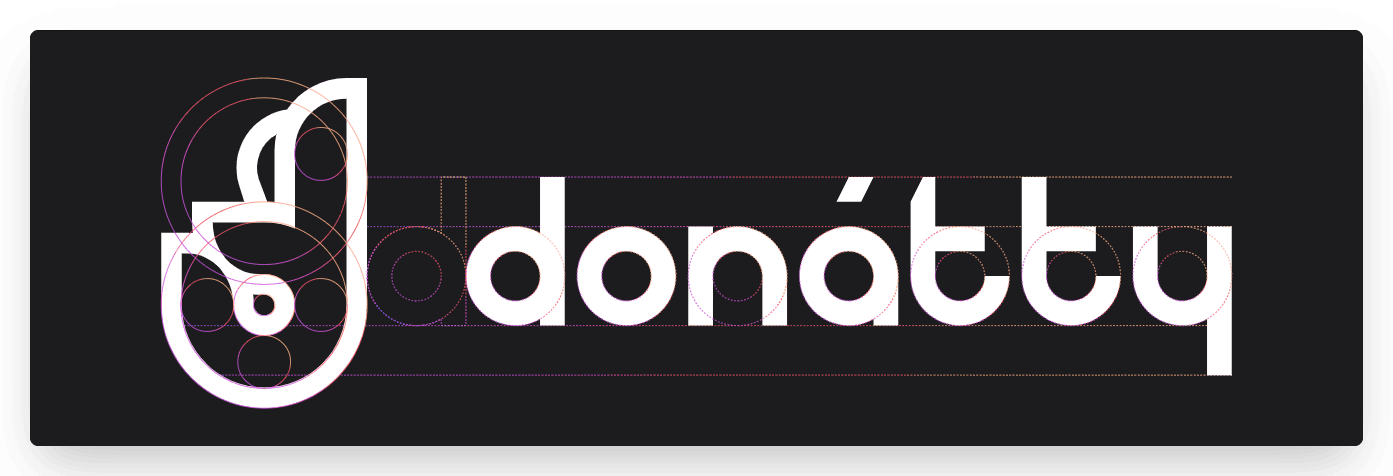
If none of our ready-made options appeals and you want to create your own unique panel for any platform using our logo, you can download an archive of Donatty logos on the Branding and logos page. That archive holds all our logos in vector and raster formats (*.png and *.svg). We have also documented the rules for constructing our logo, so that using it keeps our brand style intact.
Editing the channel description
Once we have settled on a panel image, open VK Video Live. Click your avatar in the top right corner and choose My channel from the list that appears. Your stream channel page opens. Scroll down to the Description tab and click the Add block button. A block editing window like this opens:
Add the image you downloaded from the Donatty site.
Adding the donation page link
First we need to copy the link. Go to the streamer dashboard, open the Widgets tab and click the donation page card.
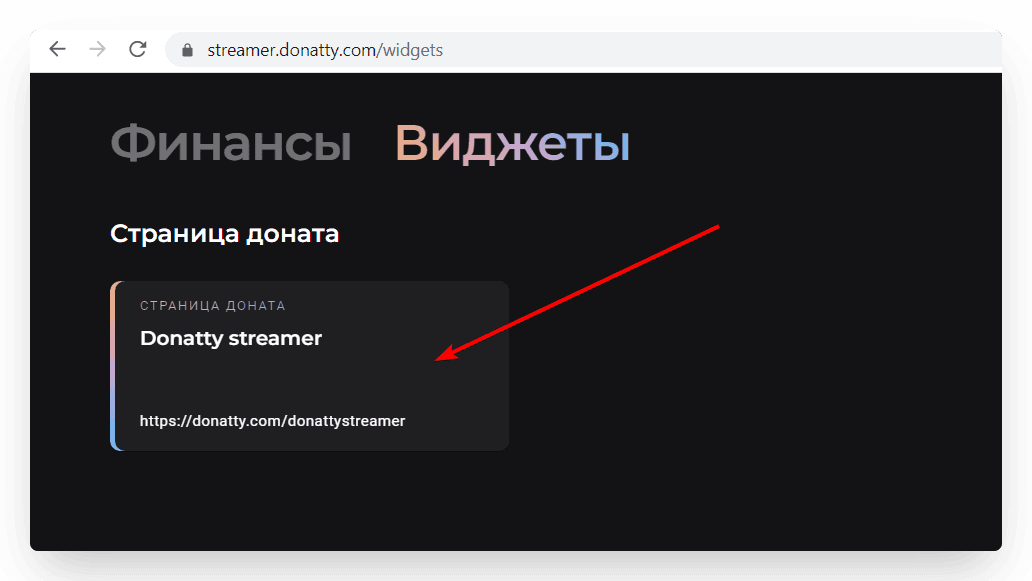
In the window that opens, copy the link to your donation page.
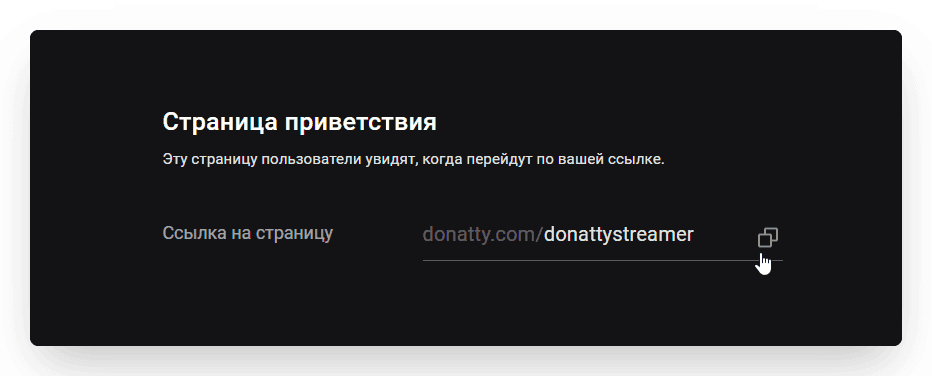
We hope that by the time you add the link to your channel description you have already read our guide on setting up the donation page and personalised it. Paste the copied link into the Add link to image field and click Save.
That completes the setup!
Setting up your streamer page in Donatty: avatar, cover, URL and more
Setting up your streamer page in Donatty: writing the text of the welcome block